


For modern agencies, a high-quality, consistent reporting system is essential for maintaining client trust and building long-term loyalty. A clear, informative report allows you to monitor sales trends, demonstrate campaign effectiveness, calculate return on investment (ROI), and much more.
However, for an agency managing dozens or even hundreds of sites, generating these periodic reports can become a major bottleneck, compromising the scalability of your operations.
That is why optimizing and automating data retrieval is crucial. It restores efficiency and frees up your team to focus on high-value activities—like developing new projects.
In this article, you will learn how to leverage the Kinsta API to automatically fetch your hosting data and generate strategic reports with the power of AI.
Are you ready to scale your reporting system? Read on.
Accessing Kinsta Analytics via MyKinsta and Kinsta API
Kinsta customers have access to a wealth of data through the MyKinsta hosting dashboard. You can access your plan data in the Analytics section of your dashboard.
The Analytics page is divided into several tabs, each focusing on a specific aspect of your site’s activity:
- Plan usage: Displays your plan’s resource consumption, both cumulatively and broken down by individual site.
- Top requests: Allows you to identify the primary requests to your site, categorized by bandwidth and views.
- Cache: Provides a breakdown of cache usage, including Cache breakdown, Server cache components, and Server cache bypasses.
- CDN & edge: Offers data on CDN bandwidth consumption, Edge cache bandwidth, and lists of the top files served from the CDN cache.
- Dispersion: Shows the percentage of visits from desktop, tablet, and mobile.
- Performance: Includes various performance metrics such as Average PHP + MySQL response time, PHP throughput, PHP thread limit, and more.
- Response: Provides statistics on response codes, including a detailed breakdown of error codes.
- Geo & IP: Displays lists of the Top Countries, Top Cities, and Top Client IPs from which requests to your site originate.
You can access these same analytics at the site level by navigating to Sites > sitename > Analytics.
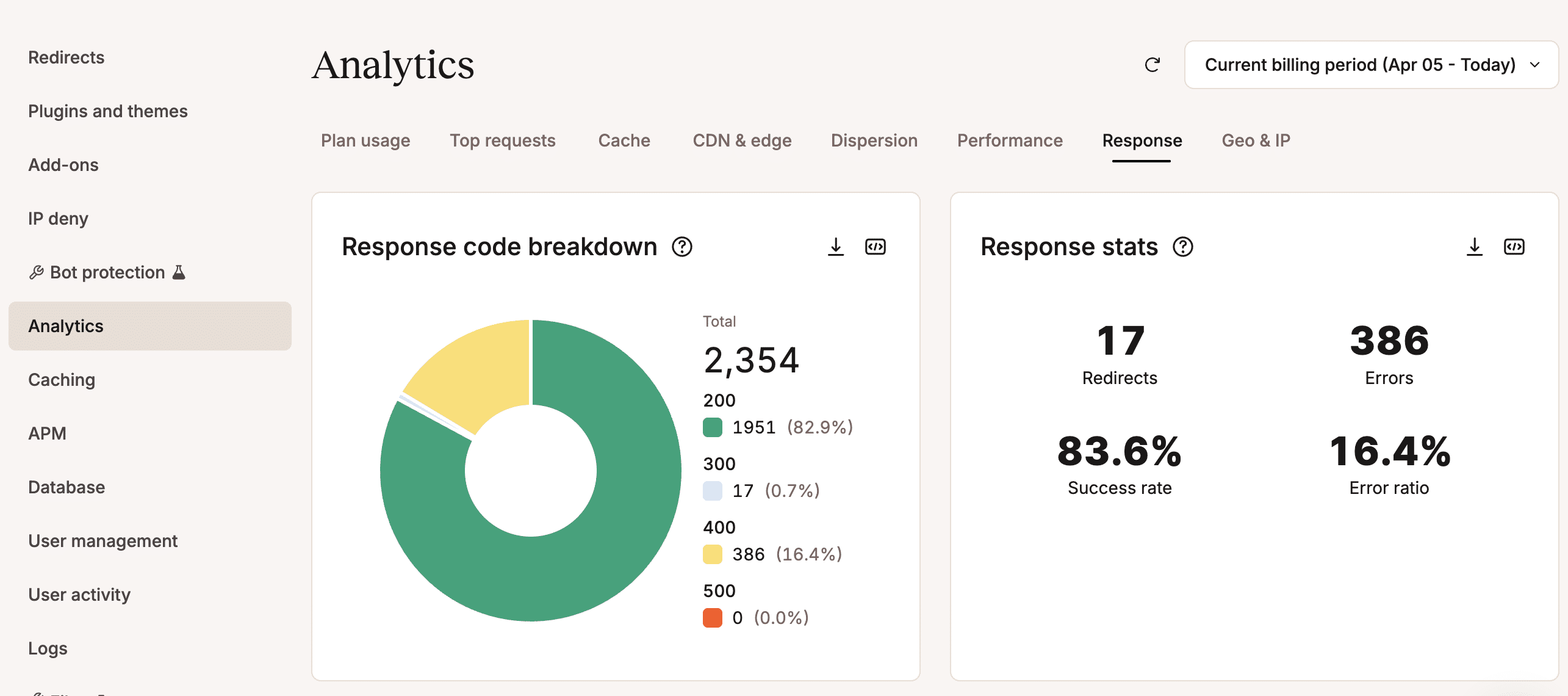
Kinsta Analytics provides a staggering dataset; simply navigating your MyKinsta dashboard gives you a very clear picture of your site’s resource consumption, efficiency, and performance. You will know exactly where most requests come from and which ones consume the most resources.
Combined with our Kinsta APM tool, Kinsta Analytics enables you to optimize the performance of your WordPress sites.
What not everyone knows is that Kinsta Analytics data is also accessible via the Kinsta API. This allows you to programmatically retrieve data and build hosting metrics, which you can then use to generate automated reports to share with your clients.
Let’s explore the Kinsta API endpoints.
The Analytics endpoint of the Kinsta API
With the Analytics endpoint of the Kinsta API, you can access raw data on your website’s resource usage and health.
- Visits usage, server bandwidth usage, and CDN bandwidth usage: These metrics track your resource usage relative to your hosting plan during the current billing period.
- Visits: Provides the total number of visits to a given environment within a specified time period.
- Disk space: Provides the total disk space used by a given environment over a specified time period.
- Server bandwidth: Provides the bandwidth consumed by a given environment over a specified time period.
- CDN bandwidth: Provides the CDN bandwidth consumed by a given environment over a specified time period.
- Top Countries: Provides a list of the main countries from which requests to the site originate within a specified time period.
- Top Cities: Provides a list of the main cities from which requests to the site originated during a specified time period.
- Top Client IPs: Provides a list of the main client IP addresses from which requests to the site originated during a specified time period.
- Visit Dispersion: It provides data on the distribution of visits across desktop, tablet, and mobile devices over a specified time period.
- Response Code Breakdown: Provides a breakdown of the HTTP status codes returned by the server within a specified time period.
Below are some examples of how to use the analytics endpoint.
Visits
The following request provides the total number of visits to your site and the number of unique IP addresses that have accessed it in the last 30 days:
https://api.kinsta.com/v2/sites/environments/{KINSTA_ENV_ID}/analytics/visits?time_span=30_days&company_id={KINSTA_COMPANY_ID}The response will be structured as follows:
{
	"analytics": {
		"analytics_response": {
			"key": "uniqueip",
			"data": [
				{
					"name": "uniqueip",
					"total": 1000,
					"dataset": [
						{
							"key": "2025-10-28T00:00:00.000Z",
							"value": "1000"
						},
						{
							"key": "2025-10-28T00:00:00.000Z",
							"value": "900"
						},
						{
							"key": "2025-10-28T00:00:00.000Z",
							"value": "820"
						},
						...
					]
				}
			]
		}
	}
}
Bandwidth
The following example shows how to query the Kinsta API to retrieve the server’s bandwidth usage over the past 30 days:
https://api.kinsta.com/v2/sites/environments/{KINSTA_ENV_ID}/analytics/bandwidth?time_span=30_days&company_id={KINSTA_COMPANY_ID}The response from the Kinsta server provides the daily bandwidth usage for the past 30 days:
{
	"analytics": {
		"analytics_response": {
			"key": "bandwidth",
			"data": [
				{
					"name": "bandwidth",
					"total": 1000,
					"dataset": [
						{
							"key": "2026-03-11T00:00:00.000Z",
							"value": "37347250"
						},
						{
							"key": "2026-03-12T00:00:00.000Z",
							"value": "9276458"
						},
						...
					]
				}
			]
		}
	}
}
CDN bandwidth
In this other example, we query the Kinsta API to find out the CDN bandwidth usage for the past 7 days:
https://api.kinsta.com/v2/sites/environments/{KINSTA_ENV_ID}/analytics/cdn-bandwidth?time_span=7_days&company_id={KINSTA_COMPANY_ID}The server will provide the following data:
{
	"analytics": {
		"analytics_response": {
			"key": "cdn-bandwidth",
			"data": [
				{
					"name": "cdn-bandwidth",
					"total": 1000,
					"dataset": [
						{
							"key": "2026-04-02T00:00:00.000Z",
							"value": "753447"
						},
						{
							"key": "2026-04-03T00:00:00.000Z",
							"value": "16911"
						},
						...
					]
				}
			]
		}
	}
}
You can try it yourself by entering your Kinsta API key (bearer token), environment ID, and company ID in the API playground.
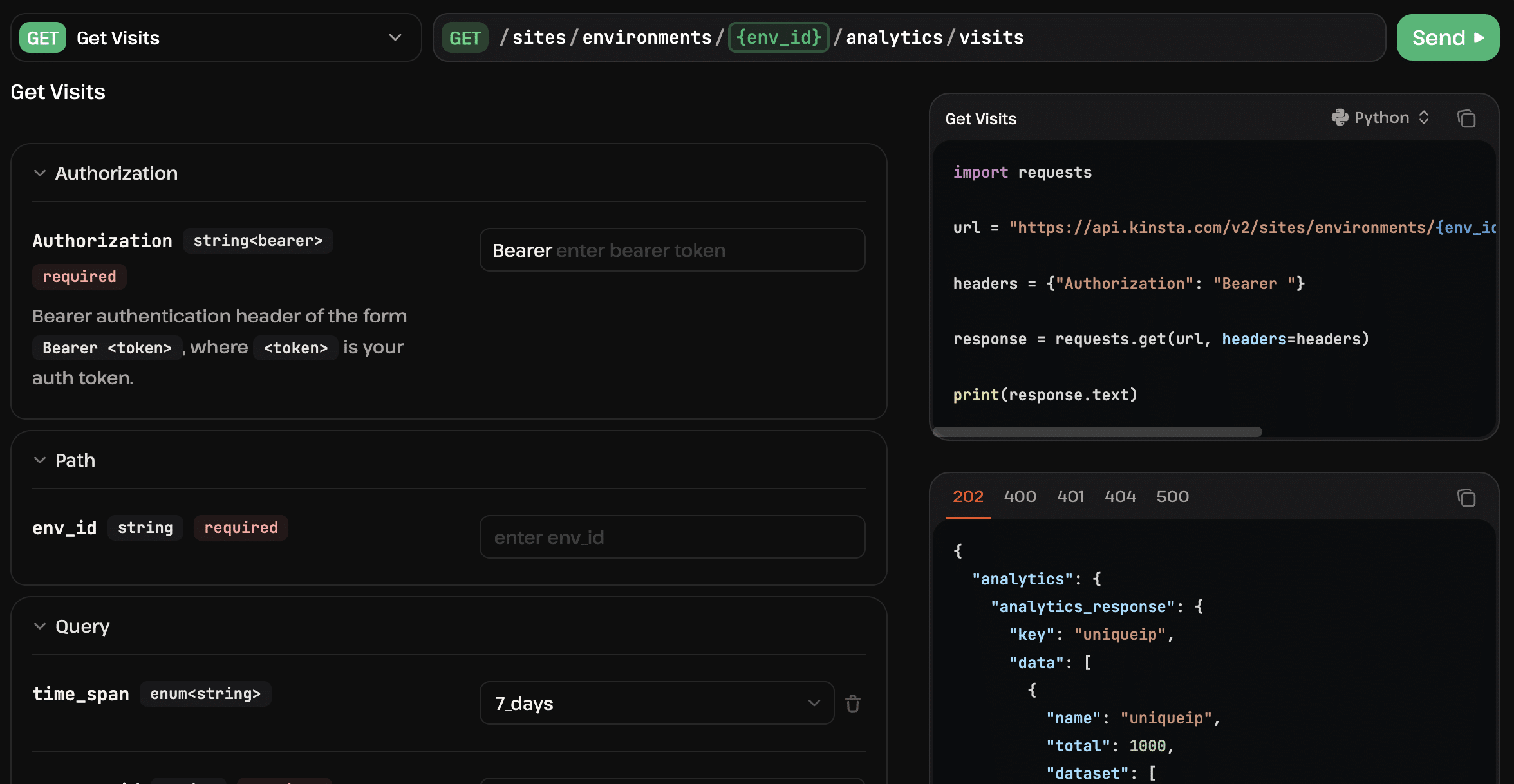
Now that you know how to access your site’s analytics data on Kinsta, you can use it to automate your operations. This also includes automating the reporting system.
The following sections will show you how to automate your agency’s reporting system using the Kinsta API. We will build a Python script and leverage GitHub Actions to automate the build and run. This will transform the raw data returned by the API into tables and charts, and query Google AI to generate a final report.
It’s time to get your hands dirty.
Build an automated reporting system using the Kinsta API and Google AI
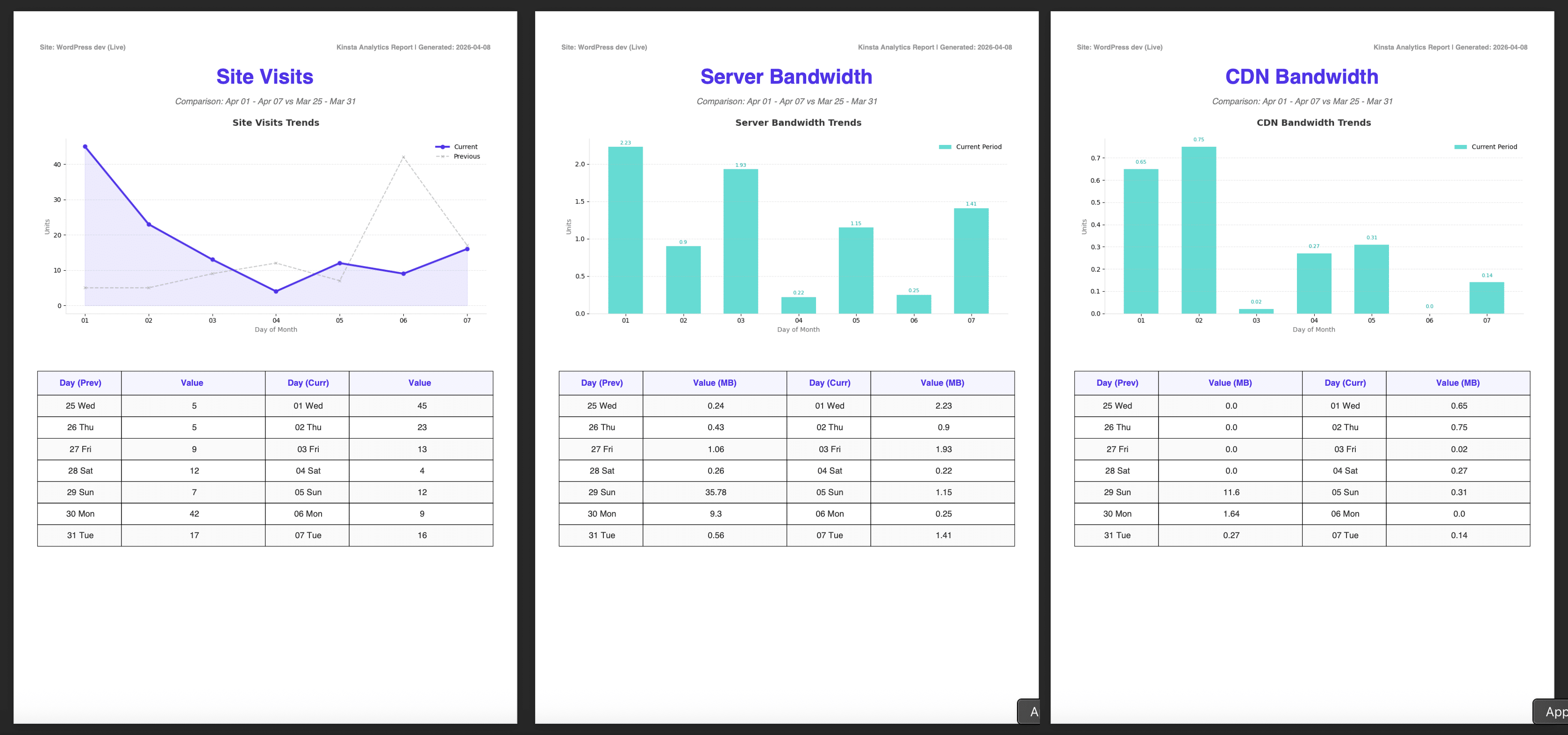
Our goal is to create an automated report that is generated at specific intervals. The system will query the Kinsta API to retrieve data on visits, server bandwidth, and CDN bandwidth. This data will then be used to create charts and tables in a PDF file. As part of this process, the data will be sent to the Gemini API to produce an analysis of the extracted data, which will then be included in the report.
Setting up the project on GitHub
On the GitHub homepage, click the green New button to create a new project. Once you have an empty project, go to Settings > Secrets and variables > Actions and add the secrets shown in the following image.
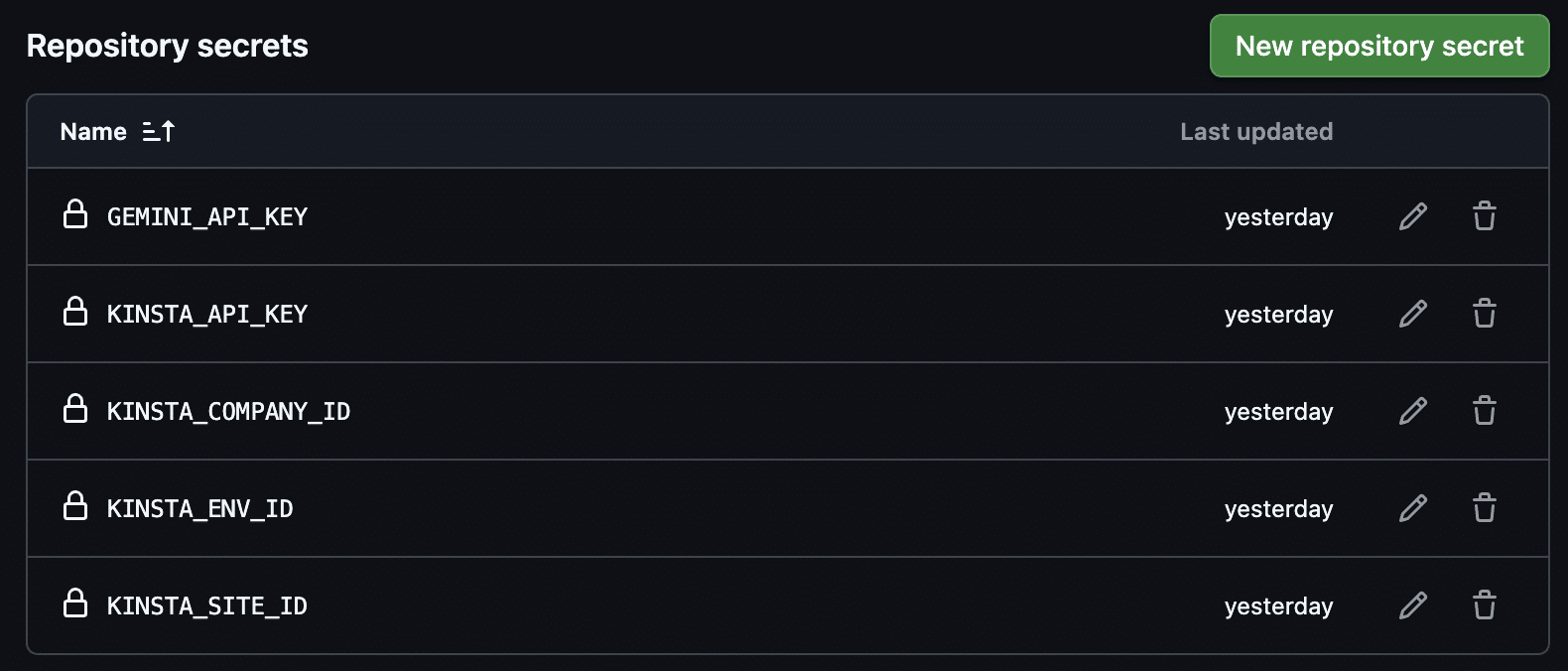
Storing your API keys and IDs in GitHub Secrets keeps them inaccessible to anyone and helps ensure your code remains secure.
GEMINI_API_KEY
You can generate a Google AI API key in the Google AI Studio dashboard. Please refer to the Google AI documentation for more information.
KINSTA_API-KEY
Next, follow the instructions in our article to generate a Kinsta API key.
KINSTA_COMPANY_ID, KINSTA_ENV_ID, KINSTA_SITE_ID
You can find the Site ID, Environment ID, and Company ID under Sites > sitename > Info in your MyKinsta dashboard.
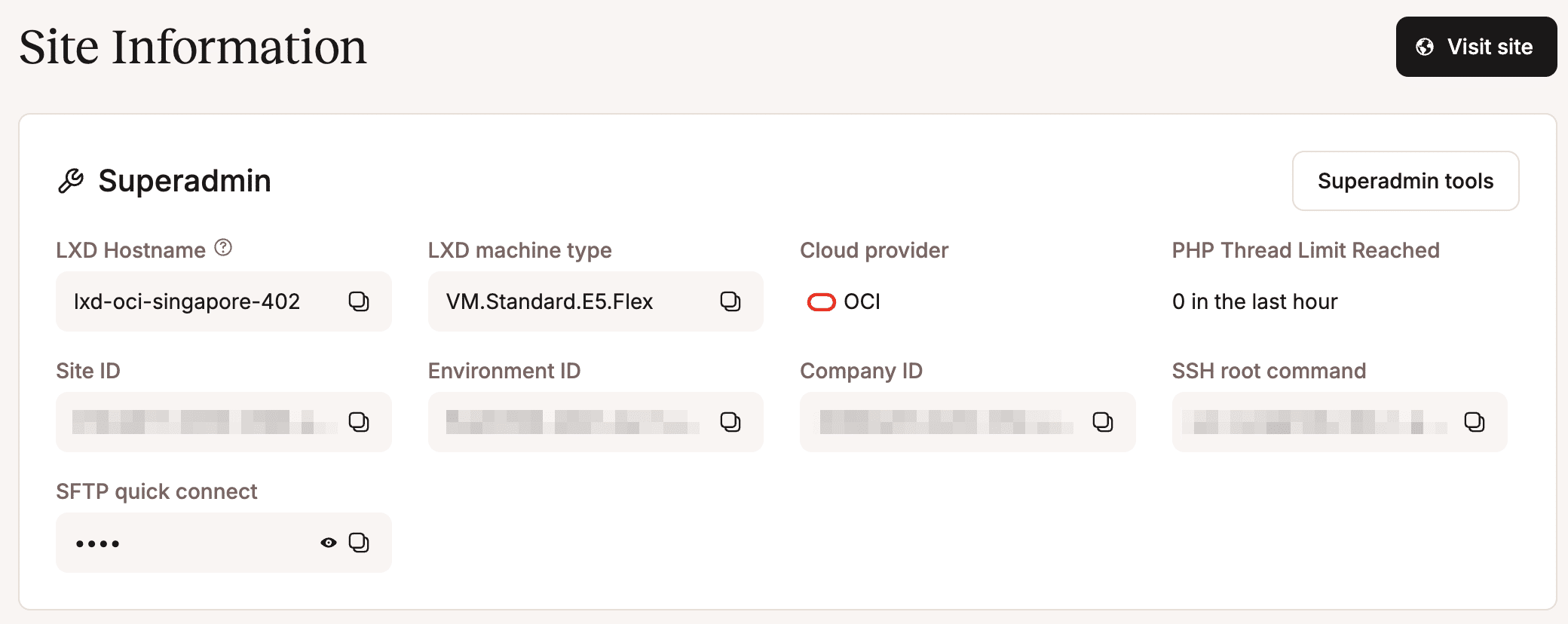
Now let’s move on to the project files.
Required libraries and GitHub Actions configuration
In the root directory of your GitHub project, create a file named requirements.txt and add the following:
google-genai
requests
matplotlib
fpdf2
This file lists the components required for your project.
google-genai: This is Google’s library for interacting with Gemini models.requests: A library for making HTTP requests. In this project, it will be used to send HTTP requests to the Kinsta API.matplotlib: A Python library for creating graphs and visualizing data.fpdf2: This is a library that allows you to generate PDF files.
Next, create a file named .github/workflows/generate_report.yml with the following code:
name: Generate Kinsta Analytics Report

on:
  push:
    branches: [main]
  workflow_dispatch:

jobs:
  build-and-run:
    runs-on: ubuntu-latest
    steps:
      - name: Checkout Repository
        uses: actions/checkout@v4

      - name: Set up Python
        uses: actions/setup-python@v5
        with:
          python-version: '3.12'

      - name: Install dependencies
        run: |
          python -m pip install --upgrade pip
          pip install -r requirements.txt

      - name: Run Report Script
        env:
          KINSTA_API_KEY: ${{ secrets.KINSTA_API_KEY }}
          KINSTA_ENV_ID: ${{ secrets.KINSTA_ENV_ID }}
          KINSTA_SITE_ID: ${{ secrets.KINSTA_SITE_ID }}
          KINSTA_COMPANY_ID: ${{ secrets.KINSTA_COMPANY_ID }}
          GEMINI_API_KEY: ${{ secrets.GEMINI_API_KEY }}
        run: python main.py

      - name: Upload Report
        uses: actions/upload-artifact@v4
        with:
          name: Kinsta-Advanced-Report
          path: "*.pdf"
GitHub uses this file to automatically run your code via GitHub Actions. Let’s take a closer look:
name: Generate Kinsta Analytics Report

on:
  push:
    branches: [main]
workflow_dispatch:name: The name of your project as it appears in the Actions tab on GitHub.on: Determines when to trigger the workflow.push: The workflow runs every time you push a code change to the main branch.workflow_dispatch: Allows you to run the workflow manually.
jobs:
  build-and-run:
runs-on: ubuntu-latestjobs: The start of the tasks to be performed.build-and-run: An arbitrary name that identifies a specific sequence of actions.runs-on: Specifies the system on which the workflow should run.ubuntu-latest: Sets the latest version of Ubuntu Linux.
steps:
      - name: Checkout Repository
        uses: actions/checkout@v4

      - name: Set up Python
        uses: actions/setup-python@v5
        with:
python-version: '3.12'steps: The sequence of operations to be performed.name: The name of the operation to be performeduses: The pre-configured GitHub module (Action)
      - name: Install dependencies
        run: |
          python -m pip install --upgrade pip
          pip install -r requirements.txt
python -m pip install --upgrade pip: Updates pip (the Python package manager) to the latest available version.pip install -r requirements.txt: Reads therequirements.txtfile and installs the packages listed in it.
      - name: Run Report Script
        env:
          KINSTA_API_KEY: ${{ secrets.KINSTA_API_KEY }}
          KINSTA_ENV_ID: ${{ secrets.KINSTA_ENV_ID }}
          KINSTA_SITE_ID: ${{ secrets.KINSTA_SITE_ID }}
          KINSTA_COMPANY_ID: ${{ secrets.KINSTA_COMPANY_ID }}
          GEMINI_API_KEY: ${{ secrets.GEMINI_API_KEY }}
run: python main.pyenv: Retrieves environment variable values from GitHub Secrets.run: python main.py: Launches the Python interpreter and runs themain.pyfile.
      - name: Upload Report
        uses: actions/upload-artifact@v4
        with:
          name: Kinsta-Advanced-Report
path: "*.pdf"uses: actions/upload-artifact@v4: Uses the GitHub action to manage artifacts, a file or folder generated while the script is running.with: Sets the configuration parameters.
The configuration of your automation project is complete. Now it’s time to create the Python scripts.
Querying the Kinsta API programmatically
Once you have completed the setup, navigate to the root directory of your GitHub project and create a new file named kinsta_utils.py with the following code:
import requests
import os

KINSTA_API_KEY = os.getenv("KINSTA_API_KEY")
KINSTA_SITE_ID = os.getenv("KINSTA_SITE_ID")
KINSTA_ENV_ID = os.getenv("KINSTA_ENV_ID")
KINSTA_COMPANY_ID = os.getenv("KINSTA_COMPANY_ID")
BASE_URL = f"https://api.kinsta.com/v2/sites/environments/{KINSTA_ENV_ID}/analytics"

def get_headers():
return {"Authorization": f"Bearer {KINSTA_API_KEY}"}- The first two
importstatements load the standard library for making HTTP requests and the module for interacting with the operating system (os). - The next four lines (
os.getenv) retrieve your credentials from GitHub Secrets. BASE_URLdefines the main endpoint of the Kinsta API used by the script.- The
get_headersfunction generates the Authorization Header, which will include the Kinsta API key.
Next, create a helper function that converts the raw data returned by the API into megabytes.
def format_bytes_to_mb(bytes_value):
    """Converts raw bytes from API to human-readable Megabytes."""

    try:
        # Standard conversion to MB
        # return round(int(bytes_value) / (1024 * 1024), 2)

        # Decimal standard (used in MyKinsta dashboard)
        return round(int(bytes_value) / 1_000_000, 2)

    except (ValueError, TypeError):
return 0- This code provides two options. The first uses the binary standard (
1024 x 1024), and the second uses the decimal standard. Dividing by1_000_000ensures that the number in your PDF report matches the number that your clients would see in MyKinsta Analytics.
The following function queries the Kinsta API and returns a set of raw data:
def fetch_kinsta_metric(endpoint, start_date, end_date):

    url = f"{BASE_URL}/{endpoint}"

    params = {
        "company_id": KINSTA_COMPANY_ID,
        "from": f"{start_date}T00:00:00.000Z",
        "to": f"{end_date}T23:59:59.000Z"
    }

    try:
        response = requests.get(url, headers=get_headers(), params=params)
        if response.status_code == 200:
            data_node = response.json()['analytics']['analytics_response']['data'][0]
            total = data_node.get('total', 0)
            dataset = data_node.get('dataset', [])[:7]
            return total, dataset

    except Exception as e:
        print(f"Error fetching {endpoint}: {e}")

return 0, []- The
fetch_kinsta_metricfunction takes three arguments:endpoint,start_date, andend_date. These are used to construct the request URL. The endpoint can bevisits,bandwidth, orcdn-bandwidth. - The
paramsarray stores the request parameters. - Kinsta’s response is a nested JSON object (
data_node) which provides the aggregated values for the period (total) and a list of daily values (dataset).
The final function in the kinsta_utils.py file retrieves the site name.
def fetch_site_name():
    url = f"https://api.kinsta.com/v2/sites/{KINSTA_SITE_ID}"

    try:
        response = requests.get(url, headers=get_headers())
        if response.status_code == 200:
            data = response.json()
            site_data = data.get('site', {})

            site_label = site_data.get('display_name', 'Unknown Site')

            env_label = "Unknown Env"
            envs = site_data.get('environments', [])
            for env in envs:
                if env.get('id') == KINSTA_ENV_ID:
                    env_label = env.get('display_name')
                    break

            return f"{site_label} ({env_label})"
        else:
            print(f"Kinsta API Error: {response.status_code} - {response.text}")
    except Exception as e:
        print(f"Error fetching site name: {e}")

    return "Unknown Site"
This code should be self-explanatory. Please refer to the API Reference for details on the sites endpoint.
Now all that’s left is to set up the workflow.
Automate the workflow with Python and Gemini
The last file you need to create is the engine for your application. Still in the root directory of your GitHub project, create a file main.py. To start, add the following code:
import os
import matplotlib
matplotlib.use('Agg')
import matplotlib.pyplot as plt
from google.genai import Client
from fpdf import FPDF, XPos, YPos
from datetime import datetime, timedelta
from kinsta_utils import fetch_kinsta_metric, format_bytes_to_mb, fetch_site_name

REPORT_LANG = "en"
MODEL_ID = "gemini-2.5-flash"
GEMINI_API_KEY = os.getenv("GEMINI_API_KEY")
client = Client(api_key=GEMINI_API_KEY)

today = datetime.now()
curr_end_dt = today - timedelta(days=1)
curr_start_dt = today - timedelta(days=7)
prev_end_dt = today - timedelta(days=8)
prev_start_dt = today - timedelta(days=14)

CURR_RANGE = f"{curr_start_dt.strftime('%b %d')} - {curr_end_dt.strftime('%b %d')}"
PREV_RANGE = f"{prev_start_dt.strftime('%b %d')} - {prev_end_dt.strftime('%b %d')}"

DATES = [
    prev_start_dt.strftime("%Y-%m-%d"),
    prev_end_dt.strftime("%Y-%m-%d"),
    curr_start_dt.strftime("%Y-%m-%d"),
    curr_end_dt.strftime("%Y-%m-%d")
]

CURR_DAYS_LABELS = [(curr_start_dt + timedelta(days=i)).strftime("%d %a") for i in range(7)]
PREV_DAYS_LABELS = [(prev_start_dt + timedelta(days=i)).strftime("%d %a") for i in range(7)]
X_AXIS_LABELS = [(curr_start_dt + timedelta(days=i)).strftime("%d") for i in range(7)]
This is how the script is set up:
- The
importstatements load the necessary libraries, andmatplotlib.use('Agg')instructs Python to generate the plots and keep them in memory. - The following block sets the language (
en) and the model (gemini-2.5-flash), then initializes the Google client. - Next, it defines time windows to compare values from the last seven days with those from the previous seven days.
- Finally, it sets the labels for tables and graphs.
The next step is to define a KinstaReport class for generating report pages using the FPDF library:
class KinstaReport(FPDF):
    def __init__(self, site_name="Unknown Site"):
        super().__init__()
        self.site_name = site_name

    def header(self):
        self.set_font("Helvetica", "B", 8)
        self.set_text_color(150)
        # Site name
        self.cell(100, 10, f"Site: {self.site_name}", align="L")
        # Date generated
        self.cell(0, 10, f"Kinsta Analytics Report | Generated: {datetime.now().strftime('%Y-%m-%d')}",
                  align="R", new_x=XPos.LMARGIN, new_y=YPos.NEXT)

    def add_metric_page(self, title, chart_path, prev_vals, curr_vals, unit=""):
        self.add_page()
        # Page title
        self.set_font("Helvetica", "B", 24)
        self.set_text_color(83, 51, 237)
        self.cell(0, 15, title, align="C", new_x=XPos.LMARGIN, new_y=YPos.NEXT)

        # Subtitle
        self.set_font("Helvetica", "I", 10)
        self.set_text_color(120)
        self.cell(0, 5, f"Comparison: {CURR_RANGE} vs {PREV_RANGE}", align="C", new_x=XPos.LMARGIN, new_y=YPos.NEXT)

        self.image(chart_path, x=10, y=42, w=190)

        # Data tables
        self.set_y(150)
        self.set_font("Helvetica", "B", 10)
        self.set_fill_color(245, 245, 255)
        self.set_text_color(83, 51, 237)

        # Table header
        col1, col2 = 35, 60
        self.cell(col1, 10, " Day (Prev)", border=1, align='C', fill=True, new_x=XPos.RIGHT, new_y=YPos.TOP)
        self.cell(col2, 10, f"Value {unit}", border=1, align='C', fill=True, new_x=XPos.RIGHT, new_y=YPos.TOP)
        self.cell(col1, 10, " Day (Curr)", border=1, align='C', fill=True, new_x=XPos.RIGHT, new_y=YPos.TOP)
        self.cell(col2, 10, f"Value {unit}", border=1, align='C', fill=True, new_x=XPos.LMARGIN, new_y=YPos.NEXT)

        self.set_font("Helvetica", "", 10)
        self.set_text_color(50)
        for i in range(7):
            # Zebra striping
            fill = (i % 2 == 0)
            if fill: self.set_fill_color(250, 250, 250)
            else: self.set_fill_color(255, 255, 255)

            self.cell(col1, 9, f" {PREV_DAYS_LABELS[i]}", border=1, align='C', fill=fill, new_x=XPos.RIGHT, new_y=YPos.TOP)
            self.cell(col2, 9, f" {prev_vals[i]}", border=1, align='C', fill=fill, new_x=XPos.RIGHT, new_y=YPos.TOP)
            self.cell(col1, 9, f" {CURR_DAYS_LABELS[i]}", border=1, align='C', fill=fill, new_x=XPos.RIGHT, new_y=YPos.TOP)
            self.cell(col2, 9, f" {curr_vals[i]}", border=1, align='C', fill=fill, new_x=XPos.LMARGIN, new_y=YPos.NEXT)
We won’t go into too much detail about this code. For more information on the FPDF library, please refer to the online resources:
Next, define a function generated_chart. This function converts the raw data received from Kinsta into charts.
def generate_chart(labels, curr, prev, title, ylabel, filename, is_bar=False):
    plt.figure(figsize=(10, 5), dpi=100)
    ax = plt.gca()

    ax.spines['top'].set_visible(False)
    ax.spines['right'].set_visible(False)
    ax.spines['left'].set_color('#dddddd')
    ax.spines['bottom'].set_color('#dddddd')

    if is_bar:
        # Bar Chart for bandwidth
        bars = plt.bar(labels, curr, color="#00c4b4", alpha=0.6, label="Current Period", width=0.6)
        # Add labels above the bars
        for bar in bars:
            height = bar.get_height()
            plt.text(bar.get_x() + bar.get_width()/2., height + 0.02, f'{height}', ha="center", va="bottom", fontsize=8, color="#00a194")
    else:
        # Line chart for visits
        plt.plot(labels, curr, color="#5333ed", marker="o", markersize=6, linewidth=3, label="Current", zorder=3)
        plt.plot(labels, prev, color="#a1a1a1", linestyle="--", marker="x", markersize=5, linewidth=1.5, label="Previous", alpha=0.6)

        plt.fill_between(labels, curr, color="#5333ed", alpha=0.1)

    plt.title(title, fontsize=14, pad=20, color="#333333", fontweight="bold")
    plt.ylabel(ylabel, color="#666666")
    plt.xlabel("Day of Month", color="#666666")
    plt.legend(frameon=False, loc="upper right")
    plt.grid(axis="y", linestyle="--", alpha=0.3)
    plt.tight_layout()
    plt.savefig(filename)
    plt.close()
This function uses the Matplotlib library to convert the data extracted from Kinsta into charts for inclusion in the PDF report. For more information on using the Matplotlib library, please refer to the online documentation:
Finally, add the function that combines all the parts we’ve described so far.
def main():
    site_display_name = fetch_site_name()

    metrics = {
        "visits": {"title": "Site Visits", "unit": ""},
        "bandwidth": {"title": "Server Bandwidth", "unit": "(MB)"},
        "cdn-bandwidth": {"title": "CDN Bandwidth", "unit": "(MB)"}
    }

    report_data = {}
    for key in metrics:
        _, data_curr = fetch_kinsta_metric(key, DATES[2], DATES[3])
        _, data_prev = fetch_kinsta_metric(key, DATES[0], DATES[1])

        curr_vals = []
        prev_vals = []
        for i in range(7):
            c = float(data_curr[i]['value']) if i < len(data_curr) else 0
            p = float(data_prev[i]['value']) if i < len(data_prev) else 0

            if "bandwidth" in key:
                curr_vals.append(format_bytes_to_mb(c))
                prev_vals.append(format_bytes_to_mb(p))
            else:
                curr_vals.append(int(c))
                prev_vals.append(int(p))

        report_data[key] = {"curr": curr_vals, "prev": prev_vals}

    pdf = KinstaReport(site_name=site_display_name)

    for key, info in metrics.items():
        chart_file = f"{key}_chart.png"
        generate_chart(X_AXIS_LABELS, report_data[key]["curr"], report_data[key]["prev"],
                       f"{info['title']} Trends", "Units", chart_file, is_bar=("bandwidth" in key))
        pdf.add_metric_page(info["title"], chart_file, report_data[key]["prev"], report_data[key]["curr"], info["unit"])

    # Executive Summary
    pdf.add_page()
    pdf.set_font("Helvetica", "B", 20)
    pdf.set_text_color(83, 51, 237)
    pdf.cell(0, 15, "Executive Summary", align="C", new_x=XPos.LMARGIN, new_y=YPos.NEXT)

    curr_visits = sum(report_data['visits']['curr'])
    prev_visits = sum(report_data['visits']['prev'])
    curr_bw = sum(report_data['bandwidth']['curr'])
    prev_bw = sum(report_data['bandwidth']['prev'])

    try:
        summary_prompt = (
            f"Analyze Kinsta performance for site {site_display_name}. "
            f"Current Period ({CURR_RANGE}): {curr_visits} visits, {curr_bw:.2f}MB server bandwidth. "
            f"Previous Period ({PREV_RANGE}): {prev_visits} visits, {prev_bw:.2f}MB server bandwidth. "
            f"Compare these periods and identify trends. Language: {REPORT_LANG}. Max 4 sentences."
        )
        response = client.models.generate_content(model=MODEL_ID, contents=summary_prompt)
        summary = response.text
    except Exception as e:
        summary = f"Analytical insights unavailable. Error: {str(e)}"

    pdf.set_y(40)
    pdf.set_font("Helvetica", "", 12)
    pdf.set_text_color(0)
    pdf.multi_cell(0, 8, summary)

    report_filename = f"Kinsta_Report_{datetime.now().strftime('%Y-%m-%d')}.pdf"
    pdf.output(report_filename)
    print(f"Report generated: {report_filename}")

if __name__ == "__main__":
    main()
This is what this code does:
- The
forloop iterates through themetricsarray and queries the Kinsta API twice: once for the current week and once for the previous week. - If the data relates to bandwidth, the
format_bytes_to_mb()function converts the raw data into MB. - The
report_data()function stores the retrieved data. KinstaReportthen creates a PDF for each site.- The next
forloop generates PNG images for the charts and creates a new page for each metric. - The next section generates the executive summary, calculates the total number of visits and total megabytes for the period, and sends a dynamic prompt to Gemini 2.5 Flash. Finally, the response is used to complete the last page of the PDF.
- The script saves the document with a file name that includes the current date.
- * The final condition ensures the process runs only when the script is executed as the main program.
It’s time to build and run your application.
Retrieving the Artifact
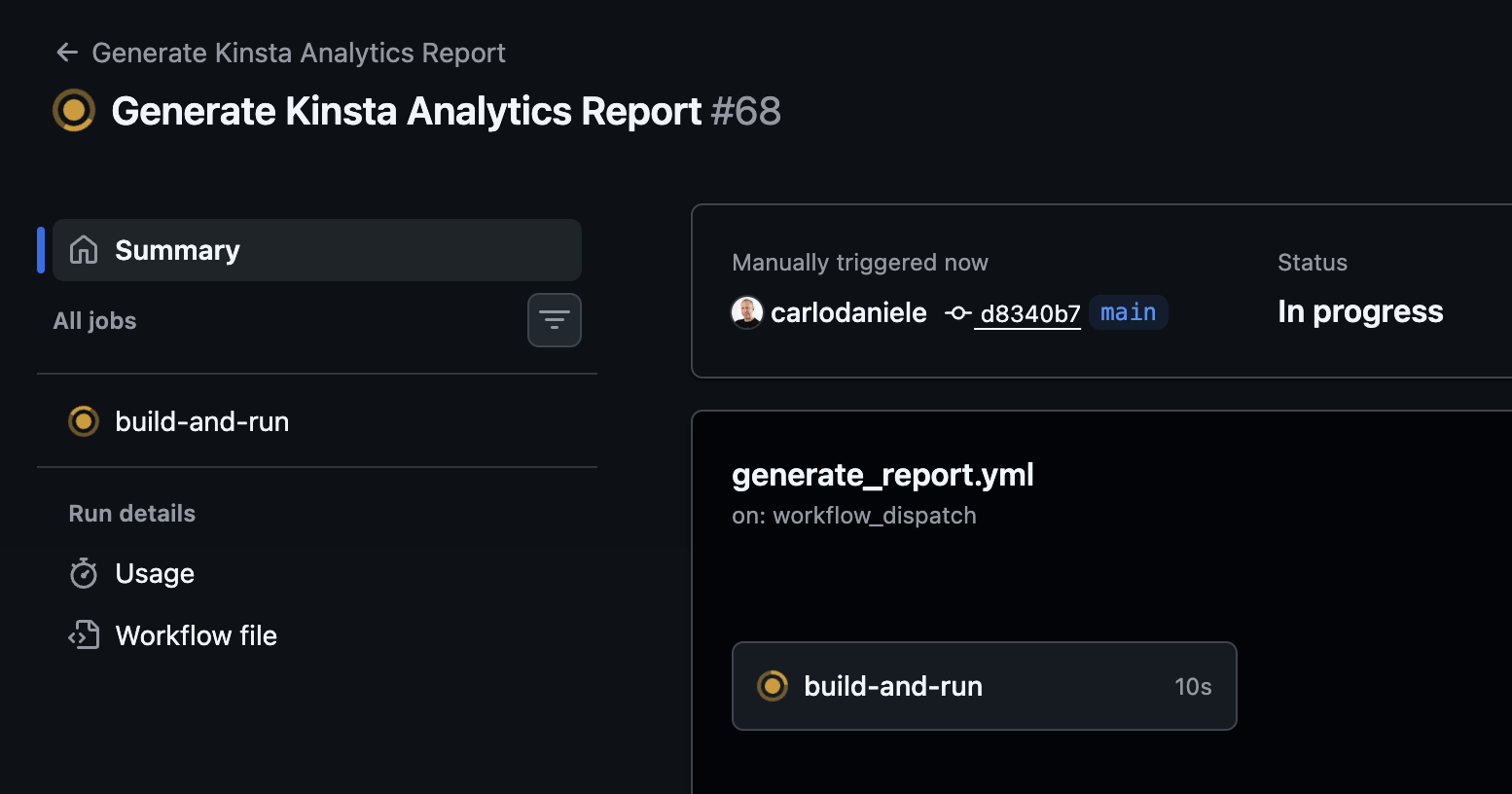
You can now run your application. On your GitHub project page, click the Actions tab. Look for the name of your action in the menu on the left (in our example, this is Generate Kinsta Analytics Report, as specified in your generate_report.yml file).
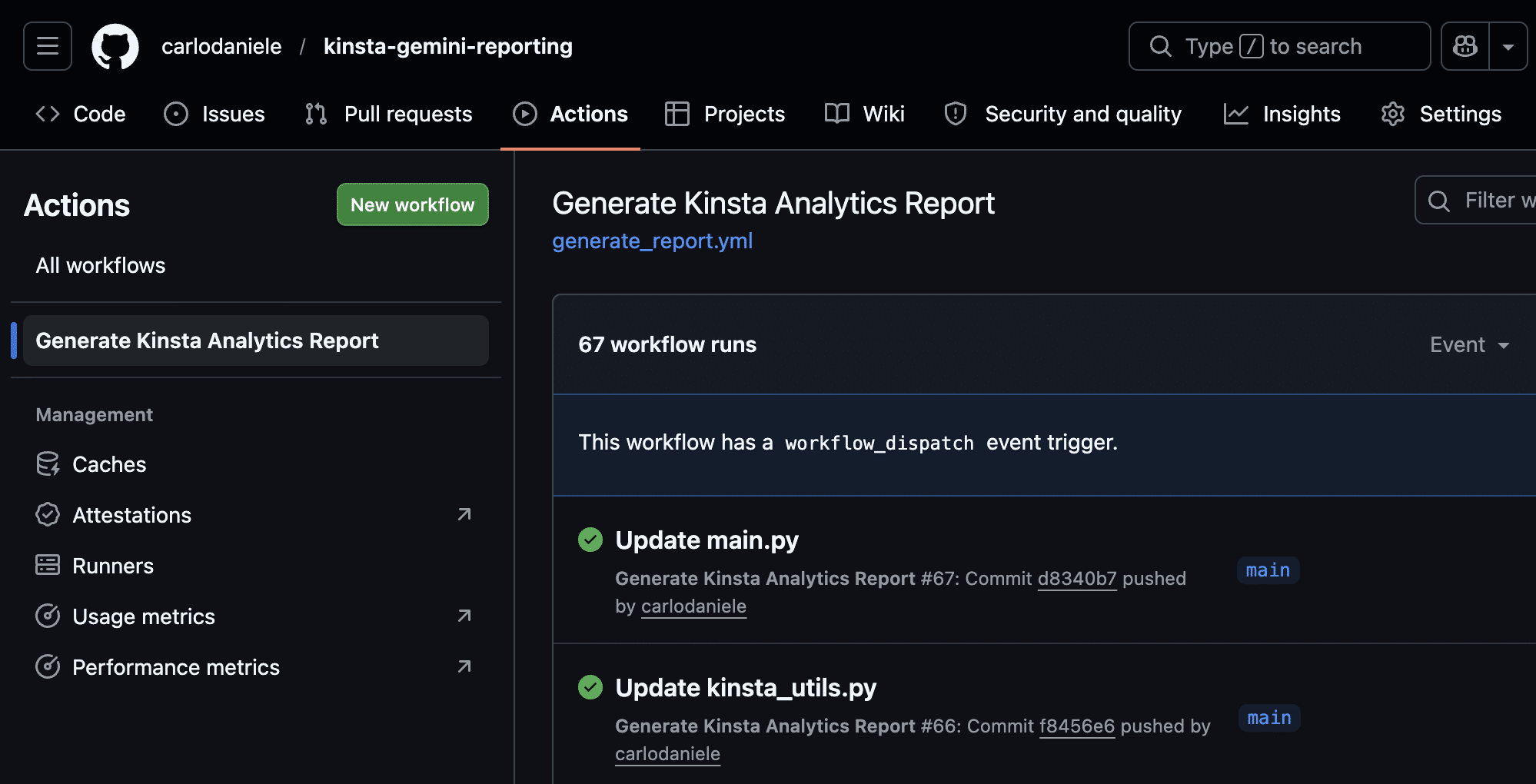
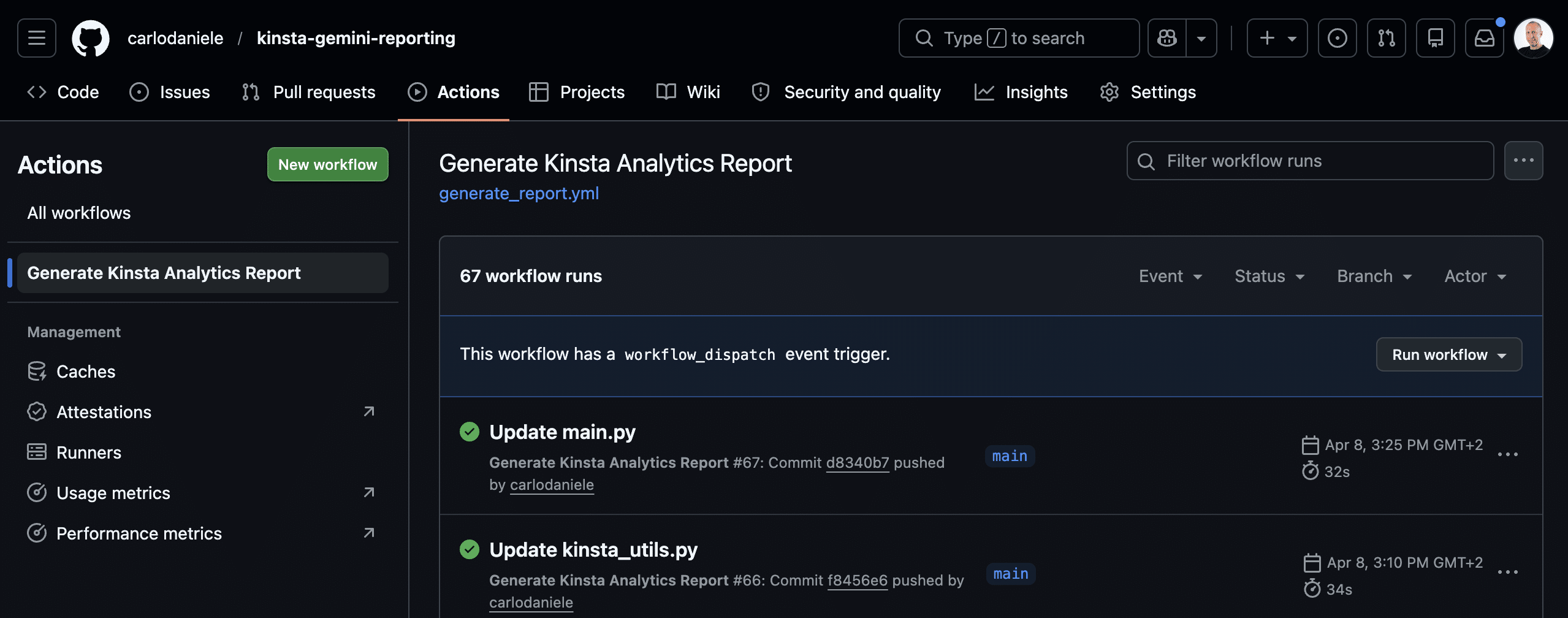
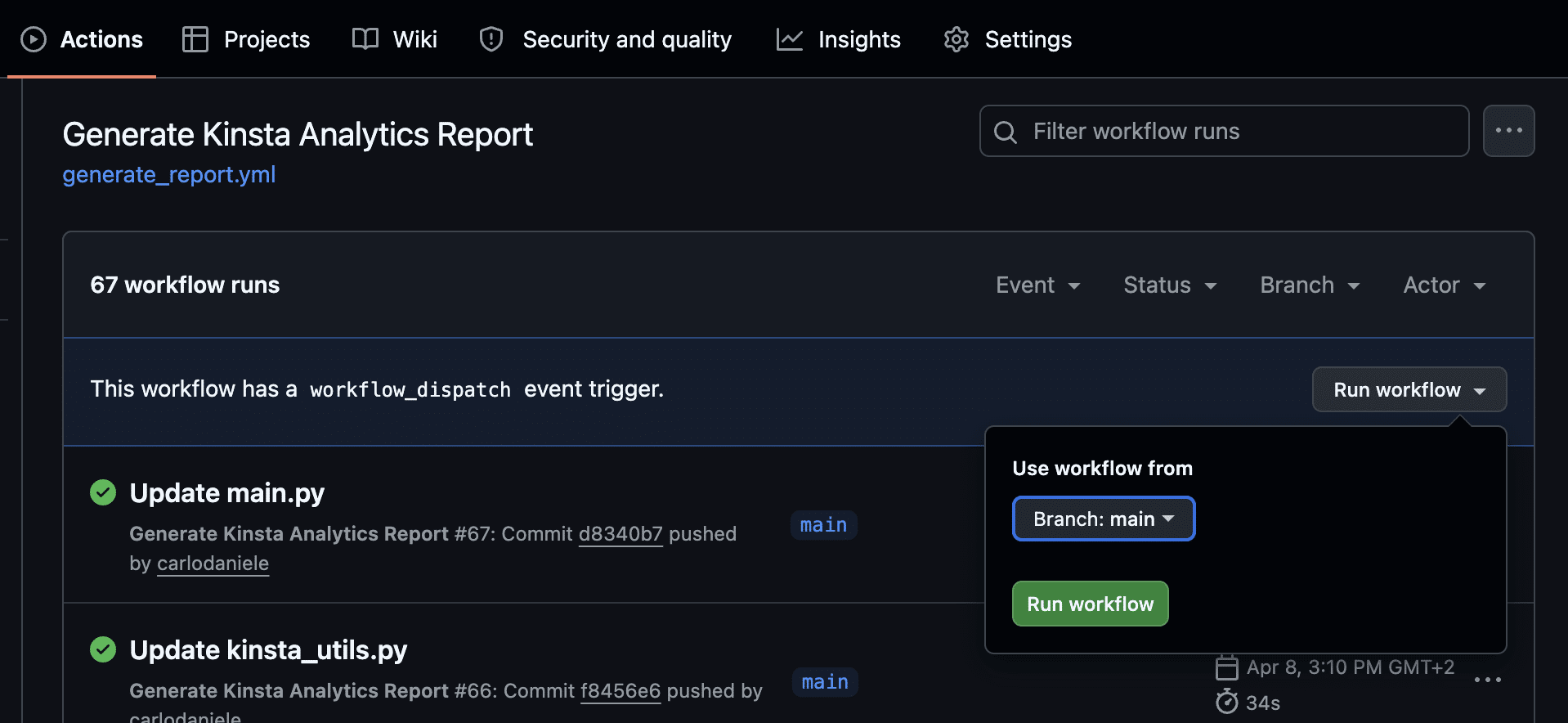
Next, click the Run workflow menu on the right, then click the green Run workflow button (only the main branch is currently available).
The next page shows the current workflow. Click on it to view the list of ongoing operations.
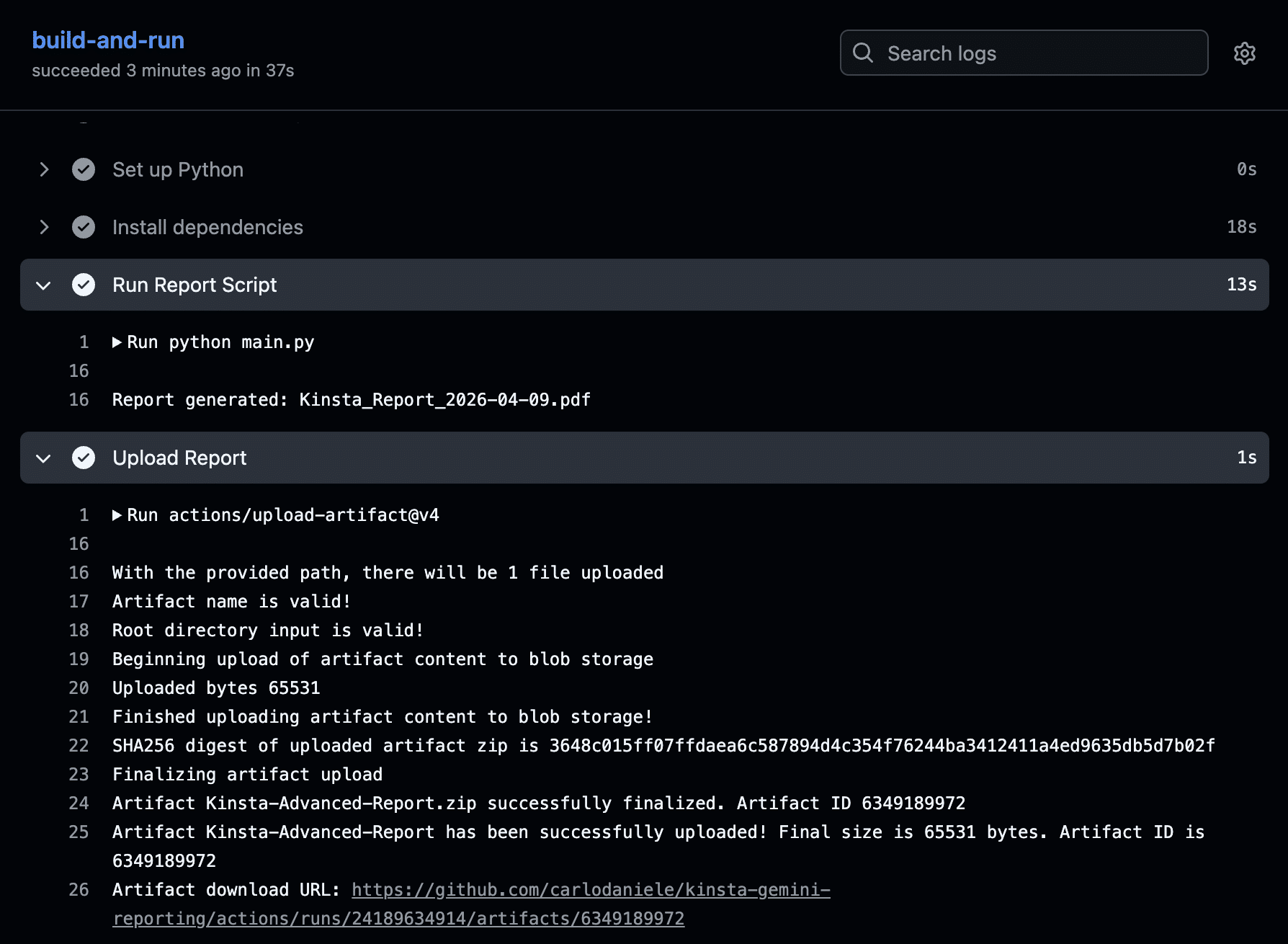
The Run Report Script section provides a list of the operations performed, while the Upload Report section provides the artifact download URL. Click this link to download your report in PDF format.
You’ll find the same link in the Artifacts section, at the bottom of the workflow’s Summary page.
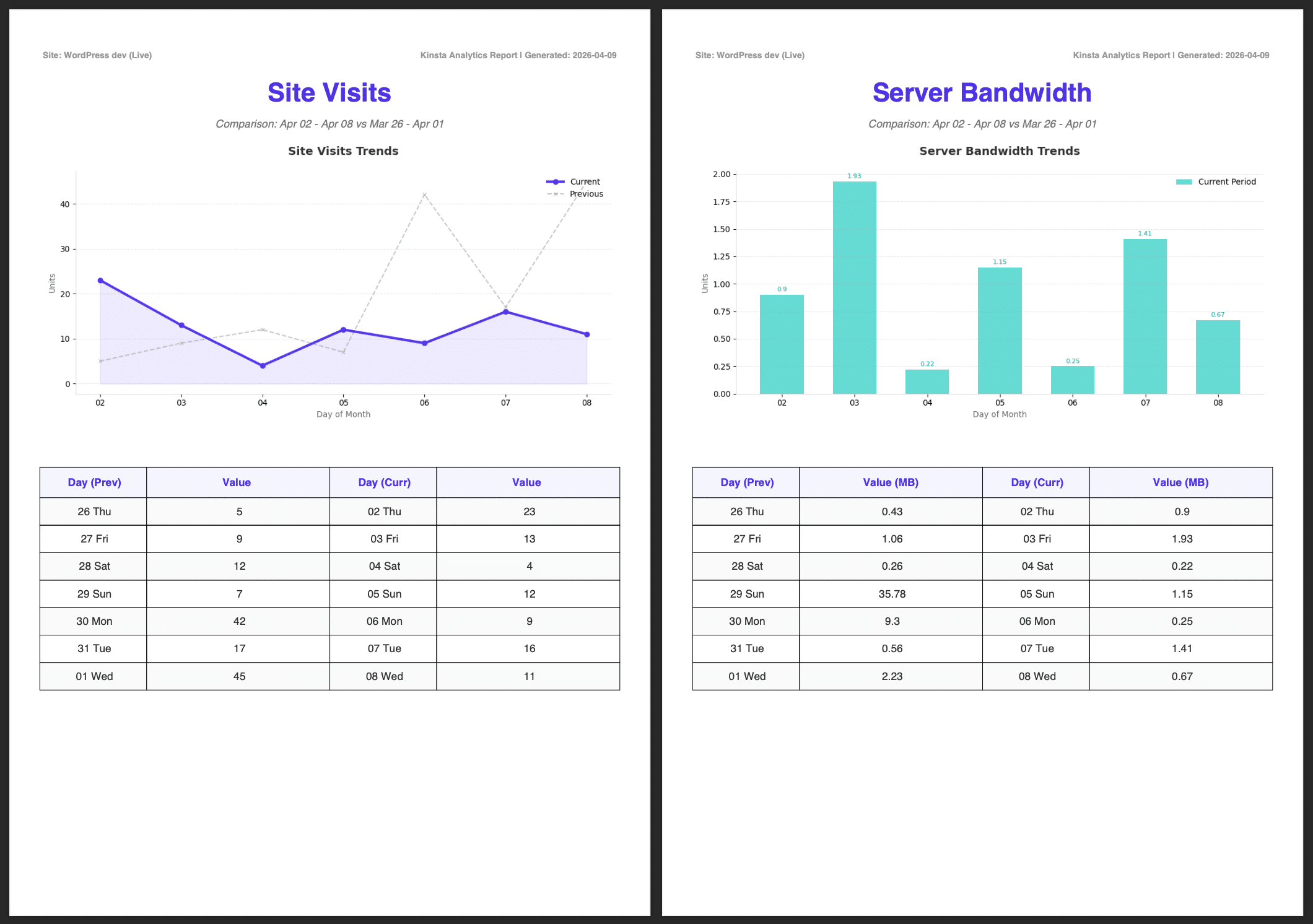
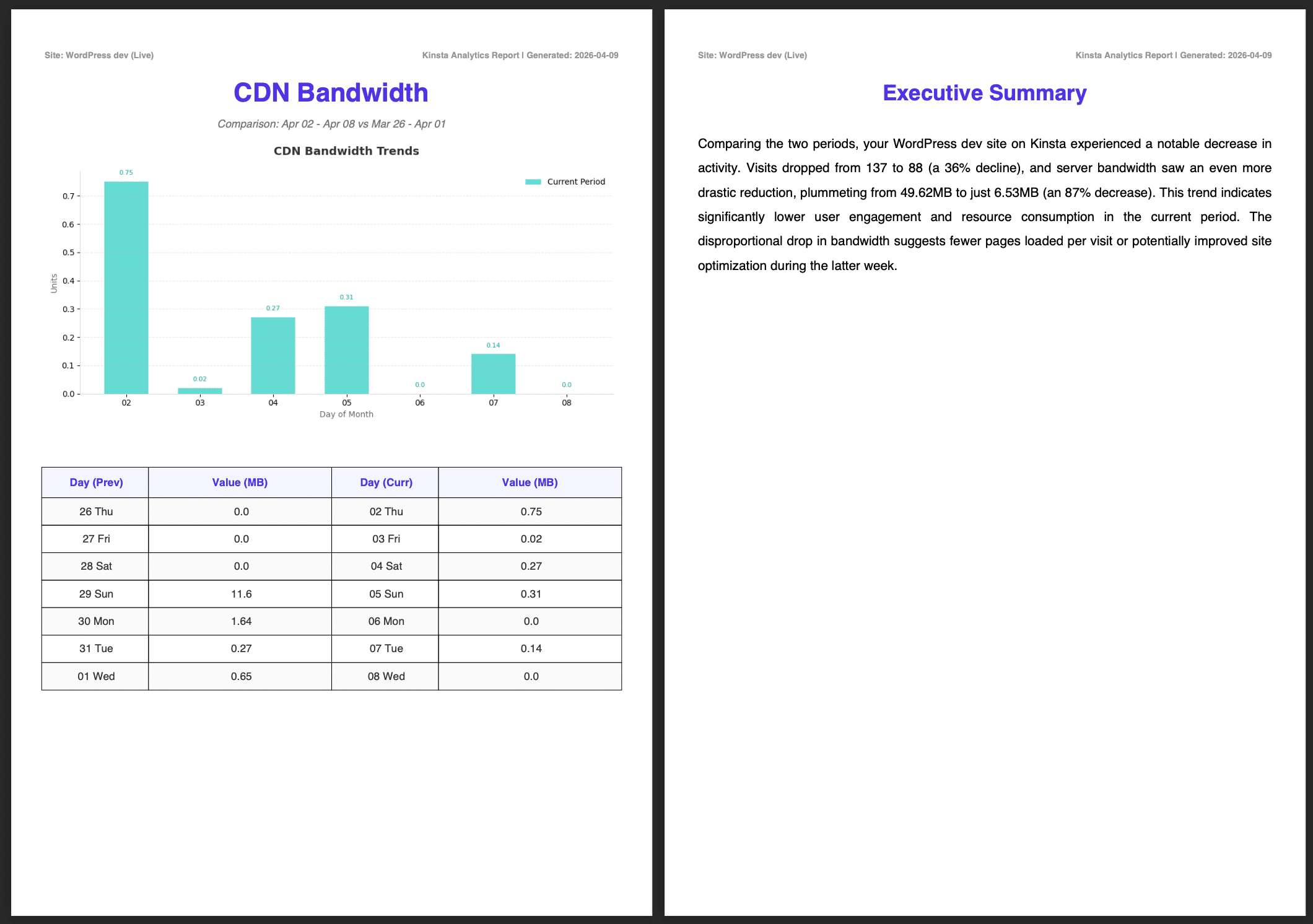
The images below show the complete report, including the Executive Summary generated by Google AI.
Next steps: How to improve scalability and automate delivery
This is just a taste of what the Kinsta API can do when combined with advanced automation tools like GitHub Actions. AI integration takes it further, transforming raw numbers into deep-dive reports ready to be shared with your clients.
You can further improve your reporting in several ways:
- You can configure your application by adding a line to the YAML file (
schedule: '0 9 * * 1') to generate the report every Monday morning at 9:00 AM. - You could integrate a library like
smtplibor a service like SendGrid to send the report directly to your client. - If you are an agency with dozens or even hundreds of sites, you could implement a loop that iterates over a list of site IDs to generate all your reports in a single run.
- You can further enrich your report’s content by using the Kinsta API to retrieve geographic data, HTTP code breakdowns, server logs, and any other data you want to include. By analyzing this data, the AI can identify attack attempts (4xx codes) or traffic spikes from unexpected regions.
- You can fine-tune your prompt to get more detailed and comprehensive AI responses.
- You can customize the PDF template with your agency’s and your client’s logos.
Automated reporting reduces your team’s workload, and the consistency and precision it provides strengthen your clients’ trust and loyalty.
Want to start automating your client reporting right away? Subscribe to the plan that best fits your needs and start building with the Kinsta API today.

Kinsta
Carlo is a passionate lover of webdesign and front-end development. He has been playing with WordPress for more than 20 years, also in collaboration with Italian and European universities and educational institutions. He has written hundreds of articles and guides about WordPress, published both on Italian and international websites, as well as on printed magazines. You can find him on LinkedIn.


