


Block themes and theme.json give you a lot of flexibility, which might make it seem like child themes are obsolete. But they’re still essential in many cases.
Using a child theme is still the right move if you want real control over your site’s design without touching the parent theme’s core files.
In this article, we use the Twenty Twenty-Five theme as a base and walk you through creating a block child theme with its own style.css and functions.php. You learn how to override styles safely, define custom block styles, and even set up your own style variations. It’s not just a styling trick — it’s a solid step toward building your own full block theme down the line.
Although this exercise may seem simple, we explore some finer points that can trip you up. Let’s begin by creating a custom child theme and then implementing a custom style variation.
Registering a block child theme
Registering a block child theme is much simpler than registering a classic one.
Technically, you don’t need to register it at all. The registration happens automatically when a properly named child theme folder contains both a theme.json file and a style.css file.
So why is the style.css file still necessary?
As before, it includes a required header (shown below) that contains metadata WordPress uses to identify the theme, including its name and the parent theme it extends. While styles and settings are now handled in theme.json, style.css still plays a critical role in letting WordPress recognize your theme, even if it contains no actual CSS.
/*
Theme Name: Twenty Twenty-Five Child
Description: Child theme for the Twenty Twenty-Five theme
Template: twentytwentyfive
*/
A functions.php file isn’t required unless you want to enqueue scripts or add PHP-based functionality. We’ll do that later on.
If you’re not familiar with theme.json or want a quick refresher, check out our guide on Working with properties and key-value pairs in theme.json.
Making three basic changes to our child theme.
Let’s start by updating the global background and text colors, along with styling the Button block.
In the child theme’s theme.json file (which serves as the default style), we define the following:
{
  "version": 3,
  "settings": {
    "color": {
      "palette": [
        {
          "name": "Black",
          "slug": "black",
          "color": "#000000"
        },
        {
          "name": "Yellow",
          "slug": "yellow",
          "color": "#FFFF00"
        },
        {
          "name": "Purple",
          "slug": "purple",
          "color": "#800080"
        },
        {
          "name": "White",
          "slug": "white",
          "color": "#FFFFFF"
        }
      ]
    }
  },
  "styles": {
    "color": {
      "background": "var(--wp--preset--color--black)",
      "text": "var(--wp--preset--color--yellow)"
    },
    "blocks": {
      "core/button": {
        "color": {
          "background": "var(--wp--preset--color--purple)",
          "text": "var(--wp--preset--color--white)"
        },
        "border": {
          "color": "var(--wp--preset--color--yellow)",
          "width": "2px",
          "style": "solid"
        }
      }
    }
  }
}
While the background and text colors apply across all style variations, the Button block styling applies only to the default variation.
Overriding style variations
To apply the same button styling across different variations, it’s best to create a .json file that matches the parent theme’s variation naming convention.
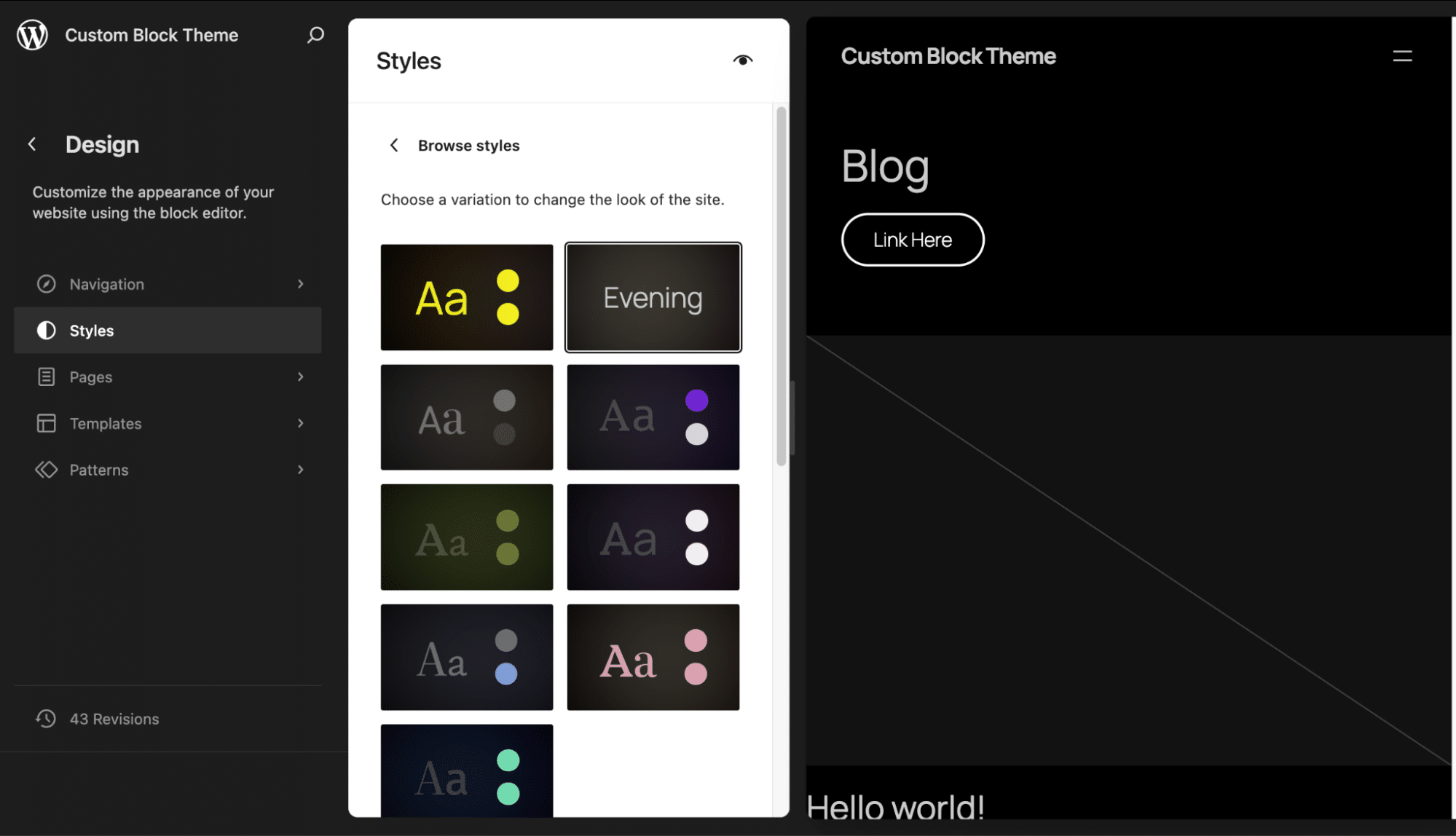
For example, to override the button border in the Evening style variation, create a file named 01-evening.json in your child theme’s root directory (or inside a /styles subfolder):
{
  "version": 3,
  "title": "Evening",
  "styles": {
    "blocks": {
      "core/button": {
        "border": {
          "color": "var(--wp--preset--color--white)",
          "width": "3px",
          "style": "dashed"
        }
      }
    }
  }
}
Here, we’ve used a wider, dashed border to make the button stand out. Because these are more specific styles, they override the general ones from theme.json.
Creating a custom style variation
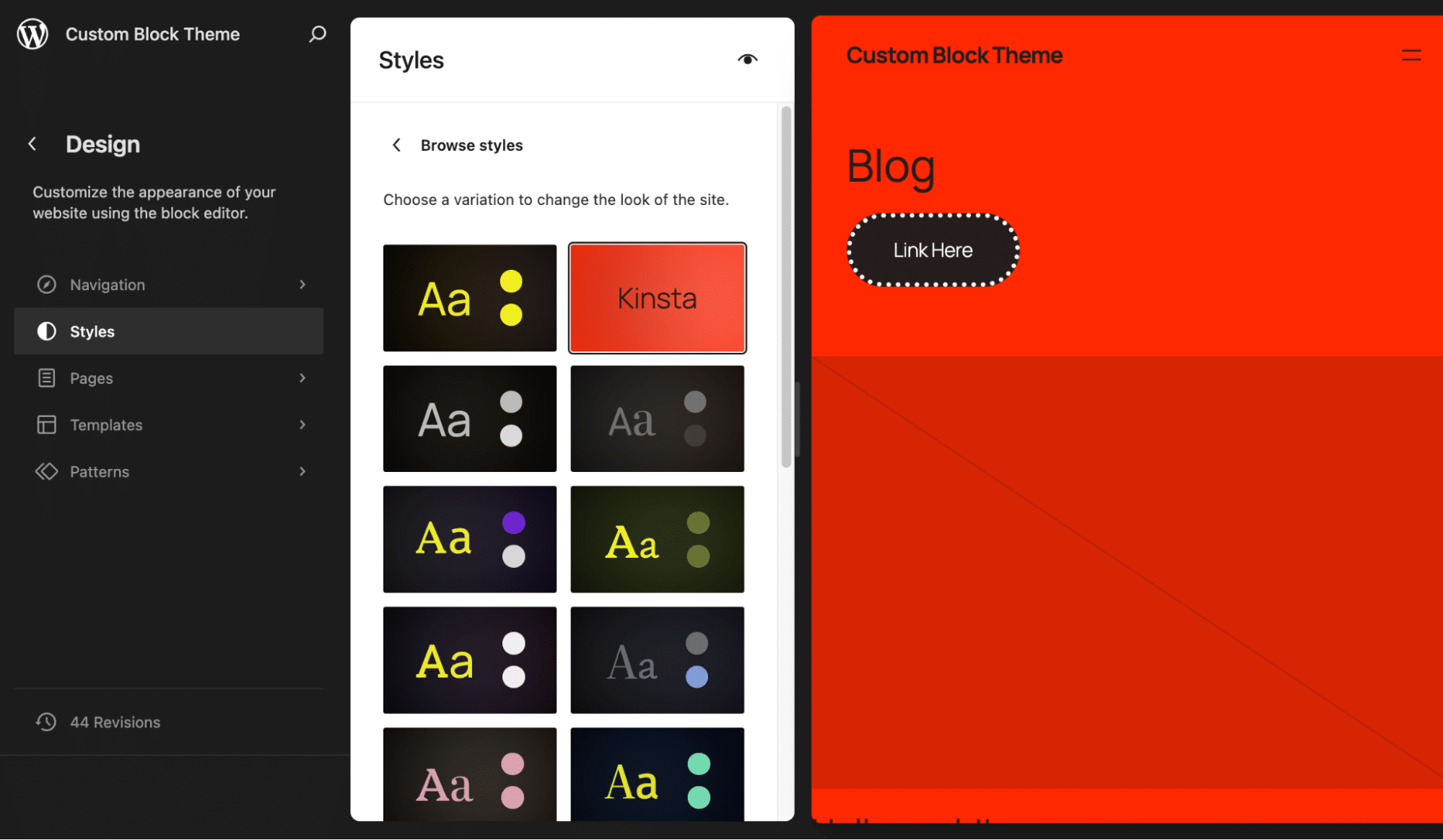
Let’s take it a step further by creating an entirely new style variation named Kinsta. This variation inherits global settings from the child theme’s theme.json file and applies its own custom color palette and button styling:
Save the following as /styles/kinsta.json:
{
  "version": 3,
  "title": "Kinsta",
  "settings": {
    "color": {
      "palette": [
        {
          "name": "Primary",
          "slug": "primary",
          "color": "#261e1e"
        },
        {
          "name": "Secondary",
          "slug": "secondary",
          "color": "#ff2900"
        },
        {
          "name": "White",
          "slug": "white",
          "color": "#FFFFFF"
        }
      ]
    }
  },
  "styles": {
    "color": {
      "background": "var(--wp--preset--color--secondary)",
      "text": "var(--wp--preset--color--primary)"
    },
    "blocks": {
      "core/button": {
        "color": {
          "background": "var(--wp--preset--color--primary)",
          "text": "var(--wp--preset--color--white)"
        },
        "border": {
          "color": "var(--wp--preset--color--white)",
          "width": "4px",
          "style": "dotted"
        }
      }
    }
  }
}
This “Kinsta” variation gives us a distinct look, built entirely within the child theme’s structure.
How and why to enqueue style.css
In a true block theme like Twenty Twenty-Five, there’s no need to enqueue style sheets manually using PHP for either the parent or child theme. WordPress core dynamically generates CSS based on the theme.json file.
However, if you want to write custom styles in a style.css file, you need to enqueue them manually.
// Frontend styles
add_action('wp_enqueue_scripts', function() {
    // Enqueue parent theme stylesheet
    wp_enqueue_style(
        'parent-style',
        get_template_directory_uri() . '/style.css'
    );

    // Enqueue child theme stylesheet
    wp_enqueue_style(
        'child-style',
        get_stylesheet_uri(),
        array('parent-style')
    );
});
This code ensures both the parent and child style.css files are loaded on the frontend.
To confirm that your styles are being enqueued correctly, try adding the following CSS to your child theme’s style.css file:
body {
  color: #ffff00;
  background: #0000ff;
}
This gives all style variations a blue background and yellow text color — on the frontend only.
A simple use case for styles.css
You might be wondering: Why use CSS at all? Isn’t theme.json supposed to handle everything?
Not quite.
For example, theme.json doesn’t support pseudo-classes like :hover. To style a hover effect on all buttons, you can use this CSS:
.wp-block-button a:hover {
  background: #ffffff;
  color: #0000ff;
}
This applies to all button blocks across all variations on the frontend.
Suppose you want to limit this hover effect to a specific variation or block. In that case, you’ll need to use more advanced methods, such as conditional body classes, block filters, or targeted block-specific CSS.
Adding a block style variation
Now, let’s examine how to add a new style variation to the Button block using PHP and CSS.
If you’re thinking of adding a variations array to theme.json, that won’t work for this use case. While theme.json handles global and block-level styling, block style variations — like alternative button styles — need to be registered differently.
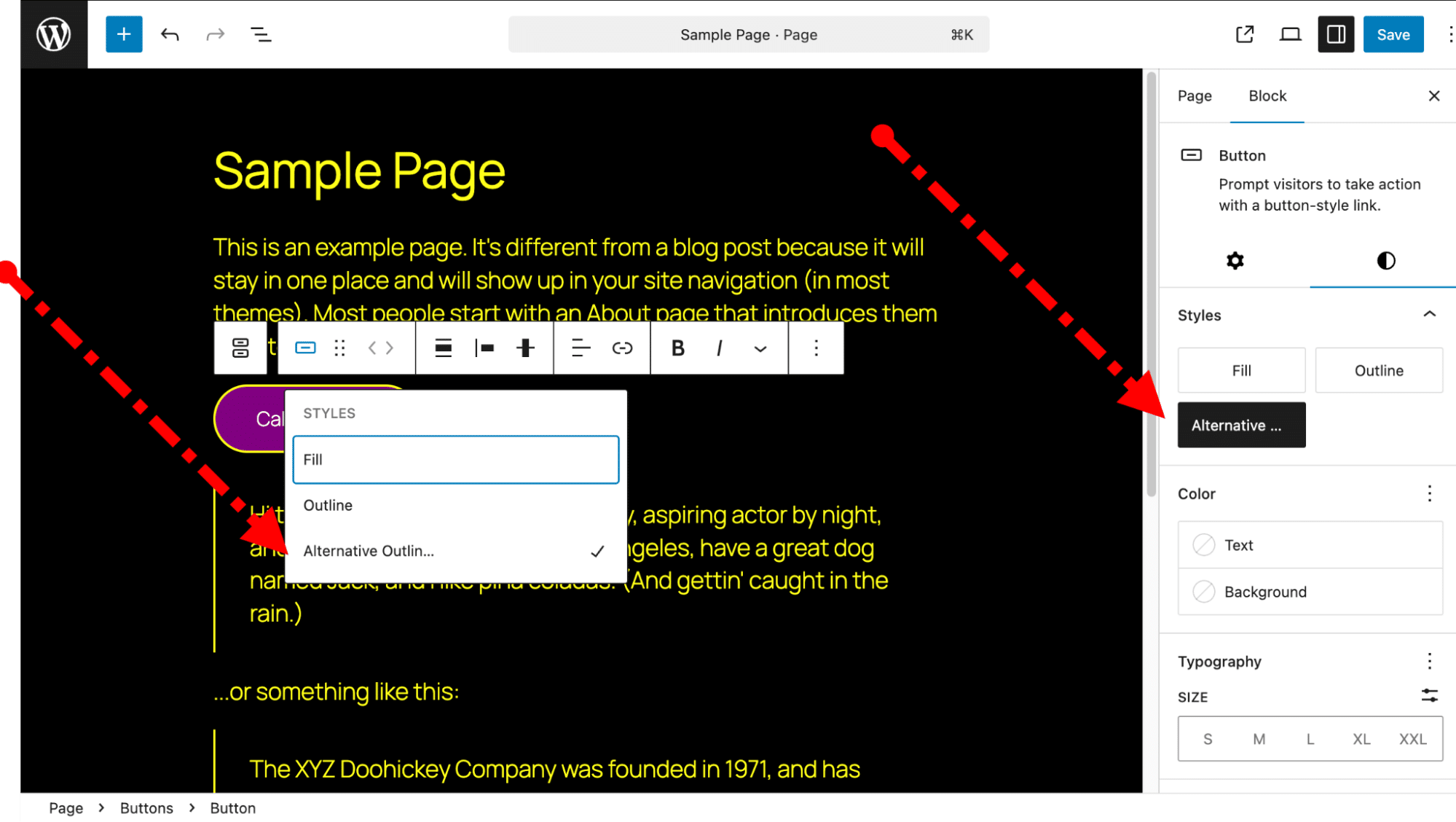
We create a new style variation called Alternative Outline, which appears alongside the default Fill and Outline styles in the editor UI and renders correctly on the frontend.
Register the style in PHP
Add the following code to your child theme’s functions.php file. It registers the style after core loads but before any page is rendered:
// Register "Alternative Outline" button style
add_action('init', function() {
    register_block_style(
        'core/button',
        [
            'name'  => 'alternative-outline',
            'label' => __('Alternative Outline', 'twenty-twenty-five-child'),
        ]
    );
});Add custom styles to style.css
Now define the styles for this variation — including a :hover state — in your child theme’s style.css file:
.wp-block-button.is-style-alternative-outline .wp-block-button__link {
  background-color: transparent;
  color: var(--wp--preset--color--yellow);
  border: 2px dotted var(--wp--preset--color--yellow);
  transition: all 0.7s ease-in-out;
}

.wp-block-button.is-style-alternative-outline .wp-block-button__link:hover {
  background-color: var(--wp--preset--color--yellow);
  color: var(--wp--preset--color--black);
}
The color variables used here are defined in your theme.json palette, ensuring consistency across the site.
Creating block style variations with JSON
Starting with WordPress 6.6, you can register core block style variations entirely using JSON — no PHP required.
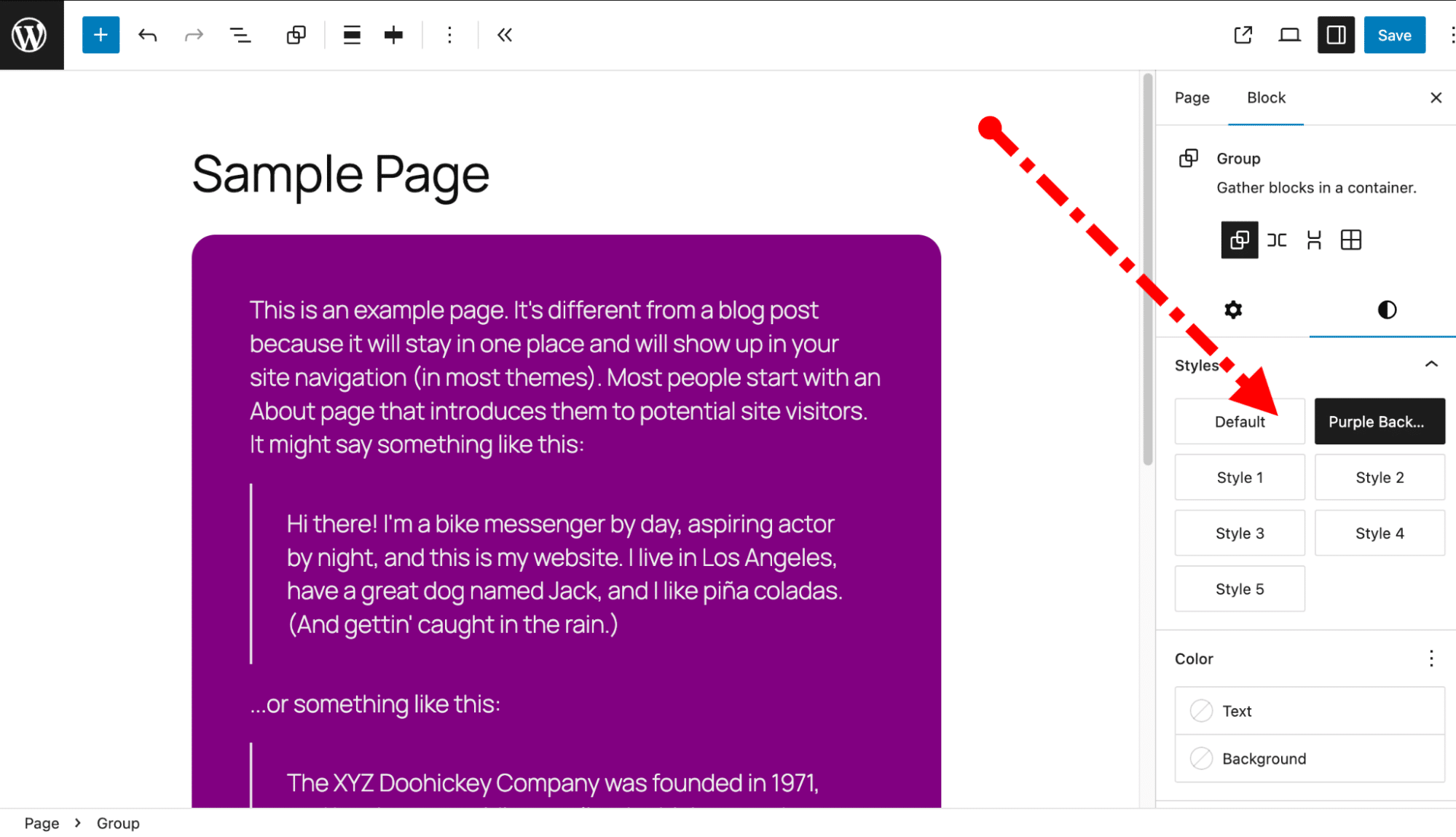
Here’s an example that adds a new variation called Purple Background to the Group block. It appears in the editor sidebar with a styled preview:
Create a file named block.json inside your theme’s /styles/purple-background/ folder:
{
  "version": 3,
  "$schema": "https://schemas.wp.org/trunk/theme.json",
  "title": "Purple Background",
  "slug": "section-purple",
  "blockTypes": ["core/group"],
  "styles": {
    "border": {
      "radius": "20px"
    },
    "color": {
      "background": "#800080",
      "text": "#eeeeee"
    },
    "spacing": {
      "padding": {
        "top": "var(--wp--preset--spacing--50)",
        "right": "var(--wp--preset--spacing--50)",
        "bottom": "var(--wp--preset--spacing--50)",
        "left": "var(--wp--preset--spacing--50)"
      }
    }
  }
}
The Purple Background variation appears in the editor sidebar as shown in the image below:
If you’re working with multiple style variations, it’s good practice to place them in a /styles subfolder. In this case, the file path is: /styles/purple-background/block.json.
Here are some final notes you should consider on the JSON method:
- This approach requires no PHP and can reduce page weight because WordPress only loads the relevant CSS when needed.
- Since we’re working with a child theme of Twenty Twenty-Five — which already uses
theme.jsonand dynamic styling — there’s no need to enqueue styles manually. - Some blocks may not yet support all styling options via JSON. If backward compatibility is a concern, you can optionally add a PHP fallback using
register_block_style().
Summary
Block themes offer remarkable flexibility, opening the door to countless development possibilities. In this article, our goal was to introduce you to the world of child theming for block themes — and hopefully inspire you to bring your own ideas to life.
We also explored two approaches for adding custom core block style variations — one using PHP and CSS, and another using JSON only.
As you might imagine, each example we covered could lead down multiple paths. WordPress is rich with options, often providing several ways to solve the same problem.
For instance, you could build a block theme that uses theme.json for settings but relies entirely on style.css for styling, taking advantage of CSS’s broader capabilities. Or, you might conditionally enqueue styles so they load only when a specific variation is in use.
The possibilities are endless!
At Kinsta, we offer a full suite of development tools, both basic and advanced, to speed up, clean up, and improve your WordPress workflow. Try Kinsta free for 30 days.

Bud Kraus has been working with WordPress as an in-class and online instructor, site developer, and content creator since 2009. He has produced instructional videos and written many articles for WordPress businesses.


