

Designing in Figma is fast, flexible, and collaborative. But what happens when it’s time to turn your pixel-perfect mockup into a working WordPress site?
The truth is, converting a Figma project to WordPress isn’t a one-click process. While tools exist to speed things up, you still need to bridge the gap between visual design and functional code (or blocks). Depending on your goals, timeline, and technical skill level, there are different ways to go about it, some faster and more automated, others more manual but precise.
In this guide, we walk you through three practical methods to convert your Figma design into a live WordPress site. Let’s jump right in.
Method 1: Use Figma plugins to automate part of the process
If you’re looking to speed up the transition from Figma to WordPress, specialized plugins can make a huge difference.
While these tools won’t deliver a flawless, pixel-perfect conversion, they can significantly reduce manual effort, especially for simpler designs.
Here are two options worth checking out.
Option 1: Figma to WordPress by Yotako
The Figma to WordPress plugin, developed by Yotako, is designed to streamline the design-to-WordPress workflow. Here’s how it works:
- Create your website layout as usual in Figma.
- Activate the plugin within your Figma project.
- The plugin processes your design and generates a WordPress theme through an export process.
It’s designed to be beginner-friendly, requiring no coding knowledge at all, making it especially useful for designers who don’t want to dive into HTML or PHP.
The plugin also automatically generates responsive layouts, so your design adapts to different screen sizes with no extra work. Just make sure to enable Auto Layout in Figma:
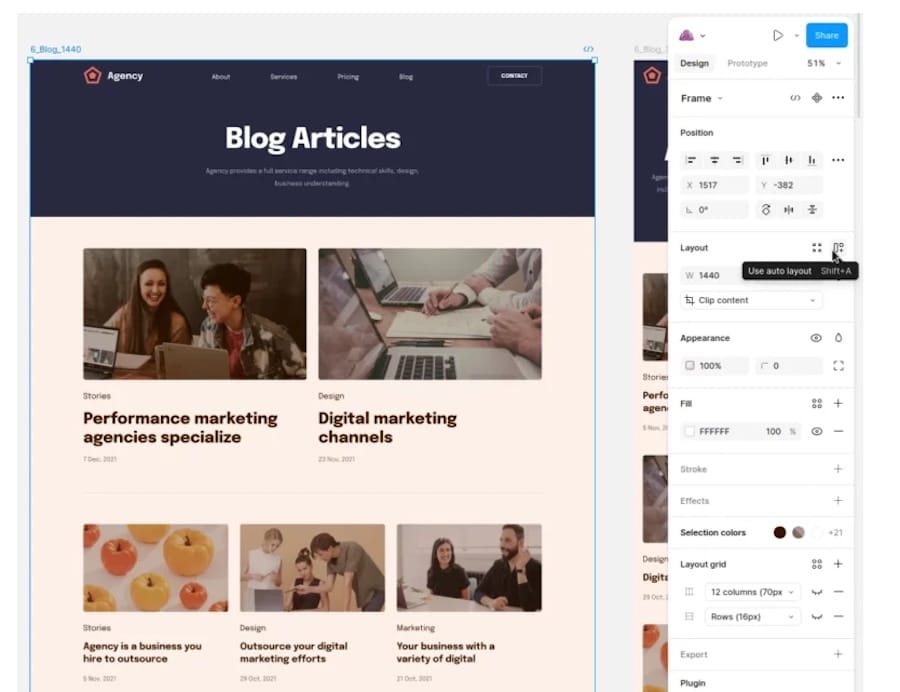
You can download the generated theme and install it on your WordPress site.
Behind the scenes, the plugin uses basic AI to analyze your Figma design and convert layout, styles, and components into functional WordPress code.
There are a few things to note:
- This plugin is best suited for straightforward layouts. Intricate designs may require additional tweaking.
- Post-export adjustments might be necessary to fine-tune styles and features. For instance, forms may not export correctly by default. You can fix this by enabling Advanced Mode in the plugin’s settings (click the green toggle in Figma).

Once Advanced Mode is on, you need to point the plugin’s AI in the right direction of the form by assigning it a name and then selecting its input fields.
Option 2: Figma to WordPress Block
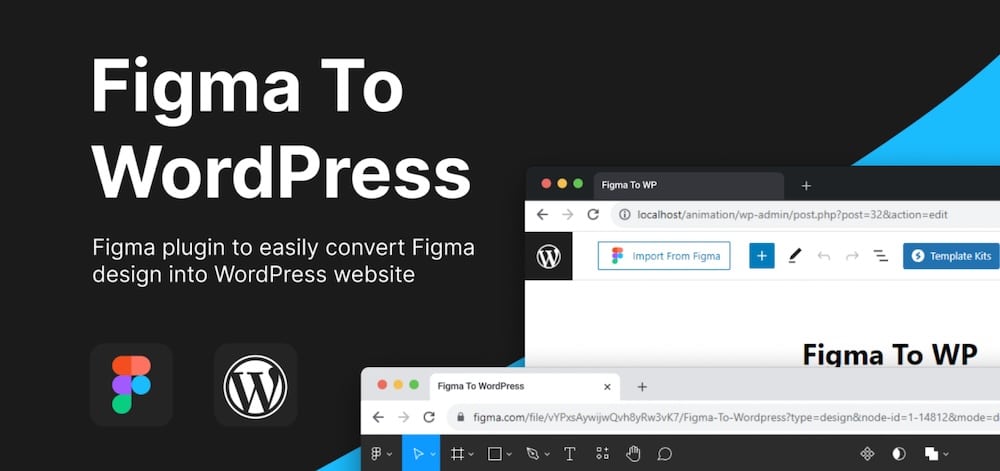
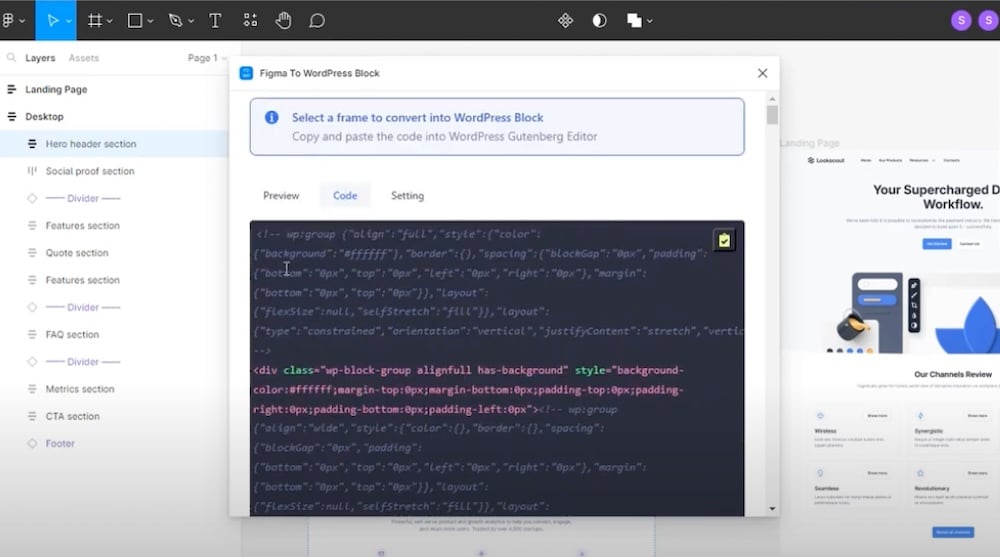
The Figma to WordPress Block plugin takes a more modular approach. Instead of exporting a full theme, it converts selected elements from your Figma design into ready-to-use HTML and CSS code that you can paste directly into WordPress.
This makes it ideal for anyone working with the block editor or a block-based theme.
What sets this plugin apart is the level of control it offers, and it generates lightweight code that mirrors your layout.
It’s a practical option for building out sections like hero banners, content blocks, or custom CTAs without having to rebuild them from scratch. Since it focuses on individual design elements rather than full pages, it’s also a flexible option if you’re adding Figma-designed components to an existing WordPress site.
That said, it does require a bit of manual work:
- You need to copy and paste the code into Custom HTML blocks within WordPress
- You may have to adjust styles to match your theme and tweak the layout for responsiveness.
- Advanced interactions or animations won’t carry over automatically.
- There’s no backend integration, so this is best used for front-end presentation only.
To use this plugin, do the following:
- Select the components in Figma you wish to export.
- Generate the corresponding HTML and CSS code.

Use the Figma to WordPress plugin to generate code to insert into your WordPress site. - Paste the generated code into a Custom HTML block in your WordPress post or page.
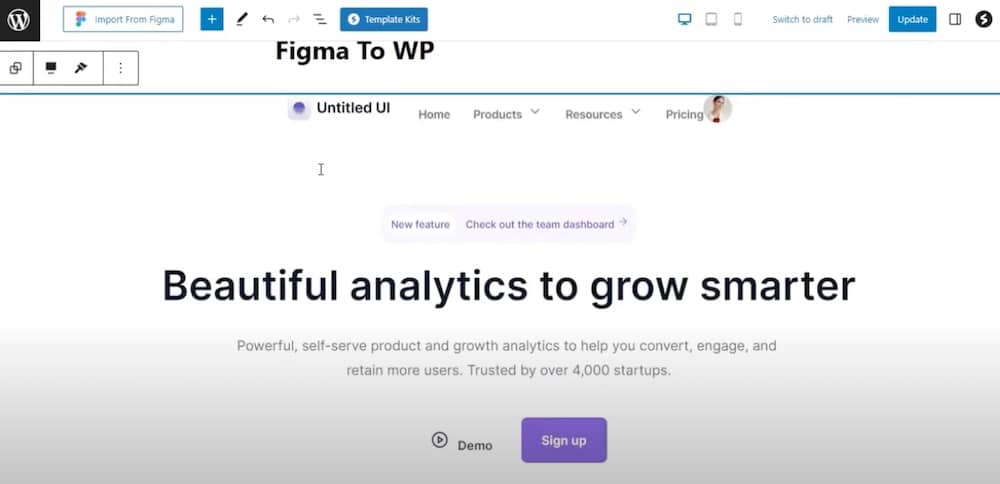
Important notes
While these plugins offer a head start, they aren’t always accurate. Here’s what to keep in mind:
- Not 1:1 conversions: Expect to make manual adjustments after exporting.
- Asset management: Make sure images, fonts, and other assets are correctly linked and optimized.
- Responsive testing: Always test that the site displays correctly across different devices.
Method 2: Manually rebuild your Figma design in WordPress
If you need a production-ready site that matches your design exactly, manual conversion is the most reliable route. While it takes more time and effort than a plugin, this method gives you complete control over every part of your design and ensures your site works as intended.
There are two main approaches: coding a custom theme from scratch or recreating the design using a WordPress site builder. Let’s look at these options.
Option 1: Code a custom WordPress theme
This option is best if you (or your developer team) are comfortable with HTML, CSS, PHP, and JavaScript. It gives you complete flexibility to match your Figma layout precisely and implement custom features, templates, or dynamic functionality.
You typically start with a boilerplate theme like _Underscores or a custom framework.
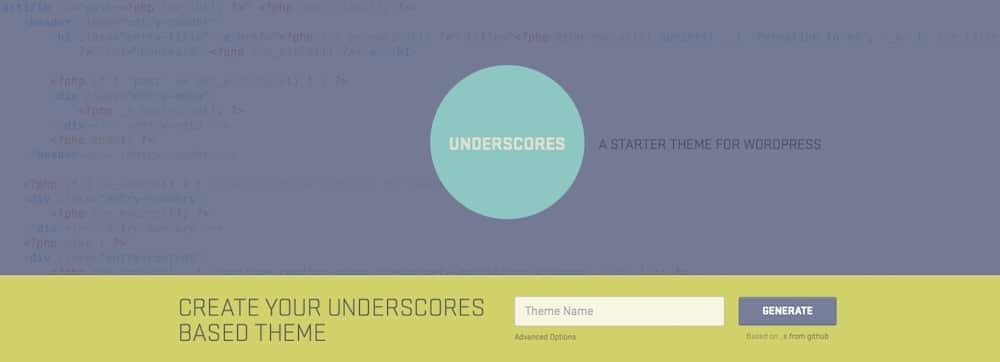
From there, you can:
- Create templates that match each page layout in your design.
- Build custom blocks or sections.
- Style everything using CSS (or a utility framework like Tailwind).
This approach works especially well for:
- Sites with complex layouts or interactions.
- Projects requiring fully custom headers, footers, or templates.
- Teams using Git-based or CI/CD workflows.
Option 2: Use a visual builder or FSE theme
If you prefer a no-code or low-code route, use the WordPress Site Editor or a builder like GeneratePress, Kadence, or Spectra.
These tools let you recreate your Figma design section by section using drag-and-drop blocks and design controls. You won’t get a perfect 1:1 match, but it’s often close, especially if your Figma design follows a consistent grid and modular structure.
The key is to treat your Figma project as a blueprint. Match each section using blocks or patterns, configure the global styles to reflect your typography and color palette, and maintain layout hierarchy across templates and pages.
This method is a good fit if:
- You’re working solo or with a small team.
- Your design isn’t overly complex.
- You want to maintain the site easily in the future without touching the code.
How to manually rebuild your Figma design in WordPress: step-by-step
No matter which manual method you choose, the general workflow follows the same steps:
1. Prepare and export assets from Figma
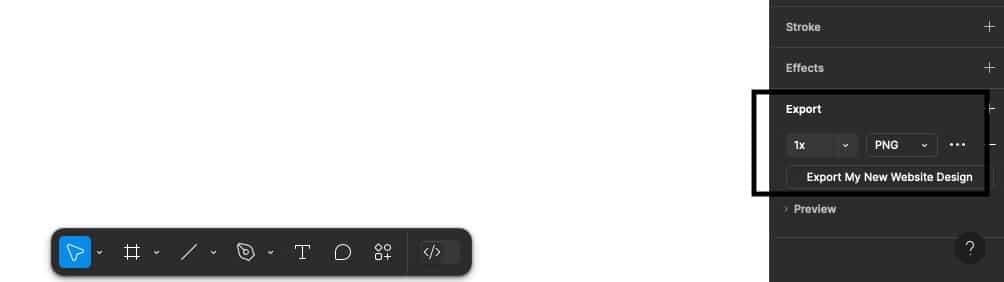
Start by exporting all necessary design assets from Figma, such as icons, SVGs, logos, and background images. Make sure each asset is optimized for web performance. It should be compressed appropriately, sized correctly, and exported in suitable formats like SVG for vector graphics or WebP for images.
These export options are accessible on the lower right-hand corner of the Figma toolbar.
2. Build your base theme or page template
If you’re coding and building your theme from scratch, you need to complete the following:
- Set up your theme’s structure (e.g.
header.php,footer.php, andstyle.css). - Use a starter theme like _Underscores to save time.
- Follow the WordPress template hierarchy to handle different page types.
If you’re using a block theme or page builder, create templates and reusable sections that reflect your Figma layout.
3. Set global styles
Use global styles to match your Figma design specifications. This includes things like:
- Fonts, sizes, and line heights
- Exact color codes
- Spacing and consistent margins and paddings throughout the site
In WordPress, these settings can be configured using the Site Editor or your builder’s global design panel, depending on your setup.
4. Recreate your layouts
Use blocks, patterns, or code to reconstruct each page based on your design. Be mindful of element states like hover, focus, and active. And double-check that all spacing, alignment, and structure match your original design.
5. Test responsiveness manually
Figma may not show how elements behave on real devices. Test your site at multiple breakpoints, including on mobile, tablets, and desktops, and fine-tune as needed.
Tools like DevTools in Chrome can help, but it’s best to check on actual devices as well.
6. Optimize for performance and SEO
As you finalize your build:
- Compress image assets,
- Minimize third-party scripts,
- Use heading tags properly,
- Add meta descriptions,
- Install an SEO plugin like Yoast or Rank Math,
- Run performance tests with tools like GTmetrix.
This method takes more hands-on effort, but the payoff is a site that looks and functions exactly as you designed. And if you build it well, it’s easier to maintain, scale, and optimize over time.
Method 3: Hire a Figma-to-WordPress development service
Hiring a professional Figma-to-WordPress service is a smart option if you don’t have the time, skills, or team to manage the conversion process yourself. These teams specialize in turning static design into fully functional websites, and they can save you hours (or even weeks) of trial and error.
Most of these services follow a consultative workflow, as follows:
- Initial review: First, they review your Figma files, including your page layouts, typography, components, and any style guide documentation.
- Strategy recommendation: They recommend the best approach to bring the design into WordPress. Whether that’s a fully custom theme, a block-based layout, or a hybrid of both depends on your situation. Some even offer design optimization, suggesting minor layout tweaks to improve performance, responsiveness, or accessibility.
- Development: The developers then translate your design into production-ready code. That means adding responsive behavior, handling SEO best practices, accessibility standards, assets optimization, and compatibility with your current theme or plugins.
When all is said and done, you get clean code, consistent styling, and a user experience that matches what you envisioned in Figma.
At Kinsta, we follow this exact model. Every new page or redesign begins with a Figma prototype. Our design and development teams work side by side throughout the process, ensuring that what’s created in Figma is faithfully brought to life in WordPress, with performance, responsiveness, and maintainability baked in from the start.
You can also find development partners specializing in Figma-to-WordPress work, including freelancers, agencies, and dedicated conversion services.
Prices vary depending on the complexity of your project, but if your budget allows, hiring a pro is often the fastest way to go from polished design to a site ready for real-world visitors.
Summary
Converting a Figma design into a live WordPress site isn’t a one-size-fits-all process. If speed matters and the design is simple, plugins can give you a head start. For complete control and precision, manual rebuilding is your best bet. And when time or expertise is limited, hiring a pro ensures your design translates cleanly into code.
At Kinsta, we work this way every day. Every site or page redesign starts in Figma, then moves seamlessly into WordPress with performance, usability, and scalability in mind.
Ready to launch your Figma-built site on reliable, high-speed hosting? Check out managed hosting for WordPress from Kinsta today!

Kinsta
Senior Editor at Kinsta, WordPress Web Developer, and Content Writer. Outside of all things WordPress, I enjoy the beach, golf, and movies. I also have tall people problems.


