

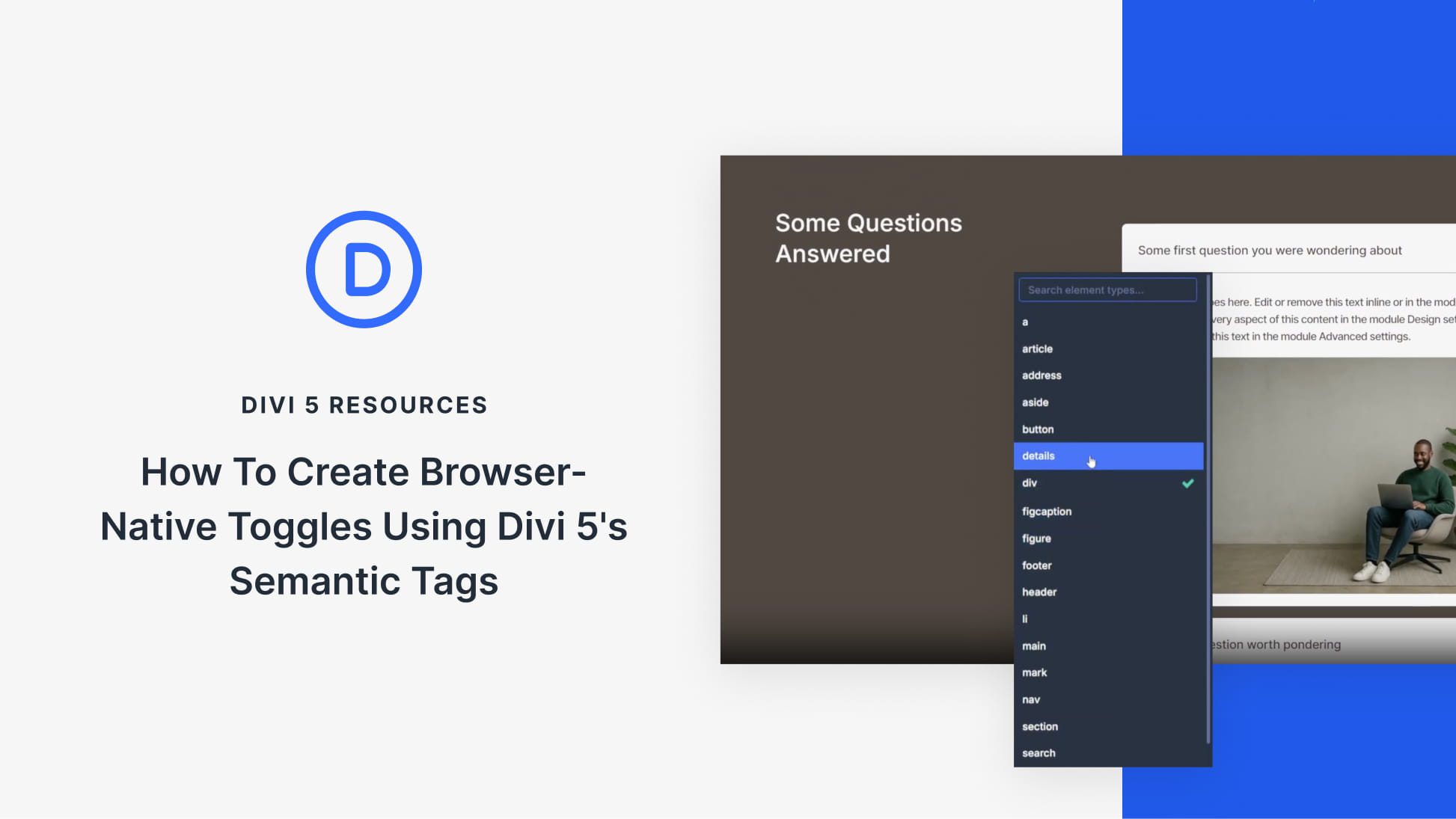
Inside the Group, add a Text Module. This module will become the clickable toggle header. Open the Text Module settings and go to the Advanced tab. In the HTML option group, change the Element Type to summary. Return to the Content tab and enter your toggle header text. This text becomes the clickable label that users interact with to expand and collapse the toggle.
At this point, the toggle appears broken — no disclosure triangle, and clicking does nothing. Because we used a pre-existing module, some styles conflict with the browser-native detail and summary elements. However, we’ll be customizing the toggle ourselves anyway, so we’ll fix everything with custom CSS. This will give us more ways to style it.
Add another Text Module inside the same Group, positioned below the summary Text Module. This module holds the content that appears when the toggle is expanded. Leave the Element Type at its default of
Adding The Disclosure Chevron
Let’s add some basic styles to the Group, including a background color, padding (just on the top, left, and right, not the bottom), and a border radius.
Now onto the toggle. The toggle needs CSS to display a visual indicator. This CSS adds a chevron from Divi’s built-in icon font that sits after the summary text and flips 180 degrees when the toggle opens. Add it to the Column holding the toggles under Advanced > CSS > Free-Form CSS:
details > summary {
 list-style: none;
 cursor: pointer;
}

details > summary::-webkit-details-marker {
 display: none;
}

details > summary::after {
 content: "33";
 font-family: "ETmodules";
 font-size: 24px;
 margin-left: 10px;
 transition: transform 0.3s ease;
 line-height: 1;
 display: flex;
 align-items: center;
 justify-content: center;
}

details[open] > summary::after {
 transform: rotate(180deg);
}

.et_pb_group > :not(summary) {
 padding-bottom: clamp(0.7rem, 0.6rem + 0.6vw, 1.1rem);
}
Let me explain each part of the code and show you what each does through successive videos.
First, we completely remove the default triangle used. We will use our own icon. Marker rendering and styling vary by browser, so this CSS removes them where supported and replaces them with a consistent icon. Divi includes a custom icon font called ETmodules. Instead of standard characters, this font maps specific keys to icons already loaded up via the Theme. Setting the font-family to “ETmodules” and the content to “33” renders a downward-pointing chevron.
Now, in the
The next part of the CSS is responsible for the animation when the toggle is clicked. We use a transform to rotate it 180 degrees when expanded, so the chevron points down when collapsed and up when open.
Lastly, there is CSS that selects all items within the group (except for anything wrapped in the
Not necessary, but if you want to visually divide the summary from the content, add a bottom border to the summary Text Module. In the Design tab, go to the Border option group. Find the Bottom Border settings area and set its width to 1px. Move to the Spacing option group and set the bottom padding to clamp(0.7rem, 0.6rem + 0.6vw, 1.1rem).
And, if we wanted multiple toggles on this page, we can simply duplicate the group and adjust the content within.
Now, we can add an image underneath the second Text Module, just to show that multiple content types and modules can be used inside the toggle.
Practical Use Cases For HTML Toggles
Browser-native
tags offer a lightweight, accessible solution for organizing content without the performance cost of JavaScript. While most commonly used for Frequently Asked Questions — often used for FAQ sections, and you can pair them with FAQ structured data if you are intentionally adding schema markup.
Suppose you need to hide dense technical specifications, warranty details, or “beginner-level” context in documentation so that advanced users can scan the page efficiently.
This Element combo also effectively manages screen real estate by tucking away spoilers and puzzle solutions, collapsing lengthy video transcripts or large code blocks in technical tutorials, and even simplifying mobile interfaces by housing complex e-commerce filters or navigation menus behind a clean, interactive label.
Try Semantic Elements In Divi 5 Today!
Divi 5‘s Semantic Elements feature lets you build with native HTML directly in the Visual Builder. The
elements deliver accessible, JavaScript-free toggles that work in all modern browsers. If you were looking for a lighter-weight alternative to the Toggle Module, this is an excellent option for you now.
Try it on your next FAQ section or product page — the setup takes minutes, and the result is cleaner markup than any plugin can offer.

Are You A Divi User? Find Out How To Get More From Divi! 👇
Browse hundreds of modules and thousands of layouts.


Find Out How To Improve Your Divi Workflow 👇
Learn about the new way to manage your Divi assets.


Want To Speed Up Your Divi Website? Find Out How 👇
Get fast WordPress hosting optimized for Divi.



