

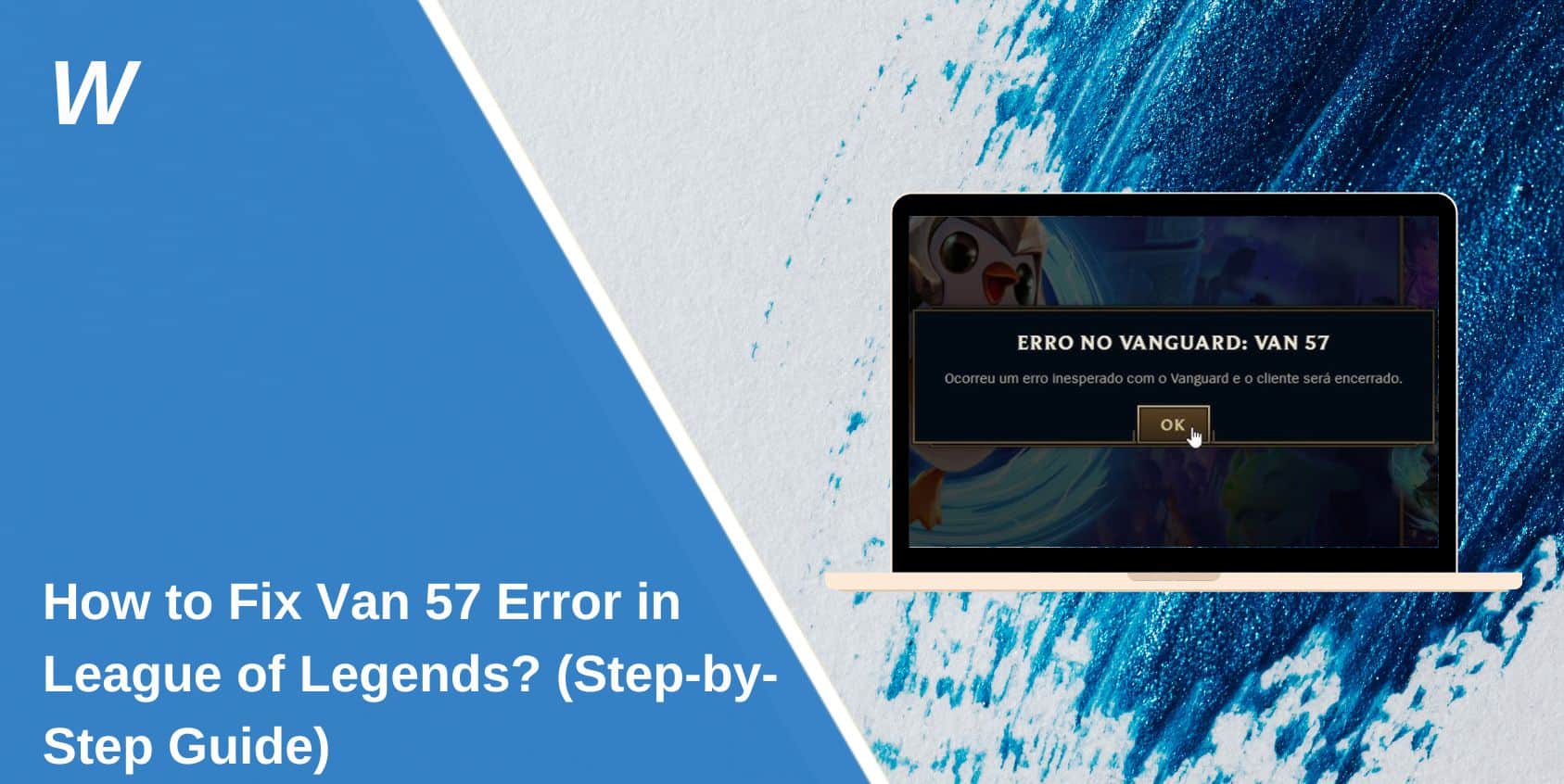
You’re ready to play League of Legends. You click “Play” and expect to jump straight into the client. Instead, you get a Van 57 error on your screen. No match, no login, just a code and frustration.
This error often appears before the game even loads. For many players, it happens right after an update or restart. It’s tied to Riot Vanguard, the anti-cheat system that runs in the background to keep matches fair. When it can’t start or connect, League refuses to launch.
The problem is annoying, but it’s not impossible to fix. Let’s first understand what it means before looking at why it happens.
What is the Van 57 Error in League of Legends?
Van 57 is an error code linked to Riot Vanguard, the security tool Riot Games uses to prevent cheating in League of Legends. When you launch the game, Vanguard runs checks in the background to make sure your system is secure and free of cheats.
If Vanguard can’t start or loses connection to Riot’s servers, the Riot Client stops the login process and throws the Van 57 error. It’s basically a warning that your anti-cheat isn’t working as expected, so the game blocks entry until it’s fixed.
Common Causes of Van 57 Error in League of Legends
This error can appear for several reasons. Here are the most common ones:
- Riot Vanguard service isn’t running
- Firewall or antivirus is blocking Riot Vanguard or Riot Client
- VPN or proxy interfering with Vanguard’s connection
- Outdated or corrupted network drivers
- DNS settings are causing connection issues
- Riot Client is not running with administrator rights
- Vanguard files are damaged or missing after an update
- Internet connection is unstable or dropping packets
How to Fix Van 57 Error in League of Legends?
When you run into the Van 57 error, the best approach is to start with quick, easy steps before trying the more advanced fixes. Here’s the order you should follow.
Fix #1. Restart Your PC and Riot Client
Sometimes, Vanguard just fails to start properly during boot. Restarting can reload all the services it needs. Close the Riot Client completely, restart your computer, and then try relaunching the game.
Fix #2. Make Sure Riot Vanguard is Running
Van 57 often means Vanguard isn’t active.
- Press Windows + R, type
services.msc, and press Enter - Find vgc in the list
- If it’s not running, right-click and choose Start
- Please set it to Automatic so it launches on boot
Once Vanguard is running, open the Riot Client and test the game.
Fix #3. Allow Riot Vanguard and Riot Client Through the Firewall
If your firewall blocks Vanguard, it can’t connect to Riot’s servers.
- Open your Windows Security settings
- Go to Firewall & Network Protection
- Click Allow an app through the firewall
- Add both Riot Client and Riot Vanguard to the list for private and public networks.
This makes sure security software doesn’t block them again.
Fix #4. Disable VPN or Proxy
Using a VPN or proxy can block Vanguard’s secure connection. Temporarily disable them and launch the game. If the error disappears, you can either keep them off while playing or adjust settings to whitelist Riot’s services.
Fix #5. Run Riot Client as Administrator
Running the client with admin rights lets it access system resources without restrictions. Right-click the Riot Client icon, choose Run as administrator, and then try launching League of Legends.
Fix #6. Update Your Network Drivers
Old or corrupted drivers can block Vanguard from connecting.
- Open Device Manager
- Expand Network adapters
- Right-click your active network device and choose Update driver
- Restart your PC after updating
Fix #7. Reset DNS Settings
If your DNS is misconfigured, Vanguard might fail to connect.
- Press Windows + R, type
cmd, and press Enter - Type:
ipconfig /flushdns
ipconfig /release
ipconfig /renew - Press Enter after each line
Try relaunching the game.
Fix #8. Reinstall Riot Vanguard
Sometimes the Vanguard installation gets damaged.
- Close Riot Client completely
- Press Windows + R, type
appwiz.cpl, and hit Enter - Find Riot Vanguard and uninstall it
- Open Riot Client, and it will automatically reinstall Vanguard when needed
Fix #9. Reinstall Riot Client
If nothing works, reinstalling the Riot Client can fix corrupted files. Please back up your settings, uninstall the client, download the latest version from Riot’s website, and install it fresh.
When to Contact Riot for Support?
If you’ve tried to troubleshoot the Van 57 error and nothing works, your best option is to reach out to Riot Support. They have access to tools and logs that can help identify exactly why Vanguard isn’t loading on your system.
When submitting a ticket, include the error code, your operating system version, recent changes to your PC, and the steps you’ve already tried. Adding screenshots or error logs can also speed up the process. Riot’s team is used to dealing with Van 57, so they can guide you to a specific solution if the general fixes fail.
Tips to Prevent Van 57 Error in the Future
Keeping your setup clean and up to date helps reduce the chances of running into Van 57 again.
- Always let Riot Vanguard run at startup
- Keep your Riot Client and game updated
- Add Riot Vanguard and Riot Client to your firewall’s allowed list
- Avoid using VPNs or proxies while playing
- Update network drivers regularly
- Restart your PC after updates before launching the game
- Don’t force-close Vanguard in Task Manager
- Keep your DNS settings stable and reliable
Conclusion
The Van 57 error might stop you from logging in, but it’s just Riot Vanguard doing its job. The system ensures your game is safe and fair before letting you in.
By keeping Vanguard active, maintaining good network settings, and making sure Riot’s files are never blocked, you can enjoy smoother logins. And if it does show up again, you’ll already know the first steps to take.

With 7+ years in SEO and blogging, I optimize reputable websites for better rankings. I’m passionate about creating detailed guides, especially in gaming and IT.
Where Should We Send
Your WordPress Deals & Discounts?
Subscribe to Our Newsletter and Get Your First Deal Delivered Instant to Your Email Inbox.


