


Every hour spent troubleshooting uptime issues, applying security patches, or configuring scaling represents time that could be allocated to client projects.
Infrastructure management within a developer-led agency can create hidden costs and prevent you from writing good code.
This post explains how scaling WordPress with Kinsta eliminates this burden and covers the tools Kinsta provides to help you achieve your goals.
The hidden cost of micromanaging infrastructure
DevOps fatigue creeps up when you spend more time maintaining infrastructure than building client projects. The symptoms appear in different forms, but the underlying problem remains consistent: infrastructure demands attention that should go toward client work.
For instance:
- Server troubleshooting and middle-of-the-night performance degradation consume time.
- If database queries run slowly, you can spend hours analyzing logs and tuning configurations.
- PHP memory limits often occur without warning during traffic spikes, requiring emergency adjustments.
Regardless of the specific incident, you are pulled away from your primary work, and your productivity suffers.
There are other infrastructure time sinks to consider:
- Security patch management. Operating system updates, server software patches, PHP version migrations, and many other tasks require significant time.
- Multi-site configuration management. Different clients might need varying PHP versions, memory limits, or server configurations. As your clients grow, configuration management becomes a dedicated role rather than an occasional task.
Cornershop Creative experienced this before migrating to Kinsta. They needed to spend considerable time managing server infrastructure, responding to downtime alerts, and coordinating updates across client sites. Now that infrastructure overhead is gone, the team can redirect its capacity toward revenue-generating development work.
How Kinsta’s developer tools eliminate infrastructure management
Kinsta’s managed hosting for WordPress provides the tools to reduce the need for dedicated DevOps resources while giving you the right level of control. Because Kinsta handles the infrastructure layer, the context-switching between your development work and operations tasks is reduced.
For new sites, DevKinsta configures a complete hosting stack using Nginx, (switchable) PHP, and MySQL to mirror a typical production environment. This consistency eliminates the “Works on my machine” problem that can cause deployment friction.
Integrating with MyKinsta, you can pull a complete copy of any production site to your local environment with a few clicks using Adminer or phpMyAdmin:
In addition, these database tools support tasks that typically require SSH access to the database server. You can also export database dumps for backups, import SQL files to restore data, search across tables for specific values, or modify records directly.
Staging environments for risk-free testing
Staging environments let you test changes before pushing to production. Kinsta provides one-click staging environments that duplicate your production site and run on the same infrastructure.
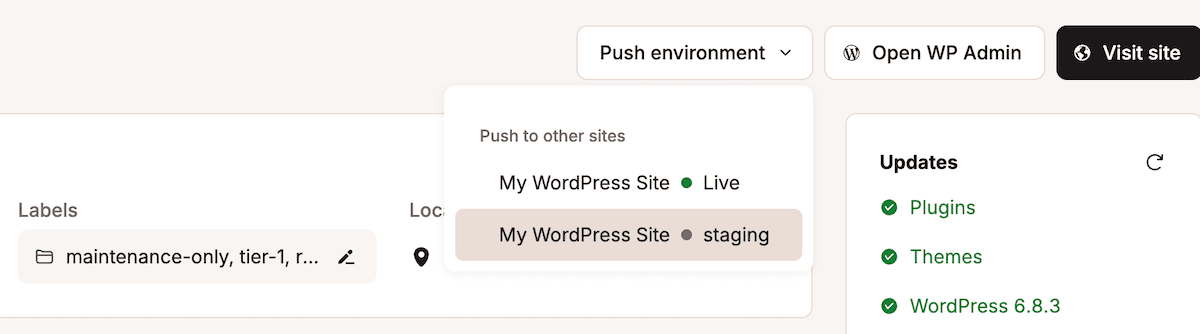
This consistency allows you to test against production conditions, verify that changes work correctly, and then push to production knowing the code performs as expected.
Kinsta offers standard and premium staging environment types. Standard staging suffices for testing code changes, plugin updates, and theme modifications. Premium staging environments provide you with the same resources as your production site, including matching CPU cores, RAM, and PHP threads. This lets you conduct accurate load testing and performance optimization before you deploy the changes.
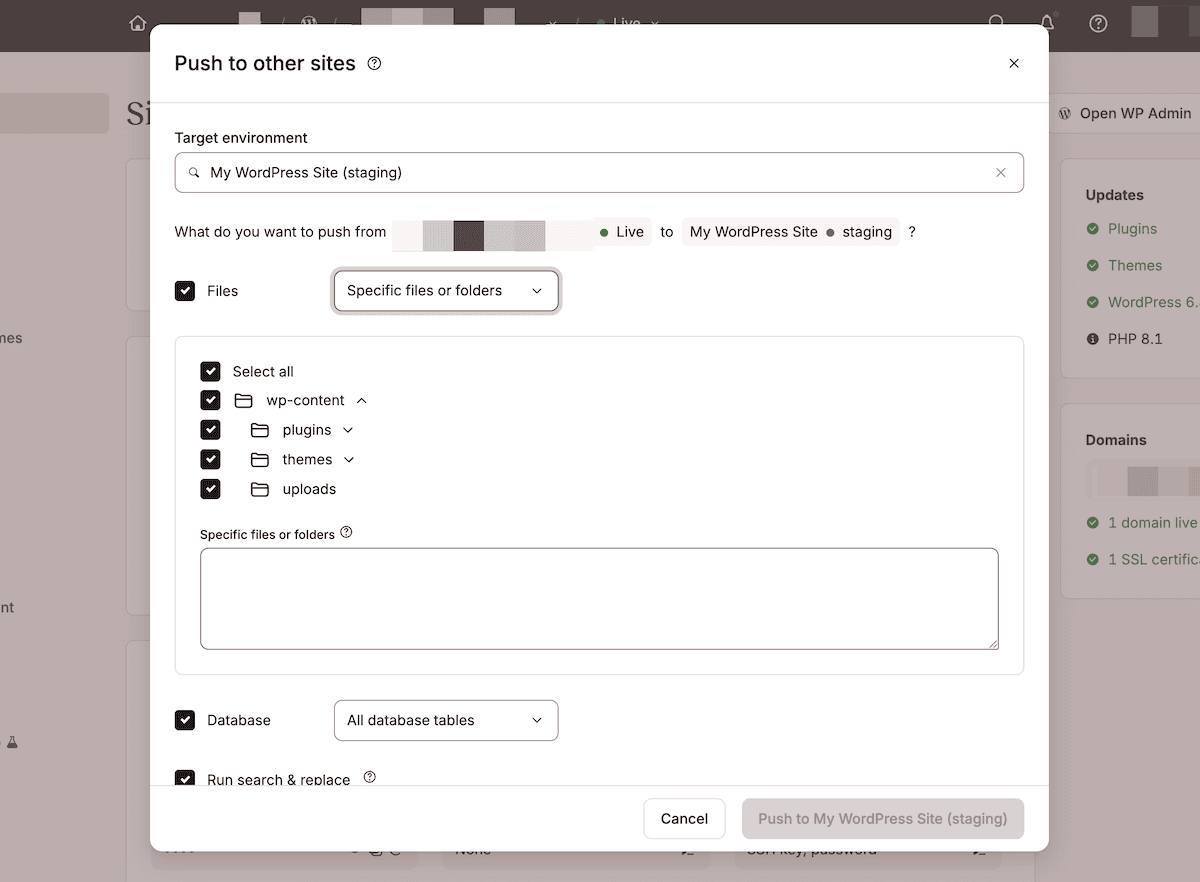
You can also selectively push your files, as shown in the image below. This gives you granular control over what moves from staging to production.
SSH access and WP-CLI for efficiency
SSH access to Kinsta’s servers lets you manage servers without needing a graphical interface. You’re able to execute commands, inspect logs, and troubleshoot issues with the same speed as the command-line.
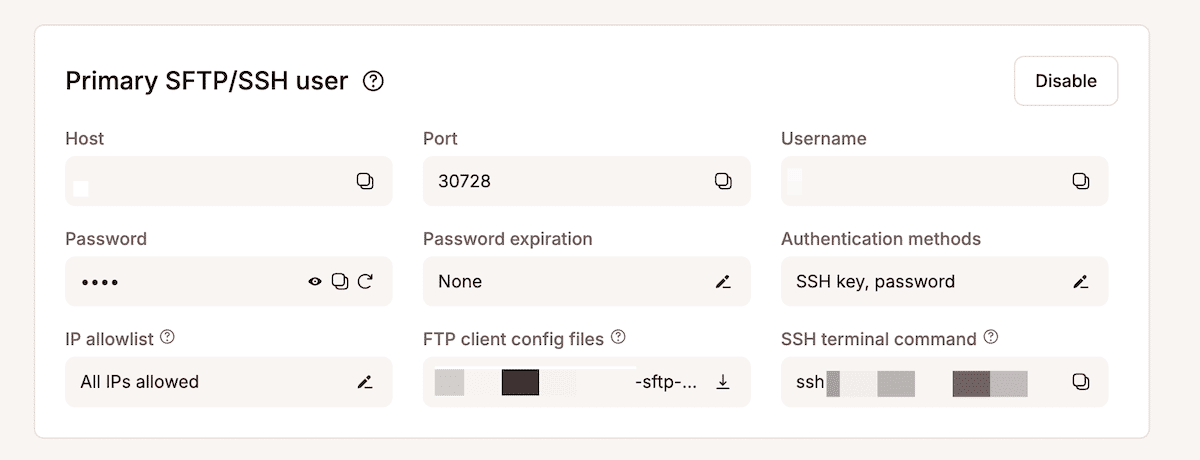
You can find your SSH credentials within MyKinsta’s Site Information panel. Once you connect, you can access the site’s file system and execute server-level commands.
WP-CLI is also installed on all Kinsta servers. If you prefer using the command line to manage WordPress, this will likely be of interest to you.
For example, you can use:
-
wp plugin update --all— to update all plugins across a site wp user create username [email protected] --role=administrator— to create a new administrator userwp cache flush— to clear the object cache of a site
SSH access and WP-CLI together make remote site management scalable and efficient. With simple bash scripts, you can automate routine tasks across multiple client sites at once. This automation saves valuable time and ensures consistency, reliability, and security throughout your entire portfolio.
Git integration for version control
Kinsta supports using Git (via GitHub, GitLab, or Bitbucket) to manage and deploy code directly through SSH. After connecting to your site, you typically run Git commands inside your site’s public directory (this is where your live WordPress installation resides).
For example, to pull the latest changes from your repository:
cd /www/sitename/public
git fetch origin main
git reset --hard origin/main
This updates your site’s files to match the latest version of your GitHub repository.
Authentication is handled via SSH keys or personal access tokens. If your repository uses two-factor authentication (2FA), configure a read-only deploy key in your repository settings to allow Kinsta to pull code securely.
GitHub, GitLab, and Bitbucket all follow similar SSH-based workflows. Once connected, you can automate deployments with scripts or CI/CD tools like GitHub Actions to pull the latest changes, clear caches, and update your site automatically.
For automated deployments, Kinsta supports CI/CD workflows that perform these same commands whenever you push new commits to your main branch.
How Kinsta’s infrastructure handles growth
Kinsta’s hosting environment is designed to scale flexibly with your site’s needs, minimizing the time developers spend on capacity planning or manual configuration. Each WordPress site runs inside an isolated LXC container with its own dedicated resources, including CPU, memory, and Nginx, PHP, and MySQL services.
When a site demands more processing power or memory, you can easily increase its capacity by adding resources through an add-on. While Kinsta doesn’t provide automatic scaling, additional resources can be provisioned quickly as needed.
Importantly, your client sites does not experience downtime if you exceed plan limits. Kinsta’s overage protection ensures your sites stay online even when usage temporarily surpasses plan thresholds. This allows developers to respond on their own schedule, without emergency interventions during traffic spikes.
Sites that handle large volumes of concurrent users, run complex database queries, or execute intensive PHP operations benefit most from this approach. For example, high-query sites often see faster database response times when allocated more CPU power and memory.
Because each PHP thread can process only one request at a time, additional PHP threads directly increase the number of concurrent requests your site can handle. Kinsta offers multiple instance sizes to match your site’s performance profile, and its built-in PHP performance tool allocates extra threads and memory as needed to maintain responsiveness under heavy load.
Kinsta provides expert support from WordPress specialists
Your agency needs a support team that understands the technical requirements you require. Generic hosting support often lacks the depth to troubleshoot complex WordPress issues or provide guidance on optimization.
Kinsta provides access to WordPress experts who possess a deep technical understanding of the platform.
This is a defining aspect of several Kinsta customer experiences. For example, Cornershop Creative, an award-winning digital agency serving nonprofit clients, found that Kinsta’s expert support completely changed the way their team operates. They host more than 220 sites, handling nearly 3 million visits per month, and report far fewer downtime issues compared to their previous hosts. Kinsta’s responsive and knowledgeable support, along with its seamless migrations, made the transition smooth and scalable.
As Co-Founder Ben Byrne puts it:
Kinsta’s chat support is convenient and easy to access, and the support representatives are knowledgeable and helpful. We’ve made a lot of good decisions over the years, and I feel like Kinsta was one of the better ones.
Kinsta provides plenty of self-serve support tools, also:
- Kinsta monitors the uptime for all sites and responds to problems automatically when possible. The infrastructure includes self-healing PHP that restarts automatically when processes fail.
- Automatic malware scanning runs on all sites. If malware appears, Kinsta provides a hack-fix guarantee that includes cleanup at no additional cost.
- DDoS protection comes through Cloudflare integration at the infrastructure level. The integration operates transparently to filter malicious traffic before it reaches your sites.
- Kinsta’s backup systems will create restore points and perform daily backups that retain for up to 30 days.
Regardless of whether you need scalability, support through direct communication, the ability to monitor your resources in-house, or something else, Kinsta has your back.
Summary
Infrastructure management can consume time that your developer-led agency should spend building client sites.
Kinsta uses integrated developer tools, a containerized architecture that scales, and support from WordPress experts to help minimize any bottlenecks. The platform takes the heavy burden of maintenance and turns it into a foundation that supports real growth without your constant oversight.
If you want to upgrade your infrastructure, Kinsta’s managed WordPress hosting for agencies offers a developer-first setup that lets your team focus on code rather than servers.

Kinsta
Joel is a Frontend developer working at Kinsta as a Technical Editor. He is a passionate teacher with love for open source and has written over 300 technical articles majorly around JavaScript and it’s frameworks.


