

When building a custom theme or working with a child theme, you might need to remove or hide certain styling features, whether it’s for a single core block or a full theme style variation.
Doing so isn’t just about preference. It often brings practical advantages, such as improved performance, more consistent design, and a simpler user interface.
The approaches taken to accomplish these goals vary and are likely to depend on your needs and your skills. For the examples in this article, we work with a child theme of Twenty Twenty-Five (TT5), a modern WordPress block theme.
Unregistering depends on how it was registered
For our purposes, when we refer to unregistering a block or theme style variation, we distinguish between complete and partial removal, and whether the variation is fully removed or merely hidden from the interface. The distinctions are important.
Understanding how to unregister a block starts with knowing how it was registered. For example, core blocks registered with JavaScript are best unregistered in that language. By contrast, theme style variations are registered with PHP, and thus, a different approach may be in order.
Unregistering custom blocks is outside the scope of this article, and your approach depends on how those blocks were originally registered.
What is a style variation?
WordPress distinguishes between block styles and theme style variations. Block styles are visual alternatives for a specific block, such as a button block’s “fill” or “outline” styles. Block style variations are registered in core, theme.json, block.json (or in a plugin).
Theme style variations, on the other hand, are entire visual alternatives that include colors, typography, and layouts defined in a unique theme.json file. They allow users to switch between different looks (skins) for a site without changing the theme. TT5 comes with eight style variations in addition to the default style.
Take your first step: enqueue your scripts
Because we are working with a child theme, you must take care to enqueue your scripts properly.
This setup gets you started, including enqueuing our custom unregister-blocks.js file.
// Enqueue Parent and Child Styles
add_action('wp_enqueue_scripts', function () {
    wp_enqueue_style(
        'parent-style',
        get_template_directory_uri() . '/style.css'
    );

    wp_enqueue_style(
        'child-style',
        get_stylesheet_uri(),
        ['parent-style'],
        wp_get_theme()->get('Version')
    );
});

// Enqueue styles in the WordPress admin
add_action('admin_enqueue_scripts', function () {
    wp_enqueue_style(
        'child-admin-style',
        get_stylesheet_uri(),
        [],
        wp_get_theme()->get('Version')
    );
});

// Enqueue JavaScript for block editor
add_action('enqueue_block_editor_assets', function () {
    wp_enqueue_script(
        'unregister-core-blocks',
        get_stylesheet_directory_uri() . '/js/unregister-blocks.js',
        ['wp-blocks', 'wp-dom-ready', 'wp-edit-post'],
        null,
        true
    );
});
As you can see, we have a JavaScript file at js/unregister-blocks.js, which includes all of our scripts for this article.
Do not use get_template_directory_uri() for the JavaScript file, as this points to the parent theme.
Timing is everything
Knowing when a hook fires is critical when working with PHP in WordPress. You should be familiar with the basic loading sequence, which begins in wp-settings.php:
- Constants
- Globals
- Core components
- Load plugins
- Load the theme
Figuring out the right point at which a custom function should run is one of the trickiest and most frustrating parts of WordPress development.
Unregistering a core block style
Let’s consider a situation in which you wish to remove the style of a core block. In this case, we want to remove the outline style for the button block.
As the fill and outline button styles are registered in TT5’s theme.json file, we use JavaScript to handle the process.
wp.domReady(() => {
    if (wp.blocks && wp.blocks.unregisterBlockStyle) {
        wp.blocks.unregisterBlockStyle('core/button', 'outline');
    }
});
The result is the removal of the outline style in the toolbar and sidebar.
Unregistering a core block
Suppose you wish to remove all block styles for a block. A more rational approach is to unregister the block (or blocks) instead. This streamlines the Inserter by removing block(s) you don’t want users to use and improves performance.
Here, the Quote block is removed.
wp.domReady(() => {
    wp.blocks.unregisterBlockType('core/quote');
});
What occurs if the script runs after the Quote block has already been used? WordPress shows a “This block is no longer available” message in the Editor, but the content still renders on the front end. Users can manually edit or convert the raw HTML view to which the block falls back.
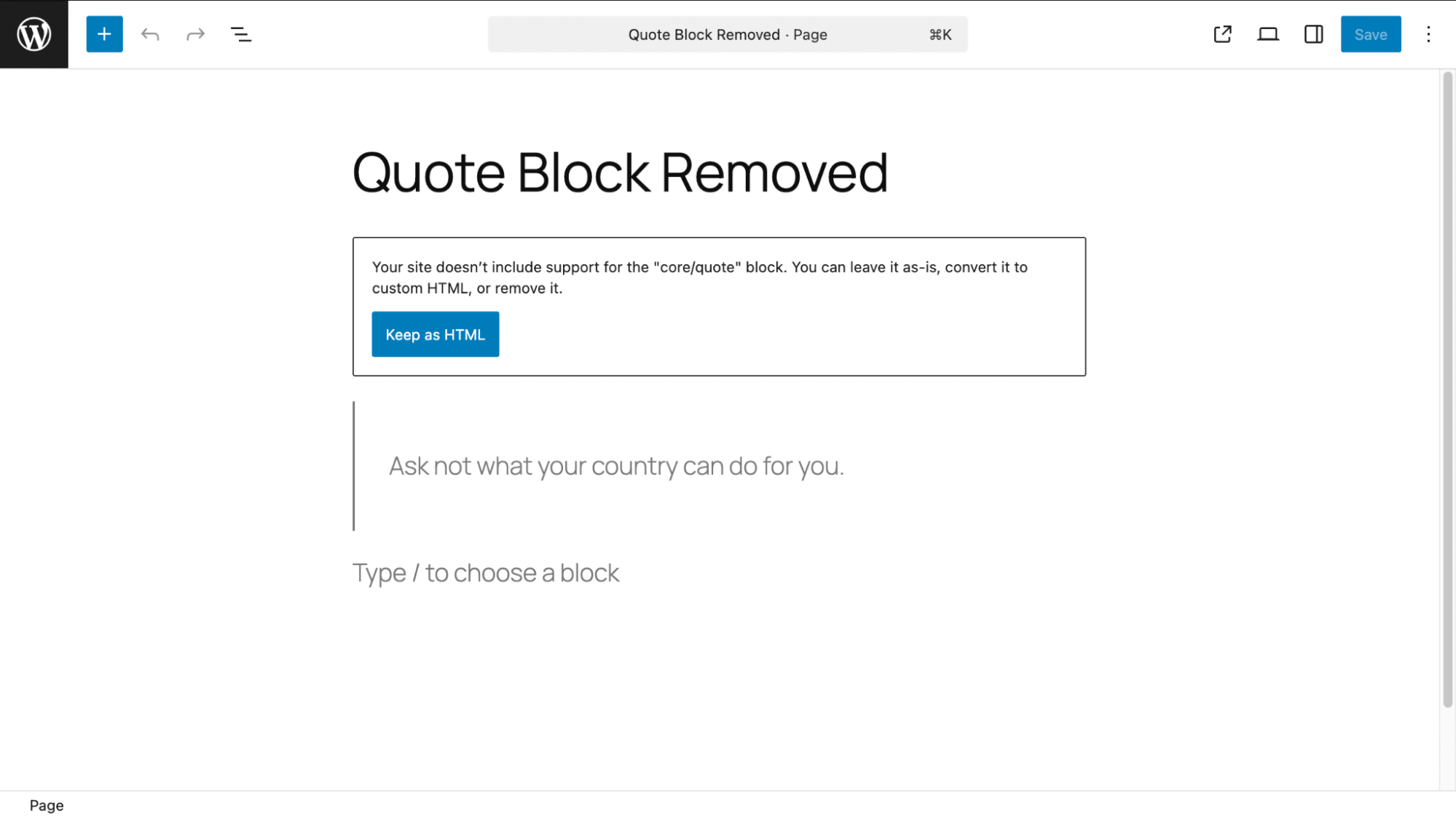
You can either leave it as-is or convert it to HTML to retain the content and styling.
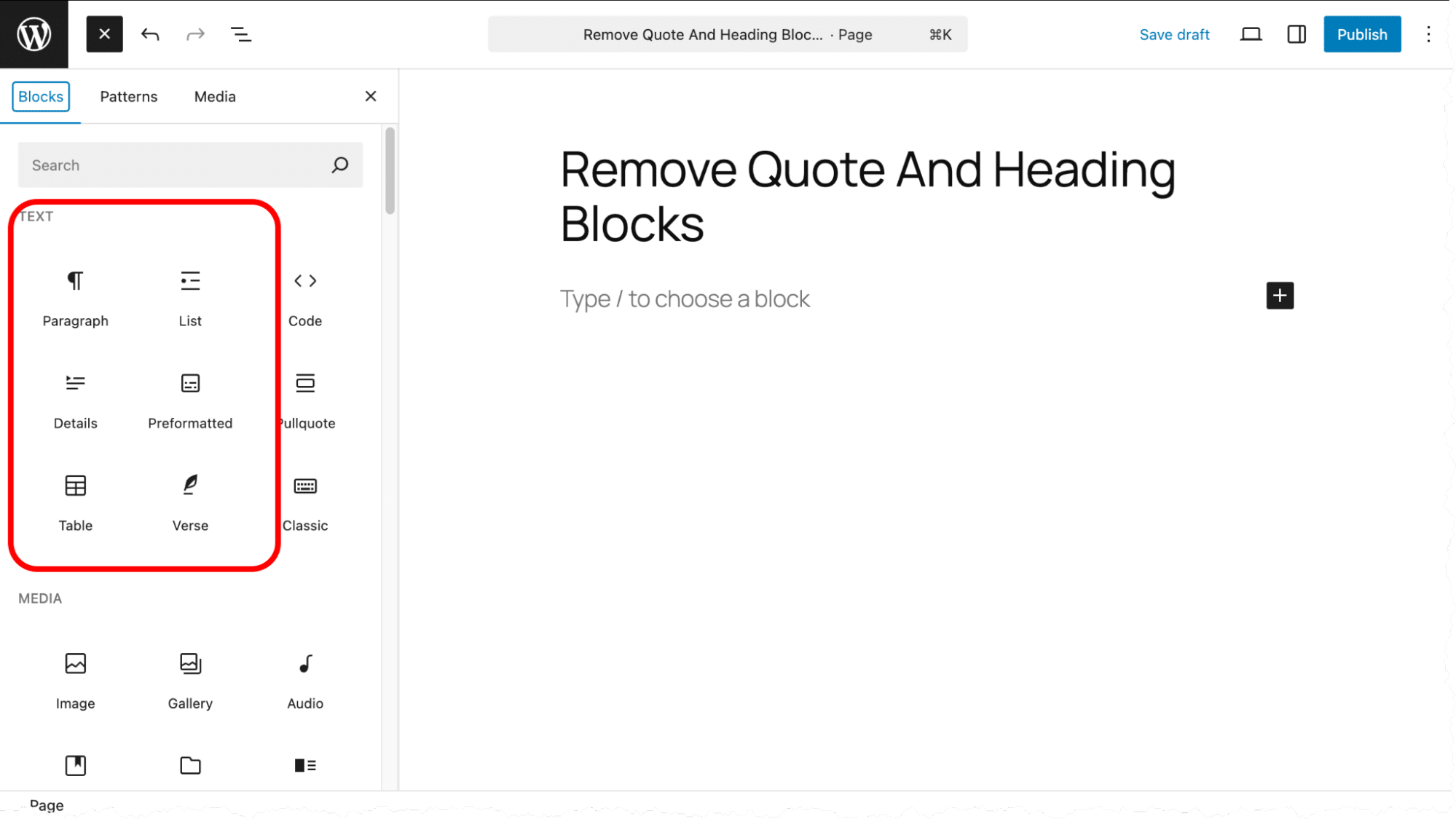
What about unregistering more than one block? In this example, we knock out the Quote and Heading blocks by running a foreach loop to provide a very efficient way to do this.
wp.domReady(() => {
    const blocksToRemove = [
        'core/quote',
        'core/heading',
    ];

    blocksToRemove.forEach((blockName) => {
        if (wp.blocks.getBlockType(blockName)) {
            wp.blocks.unregisterBlockType(blockName);
        }
    });
});
This script conveniently makes it easy to remove other blocks if necessary.
Unregistering a theme style variation
The beauty of style variations in block themes is that they don’t need to be registered, like you might have done in the past with other WordPress extensions.
Instead, they’re automatically recognized by Core simply by placing a properly formatted theme.json file in the child theme’s root or /styles directory.
It’s easy to assume you need a function to unregister style variations, but block themes work differently.
As with block styles, there is no default UI to remove unwanted style variations.
Let’s start with the simplest methods and work our way from there. What makes style variations so easy to “register” or add to a block theme is exactly what makes it very difficult to “unregister.” Consequently, we have a few approaches.
Removing a theme style variation
There are a few ways to remove the Evening style variation in a block theme like TT5.
If you’re not using a child theme, the most direct option is to delete the corresponding .json file from the parent theme. For example, removing 01-evening.json from the /styles directory removes the Evening variation entirely.
However, this is not recommended as the file will likely return after the next theme update.
A better, safer method is to use a child theme and override the style variation. You can do this by creating a blank file in the same path with the same filename. To override 01-evening.json, add an empty file named 01-evening.json inside your child theme’s /styles directory.
This approach doesn’t truly “unregister” the variation; it just neutralizes it. WordPress still recognizes the file, but since it contains no settings, the variation becomes invisible in the UI and non-functional. This override only works because child themes load after parent themes, so it’s worth confirming that your child theme is correctly set up.
Hiding a Variation with CSS
Another workaround is to hide the style variation from the UI using CSS. This doesn’t remove it from memory or the REST API, and it won’t reduce front-end bloat, but it will stop users from selecting it in the Site Editor.
Here’s an example to hide the Evening variation:
/* Hide specific global style variations in the Site Editor */
.edit-site-global-styles-variations_item[data-slug="morning"],
.edit-site-global-styles-variations_item[data-name="evening"],
.edit-site-global-styles-variations_item[title="Evening"],
.edit-site-global-styles-variations_item[aria-label*="Evening"] {
    display: none !important;
    opacity: 0 !important;
    pointer-events: none !important;
}
This works in the Editor > Styles > Browse Styles panel. If a user previously activated the Evening variation, it’ll still be applied, but they won’t be able to reselect or switch to it again.
Hiding a Variation with JavaScript
You can also use JavaScript to hide the variation, injected via PHP using wp_add_inline_script. This is a bit of a hack, since style variations are registered in PHP, but it’s sometimes the only practical way to manipulate the UI reliably.
Here’s a working example:
// Inject JS to hide specific style variations in the Site Editor UI
add_action('enqueue_block_editor_assets', function () {
    wp_add_inline_script(
        'unregister-core-blocks',
        << {
    const interval = setInterval(() => {
        document.querySelectorAll(
            '[aria-label*="Noon"], [title*="Evening"], [data-name="noon"], [data-slug="evening"]'
        ).forEach(el => {
            el.style.display = 'none';
        });
    }, 500);

    // Stop the interval after 5 seconds
    setTimeout(() => clearInterval(interval), 5000);
});
JS
    );
});
This script waits for the DOM to load, then repeatedly scans for and hides the variation for a few seconds. It’s fragile (because it depends on timing and class names), but it works when you need to suppress specific variations without touching the filesystem.
Summary
Keeping your site clean and free of unused elements improves the user experience and, in many cases, site performance.
Our examples here provide solid approaches to unregistering style variations. We hope they also provide insights into why unregistration can be perplexing.
Looking for fast, reliable WordPress hosting while you build and test custom themes? Kinsta offers developer-friendly features, staging environments, and performance-optimized infrastructure to support your workflow from local dev to production.

Bud Kraus has been working with WordPress as an in-class and online instructor, site developer, and content creator since 2009. He has produced instructional videos and written many articles for WordPress businesses.


