


tagName selector for the Post Content block
Starting with WordPress 6.9, you can select the semantically appropriate wrapper for the Post Content block. You can choose between ,

Custom link icons for Social Links
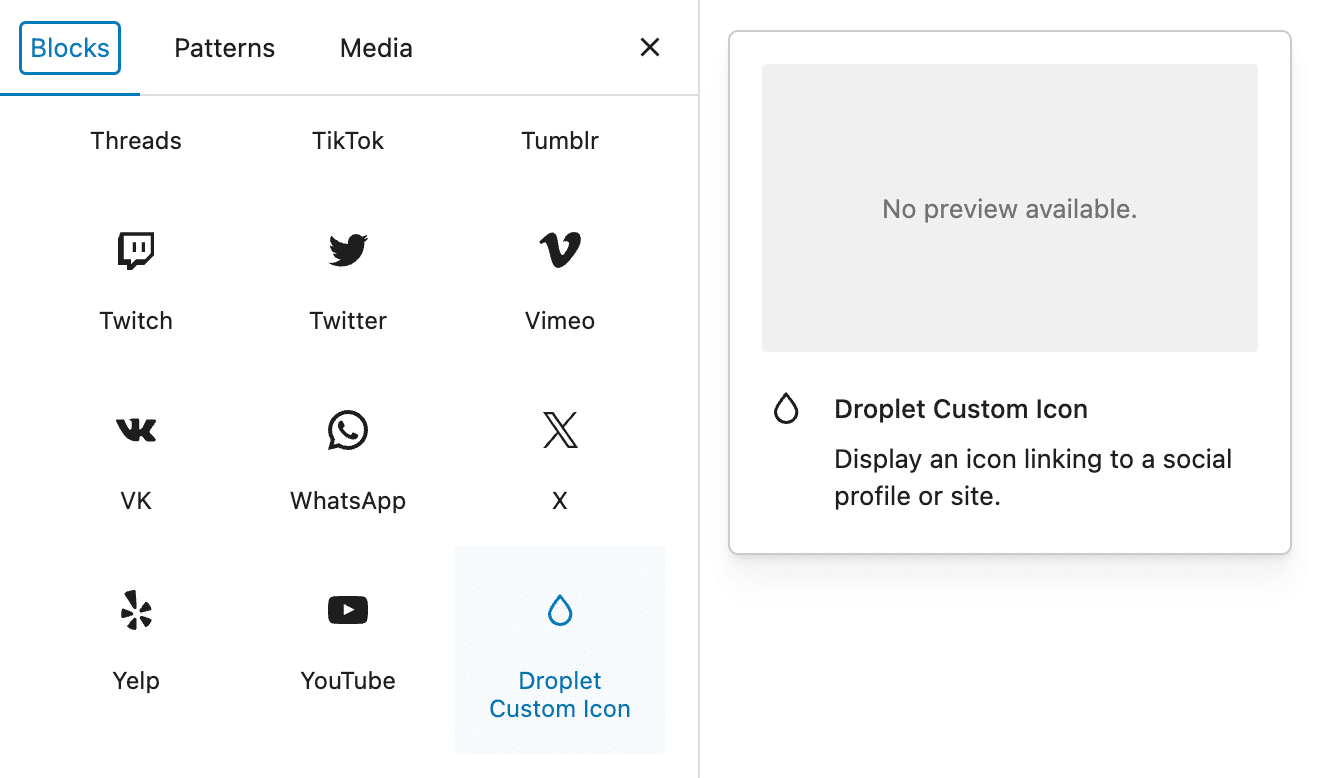
A new block_core_social_link_get_services filter now allows developers to add custom link icons to the Social Links block using block variations. This addition provides more options for customizing the Social Links block and eliminates the need for the core to manage a long list of services.
You can find the technical details and the code to register a Social Link variation in the PR #70261. The following image shows the result in the post editor.
Sorting by menu order in the Query Loop block
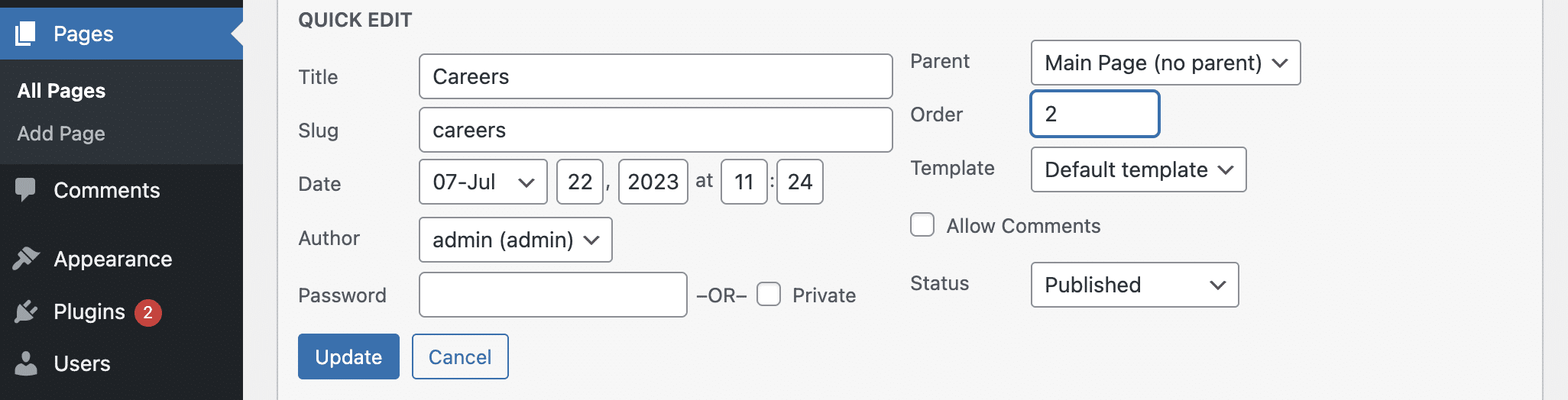
In addition to post title and date, you can now sort post types that support page attributes in the Query Loop block by menu order. To try out this new feature, create multiple pages and use Quick edit to edit each one.
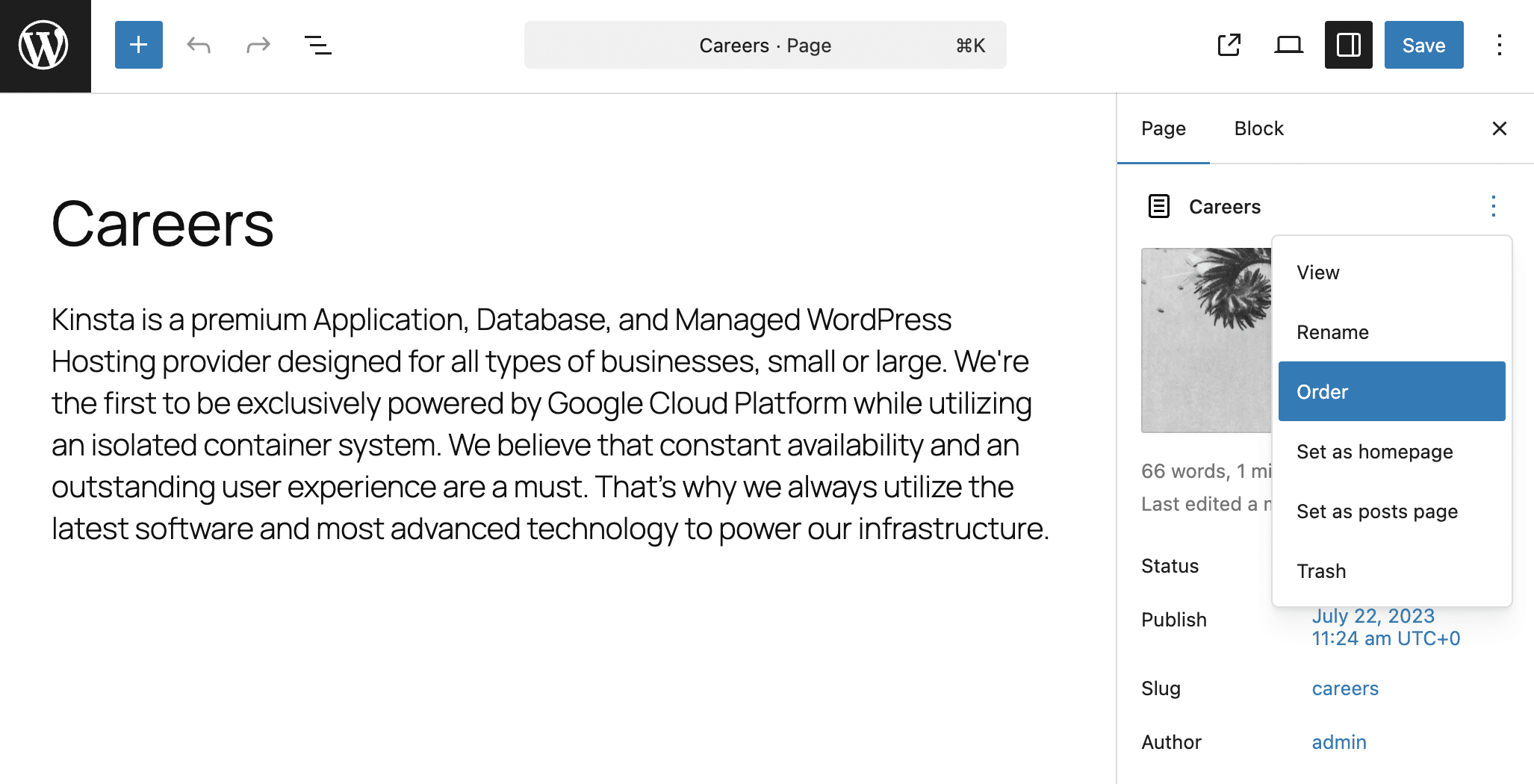
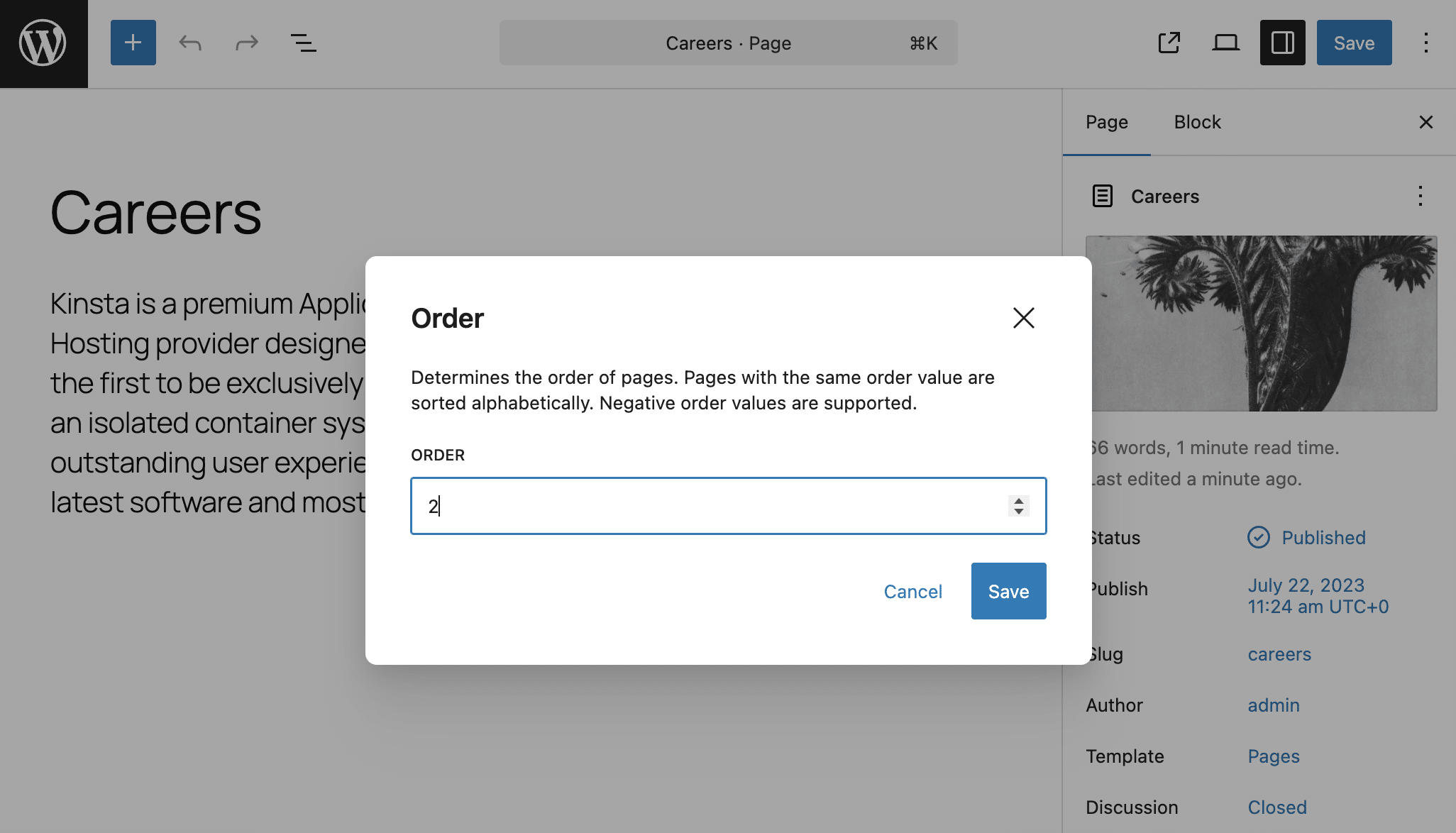
You can also change the menu item order by editing each page individually. In the Page sidebar on the left, click the Actions button (the three dots in the top right corner). Then, select Order. A pop-up will appear with a numeric field for setting the menu order.
After setting the page order, create a new page and add a Query Loop block. Select Pages as the post type and sort them by Menu Order.
The menu_order value is available for all post types in the database; however, you need to register support for the page-attributes feature to make this setting available for your custom post types.
For further information on this feature, refer to PR #68781.
Updates to the Navigation block
The Navigation Block has undergone several updates. Here is a quick list of the major ones:
A new Create Page button has been added to the Link UI of the Navigation Link block. This update includes the option to publish the page immediately.

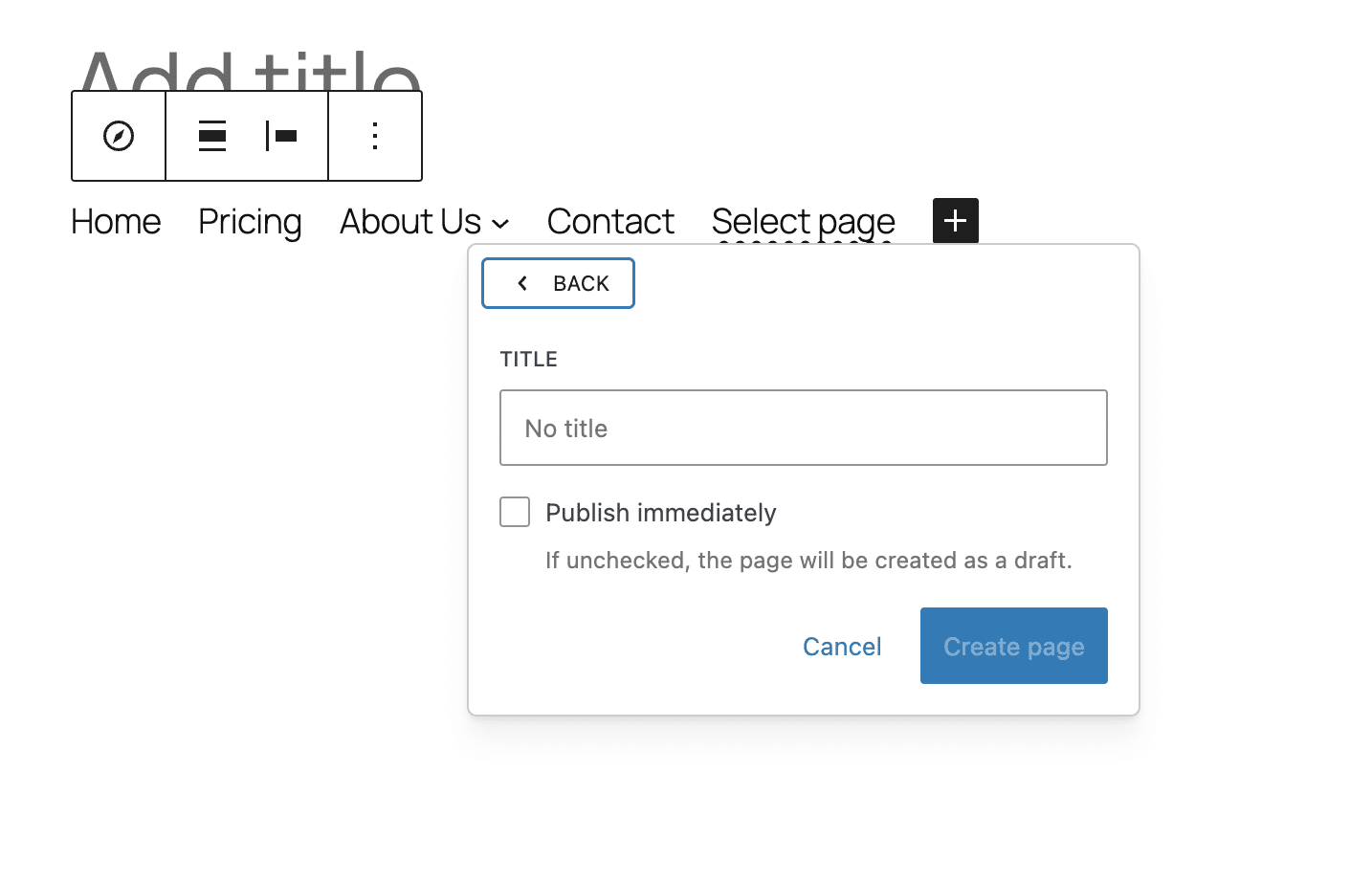
This functionality is also available in the Button block, even when it is included in the Navigation Menu.
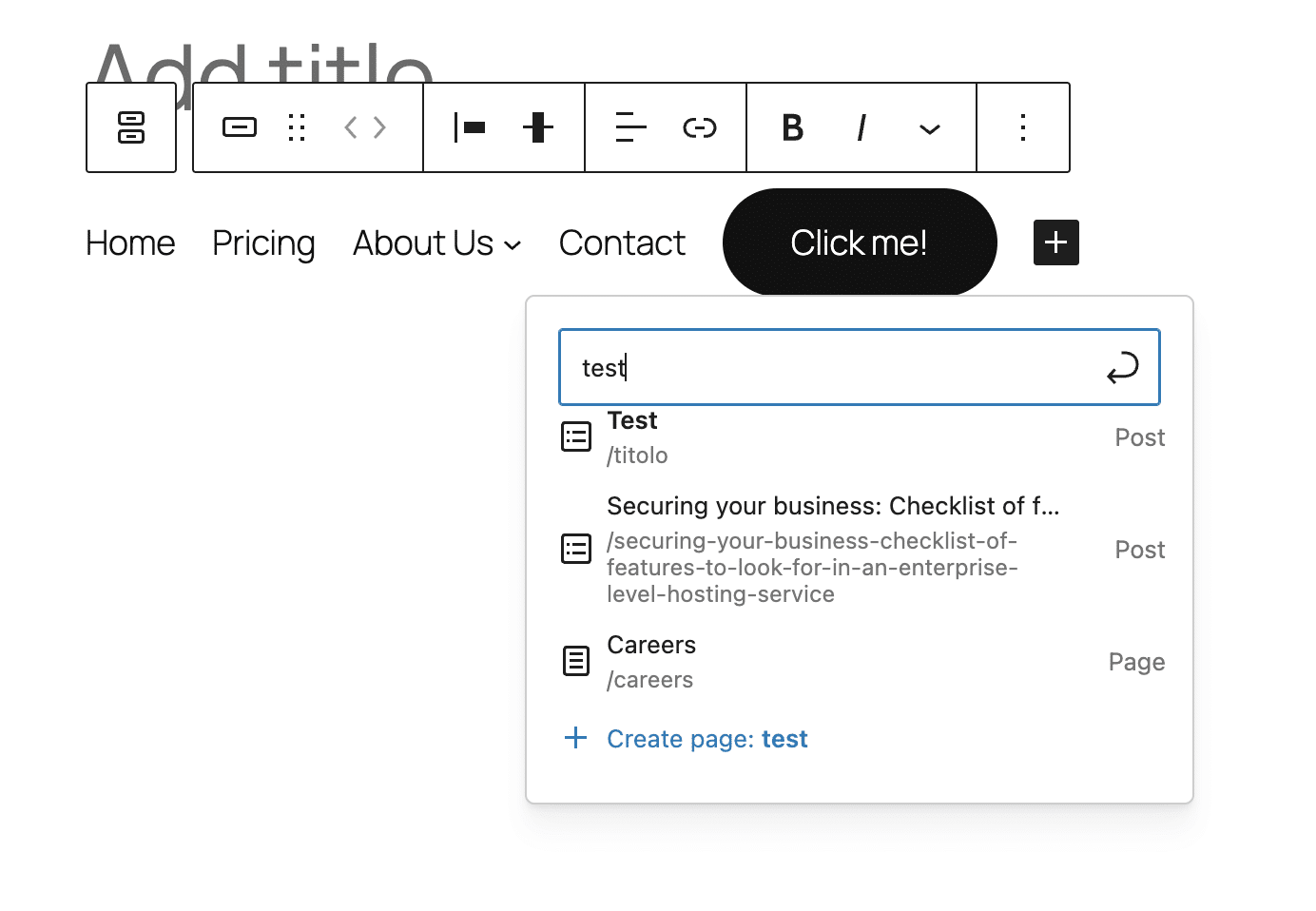
Thanks to the Block Bindings API, the URL attribute of the Navigation Link block dynamically updates when the original URL changes, provided the link is to an entity, such as a Page or Post.
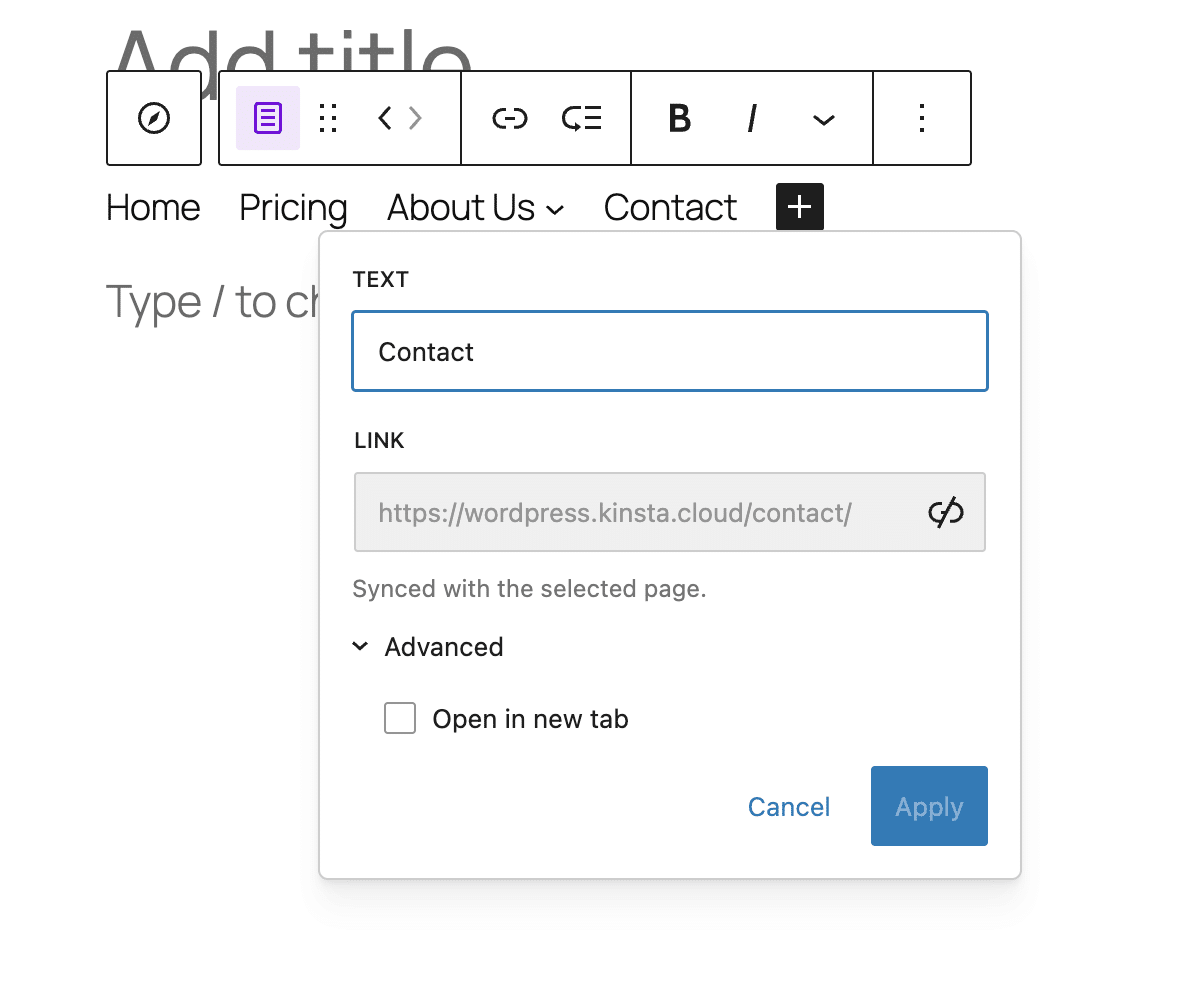
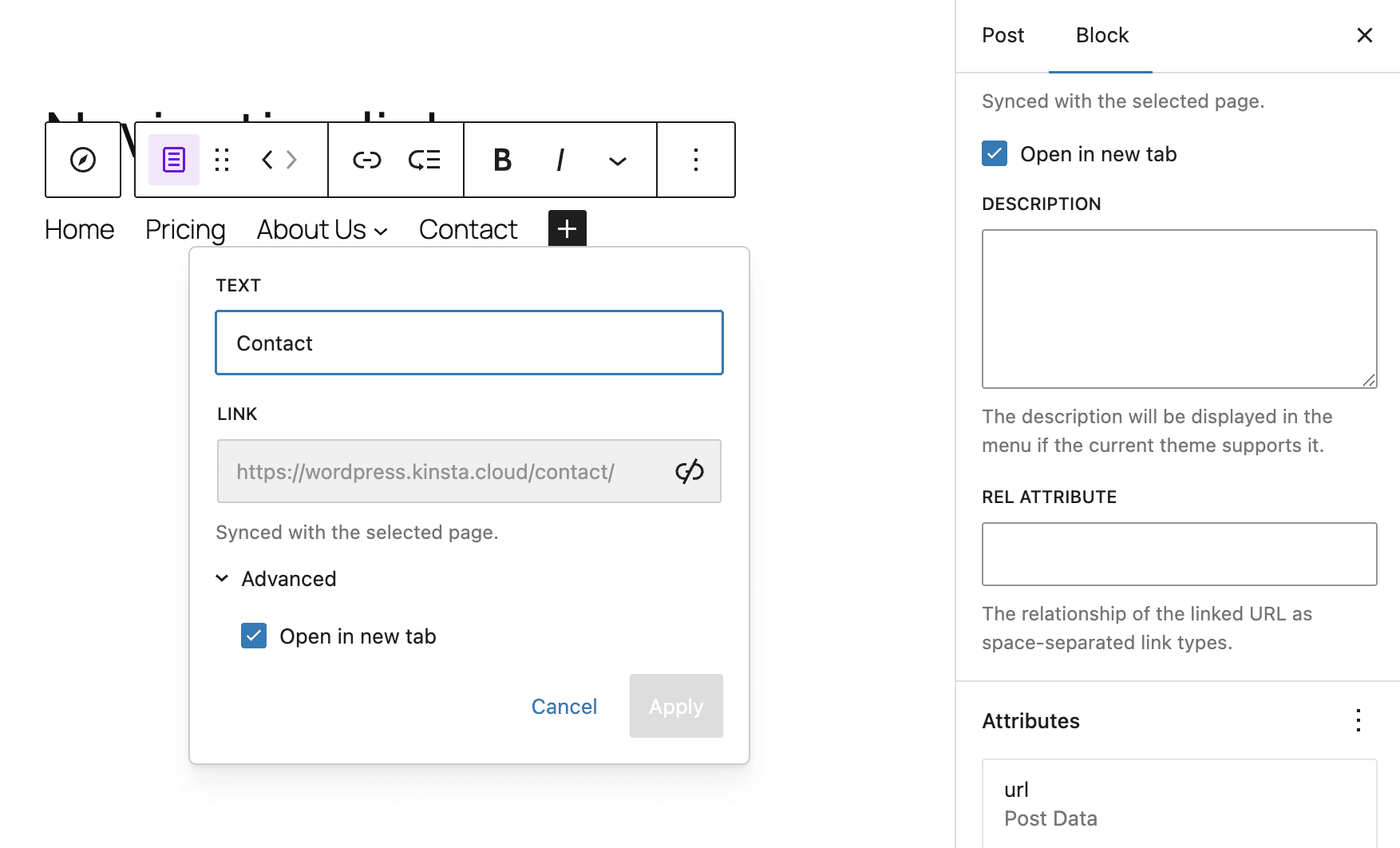
A new toggle option in the Navigation Link block settings sidebar now allows users to configure navigation links to open in a new tab. Previously, the Open in new tab option was only available in the context menu modal link. With this addition, the option is easier to locate, as it is positioned next to all the other settings in the sidebar.
You can now set a transparent background for the Navigation Menu block from the editor interface. Before WordPress 6.9, you had to use custom CSS code to achieve this effect.
Stretchy Heading and Stretchy Paragraph block variations
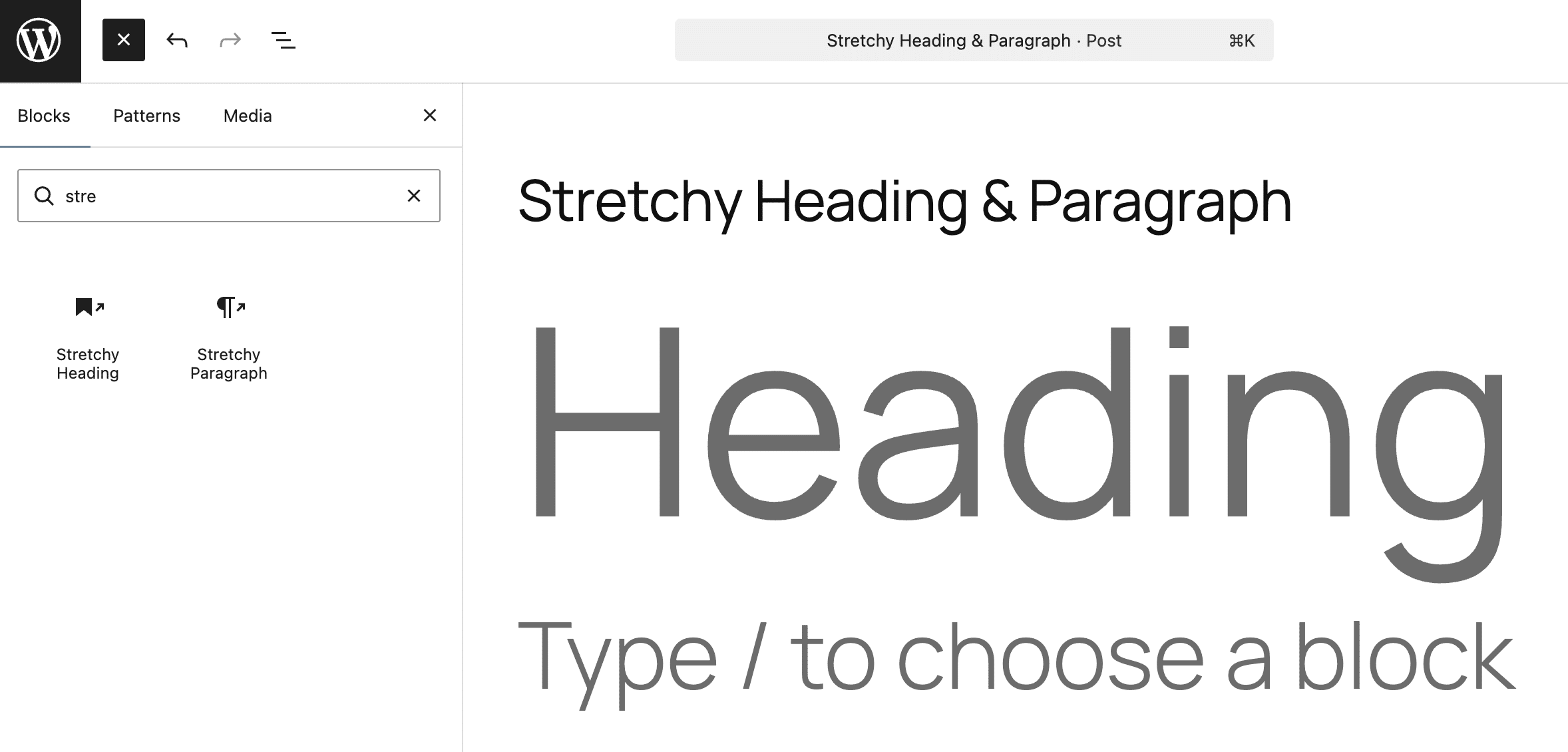
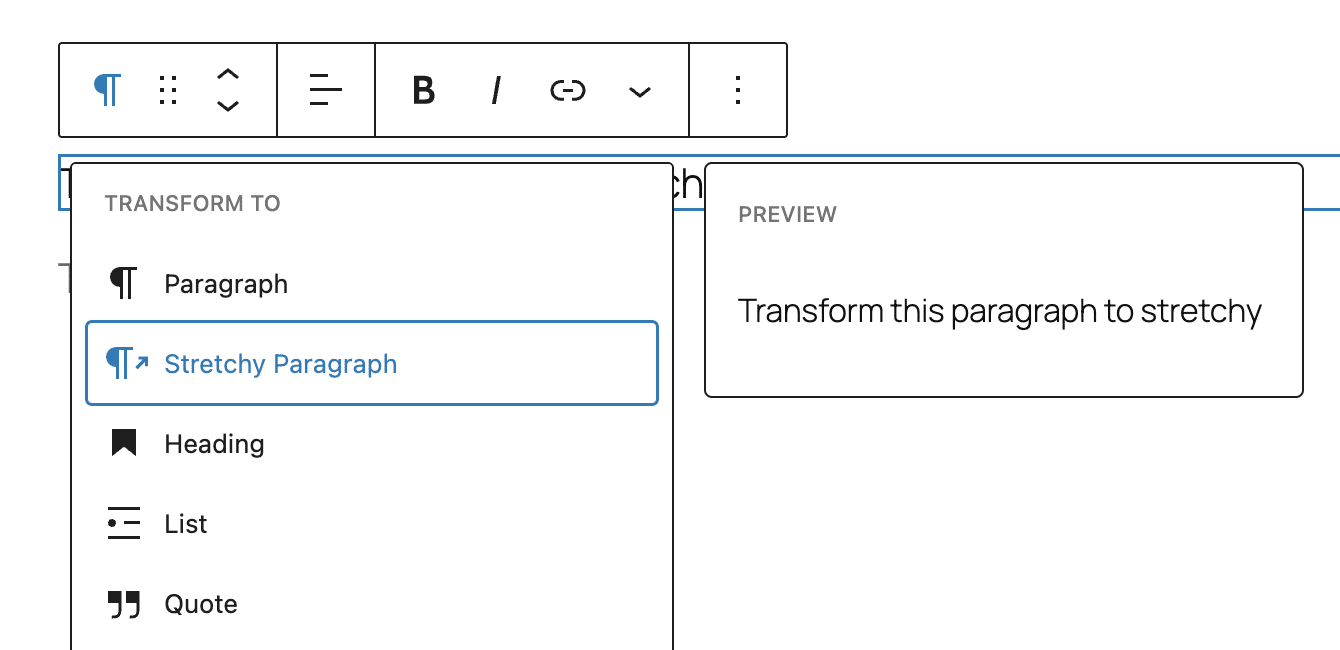
The Stretchy Heading and Stretchy Paragraph blocks are two new variations that automatically stretch text to fit the full width of the container.
You can insert the two variations in two different ways: directly from the Block inserter or from the dropdown menu of the Heading and Paragraph block toolbar.
Poster image support for the Cover block
Thanks to a new poster-image component, the Cover block now supports poster images. This is particularly useful for large videos and for users with slow connections, improving the user experience.
Now that we’ve explored the major additions and improvements to core blocks, let’s examine how WordPress 6.9 facilitates team collaboration on content creation, tailored to individual responsibilities. This release introduces two powerful features that will significantly enhance collaboration and workflows inside the editor: Notes and visibility.
Commenting blocks with Notes in WordPress 6.9
You can now add notes to blocks in the Post editor. This feature enables asynchronous collaboration between team members, allowing you to track activities and streamline editorial workflows.
Since this is a feature specific to the post editor, users must have the edit_posts capability for that post to add notes. This means that:
- Logged-in users with the Admin or Editor role can view all notes on all posts.
- Authors and Contributors can view and edit the notes they have created.
- Subscribers cannot view notes.
To add a new note, click on the Add Note button in the block toolbar.
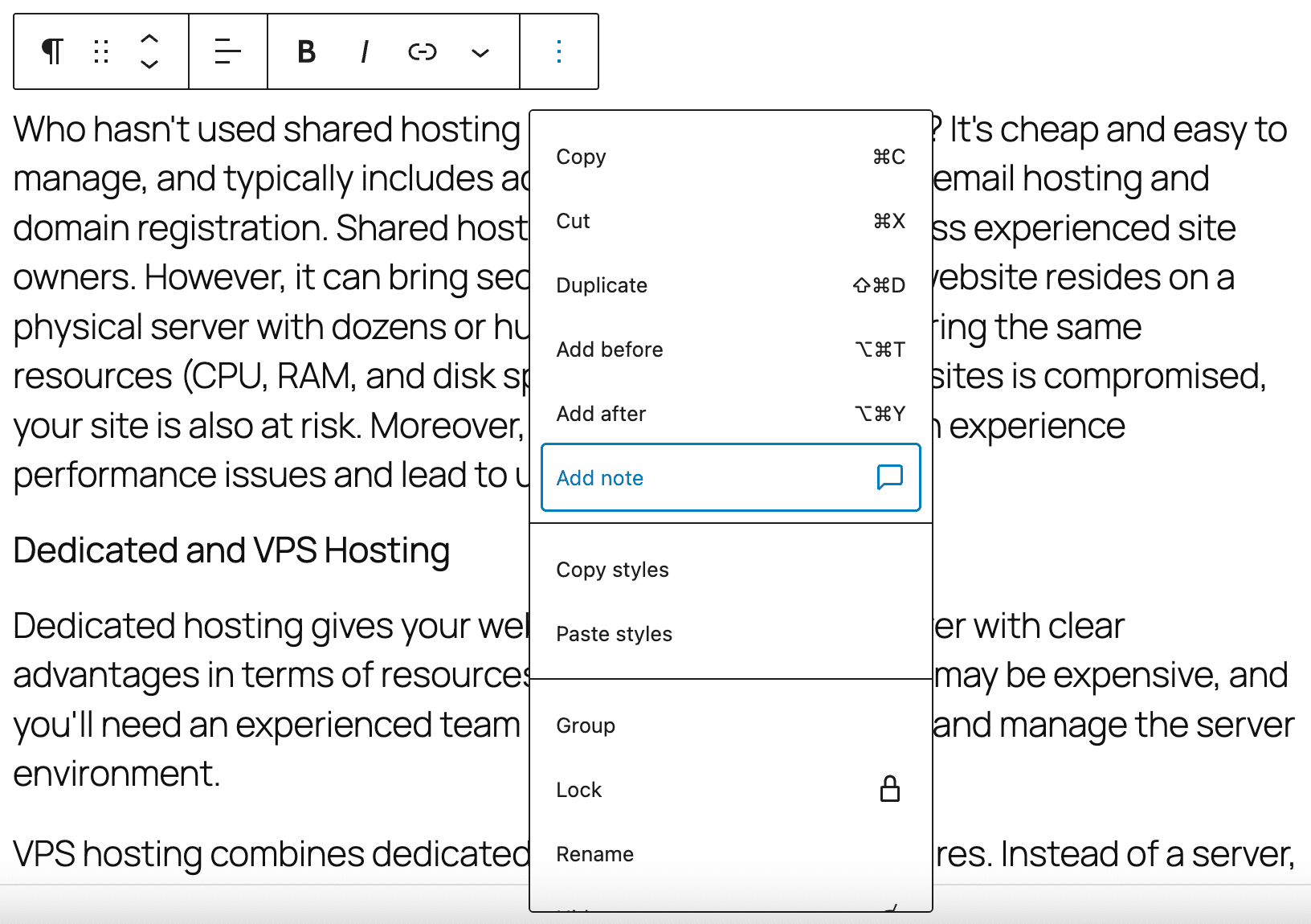
This displays a new Notes sidebar and a note panel to add your note.
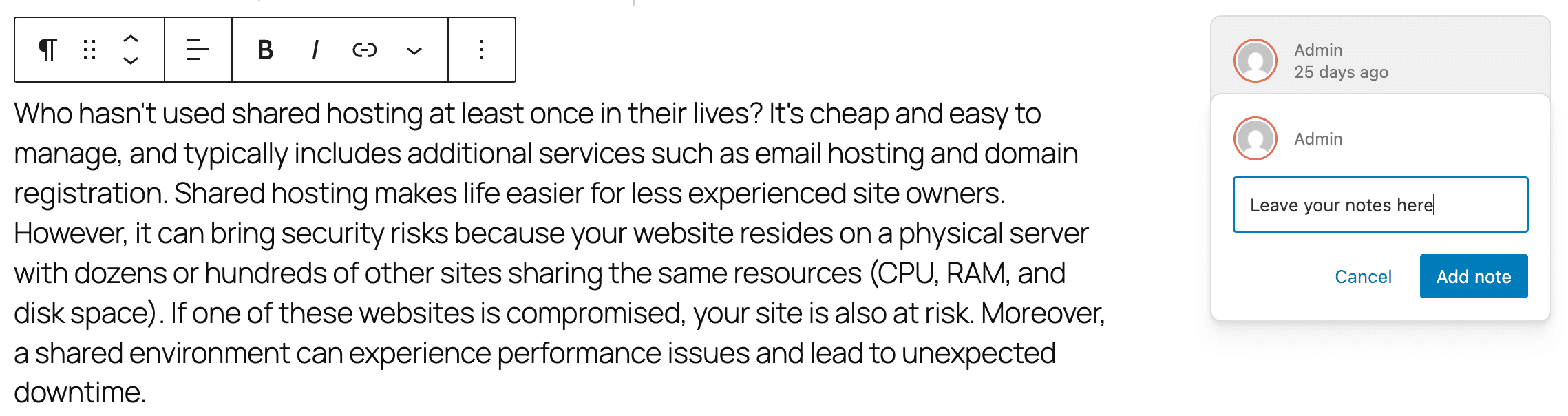
You can toggle the Notes sidebar on/off by clicking on the All Notes button that appears after you have added your first note.
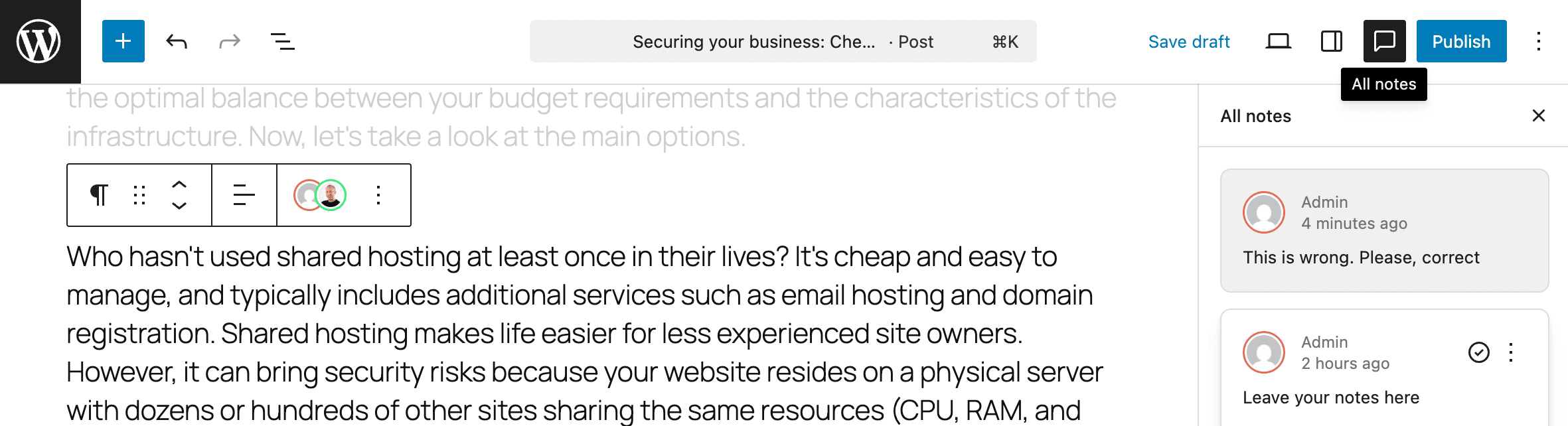
Notes can be resolved, modified, or deleted.
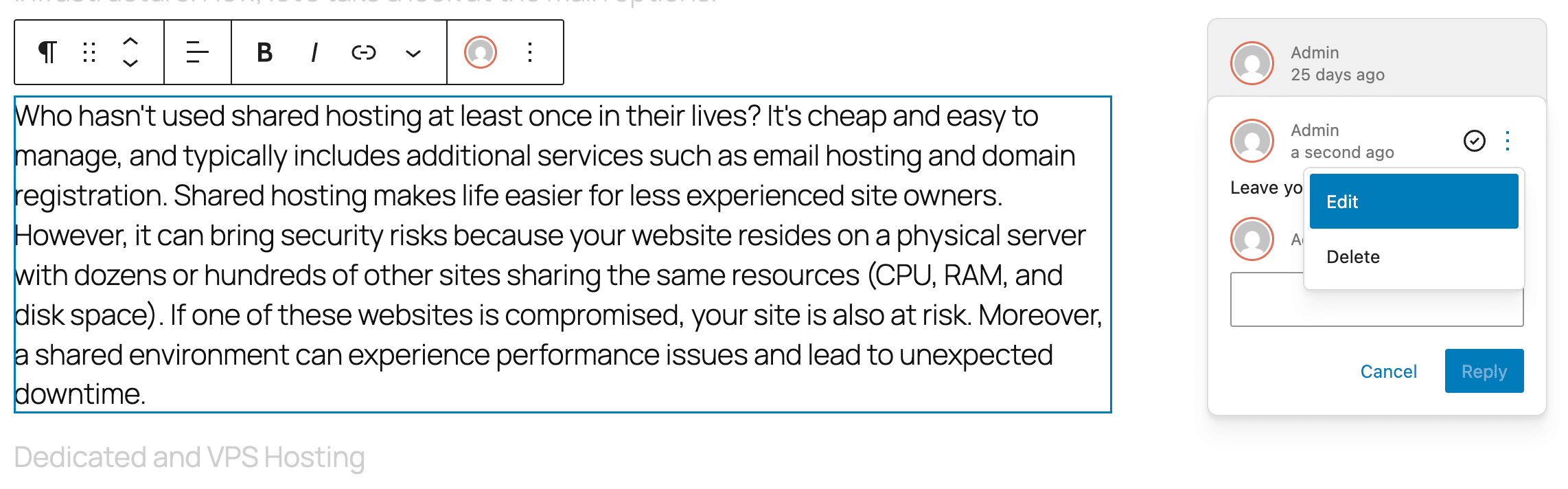
Notes are enabled by default for posts and pages, but you can also enable them for your custom post types thanks to the new notes support. Here is a simple example of how to add Notes support for a custom post type:
register_post_type( 'book', array(
	'label' => 'Books',
	'public' => true,
	'show_in_rest' => true,
	'supports' => array(
		'title',
		'editor' => array( 'notes' => true ),
		'author',
		'excerpt',
	),
) );
Adding note support when registering a custom post type is pretty straightforward. However, adding note support to an existing post type is a bit trickier. Fortunately, core developers are already working to streamline the process, and we can expect updates to this feature in future WordPress releases.
Technically, notes are comments and are stored in the wp_comments table with the comment_type field set to note. To access notes programmatically from a plugin, use the get_comments() function as follows:
$args = array(
	'post_id' => $post_id,
	'type'    => 'note',
);
$notes = get_comments( $args );
Note that when trying to retrieve notes from a plugin, you must specify the note type because note-type comments are excluded from query results by default.
When a user adds a note to a block, the post’s author receives a notification email. These emails are enabled by default, but can be disabled from the WordPress dashboard by navigating to Settings > Discussion > Email me whenever and deselecting the new option Anyone posts a note.
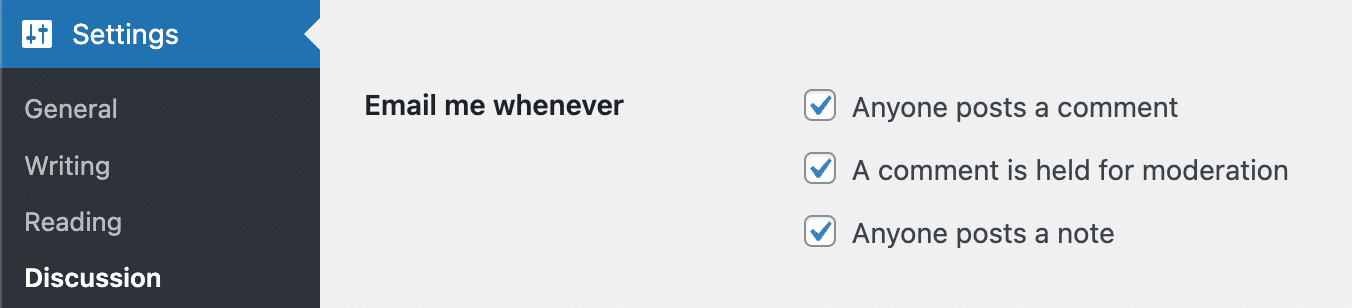
Developers can control these notifications programmatically by using the notify_post_author filter.
Please note that this is the initial version of the notes feature. The development team is already working on the next iteration for WordPress 7.0.
Furthermore, in WordPress 6.9, notes are only available at the block level. Inline notes should be implemented in future iterations.
Refer to the developer notes and the Block Commenting iteration for WordPress 6.9 for a more in-depth analysis of the new Notes features with several code examples.
Block visibility control
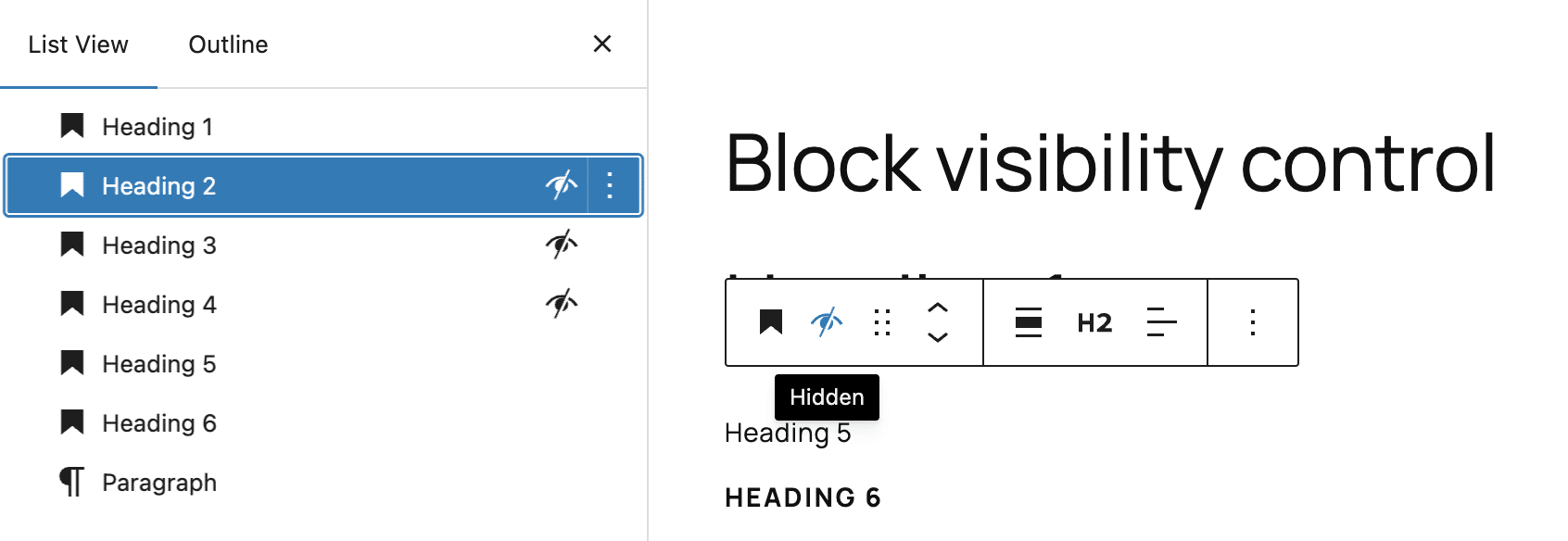
WordPress 6.9 introduces a new block API and a new interface for controlling block visibility on the frontend and in the editor.
This feature is useful for hiding blocks that are not yet ready to be displayed, and it complements the new Notes feature perfectly. Now, teams can collaborate on creating pages and finalize sections only when they are complete and approved.
To try out the new feature, create a new post or page and add one or more blocks or patterns. Then, hide the block or pattern from the Block Settings dropdown menu or List View, and check the effect in both the editor and the frontend.

Command palette extended to the admin dashboard
The Command palette is now available in both the site editor and the WordPress dashboard (Ctrl+K or Command+K) to make navigation easier and faster. Type in the palette to search, navigate the dashboard, or perform actions directly. For example, typing “add” will bring up a menu of actions such as Add Post, Add Media File, Add User, and more.
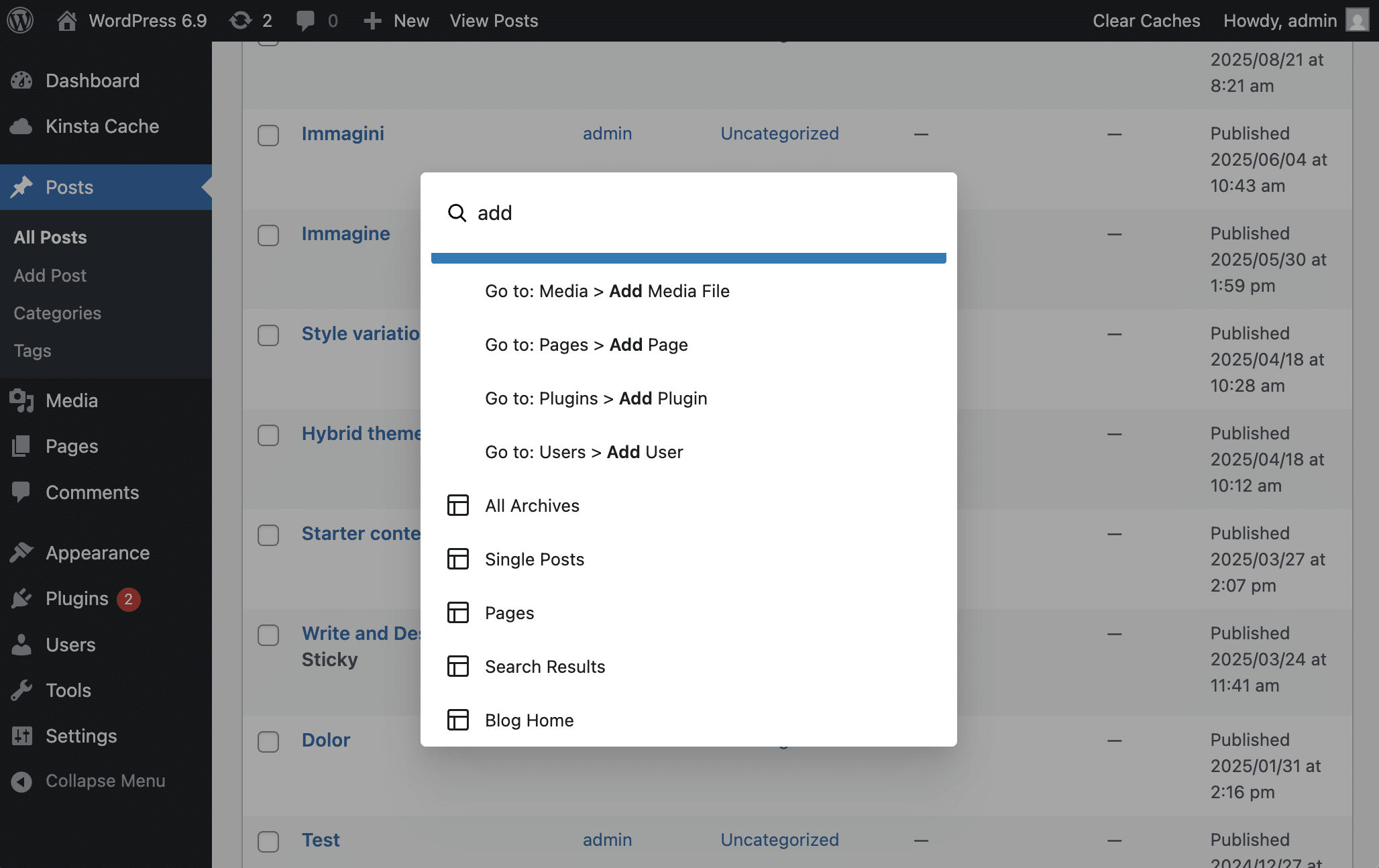
Several proposals have been made to extend and improve the command palette, and new commands will be added in the future. Follow the conversation in the Command Palette Overview issue to stay updated.
What’s new for developers
Now, let’s move on to the part of WordPress 6.9 that developers will find most exciting. A brand new set of APIs now enables developers to make their plugins accessible to AI systems. But that’s not all! WordPress 6.9 also brings many improvements to existing APIs, including the Interactivity API, Block Bindings, and the DataViews API.
Let’s explore the new features in detail.
Abilities API
WordPress 6.9 introduces the Abilities API, a new functional interface that provides a standardized registry, allowing plugins, themes, and WordPress core to expose their capabilities in both human- and machine-readable formats.
This centralized registry is where all functionality can be formally registered for discovery, validation, and execution consistently via PHP, REST APIs, and AI solutions.
The new Abilities API directly benefits WordPress users by allowing external services—such as AI assistants, external apps, and UI features like the Command Palette—to understand and execute WordPress actions (for example, publishing or editing) in a standardized way.
What are the benefits of this for developers?
The first benefit is clarity: An ability is a registered feature with a description, input, and output.
The second essential aspect of the new API is standardization. The API ensures that commands are formulated and understood consistently, regardless of the environment. This could be the WordPress dashboard, the block editor, an external app accessing via the REST API, or an AI assistant.
Another key aspect is workflow automation. With the Abilities API, you can create sequences of operations enabling developers to build complex automated workflows.
Developers can use the Abilities API for various purposes, including extending the Command Palette’s functionality, creating automated workflows, and more.
Once registered, abilities become accessible to AI systems, such as ChatGPT and Gemini:
The API manages registration and permissions, while protocol Adapters translate these into formats external AI systems understand. This establishes a robust connection between WordPress functionality and AI assistants, with the first-party API serving as the definitive source for exposed logic.
An ability is “a self-contained unit of functionality with defined inputs, outputs, permissions, and execution logic.”
The API provides a set of functions that allow you to manage every aspect of Abilities and Ability Categories. It also offers new REST API endpoints, actions, and filter hooks.
To register a new ability, the API provides the new wp_abilities_api_init action and the wp_register_ability function. Here is the function signature:
wp_register_ability( string $name, array $args ): ?WP_Abilitywp_register_ability accepts the following parameters:
$name(string) is a unique identifier for the ability$args(array) is an array of arguments
The function returns an instance of WP_Ability if registration was successful and null in case of failure.
Here’s an example of how to register an Ability, taken from the documentation:
add_action( 'wp_abilities_api_init', 'my_plugin_register_site_info_ability' );
function my_plugin_register_site_info_ability() {
	wp_register_ability( 'my-plugin/get-site-info', array(
		'label' => __( 'Get Site Information', 'my-plugin' ),
		'description' => __( 'Retrieves basic information about the WordPress site including name, description, and URL.', 'my-plugin' ),
		'category' => 'data-retrieval',
		'output_schema' => array(
			'type' => 'object',
			'properties' => array(
				'name' => array(
					'type' => 'string',
					'description' => 'Site name'
				),
				'description' => array(
					'type' => 'string',
					'description' => 'Site tagline'
				),
				'url' => array(
					'type' => 'string',
					'format' => 'uri',
					'description' => 'Site URL'
				)
			)
		),
		'execute_callback' => function() {
			return array(
				'name' => get_bloginfo( 'name' ),
				'description' => get_bloginfo( 'description' ),
				'url' => home_url()
			);
		},
		'permission_callback' => '__return_true',
		'meta' => array(
			'annotations' => array(
				'readonly' => true,
				'destructive' => false
			),
		),
	));
}
Here’s what this code does:
wp_abilities_api_initis the action to hook into when registering a new ability, ensuring that the Abilities API is fully initialized before attempting to register the new ability.wp_register_abilityis the function that registers a new ability. The first argument is the unique identifier of the ability (my-plugin/get-site-info); the second argument is an array of settings.labelis a human-readable label to be used in the UI (e.g., the command palette).descriptionis the description of the abilitycategoryis the ability categoryoutput_schemais an array that defines the data returned by the ability.execute_callbackis a callback function that is executed when the ability is invoked.permission_callbackis a function that is executed to verify whether the user or agent has permission to execute the ability.metais an array of optional metadata.
Developers will find more details with many code examples in the following resources:
Block Bindings API improvements
WordPress 6.9 introduces several improvements to the Block Bindings API.
First, support for the Block Bindings API has been expanded to include other blocks.
- The Data block now accepts any date, regardless of the post’s publication or update date. This was made possible by adding the new
core/post-datadata source. You can try it yourself by adding a Date block to a post and assigning it a custom date. Then, add another Date block and select the Post Date variation. Then change the publication date, save the post, and check the differences. For technical details, please refer to the PR #70585. - WordPress 6.9 also adds support for the Image block’s caption attribute in pattern overrides.
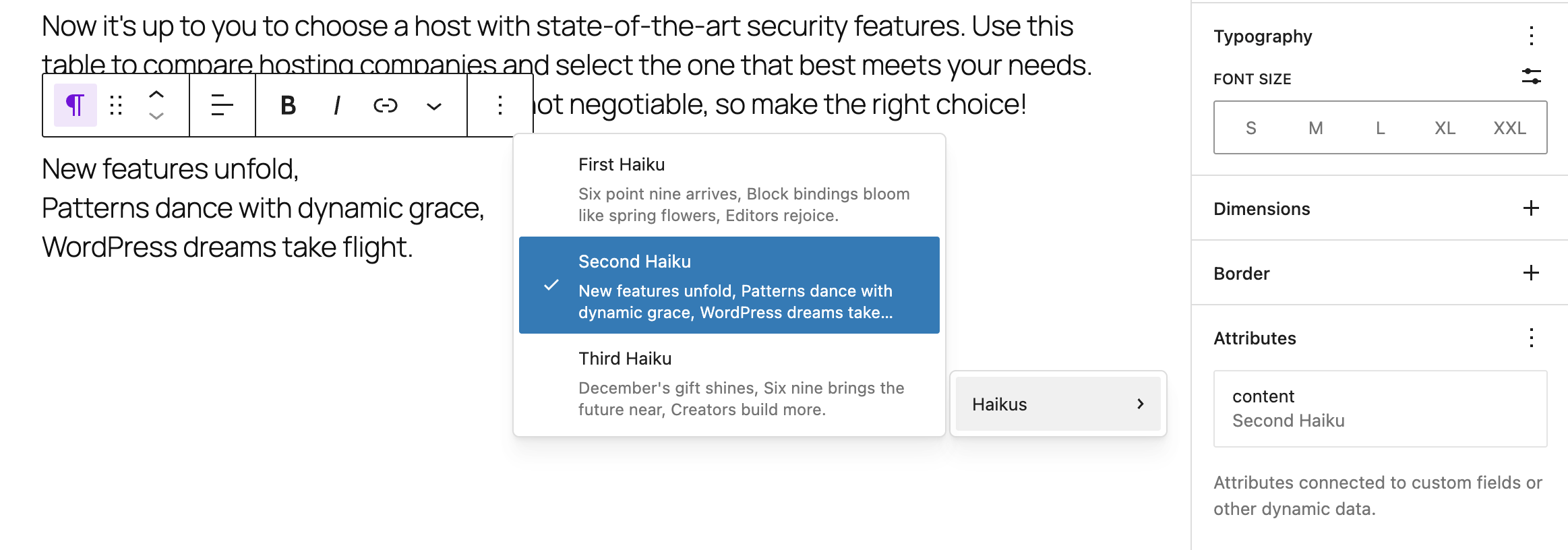
The editor’s UI has been enhanced to show different Block Bindings sources. Users can switch between data sources and bind or unbind attributes in just a few clicks (see image below).
WordPress 6.9 also introduces a couple of interesting changes for developers.
A new block_bindings_supported_attributes_{$block_type} filter has been added to the API for use on the server side. This filter allows you to specify which block attributes can be connected to a custom data source.
On the client side, you can now register custom sources using the getFieldsList method in the source registration function.
The dev notes provide a valuable block of code that you can copy and paste into your browser’s console to view the improved Block Bindings UI.
The following image shows the new source selector for a Paragraph block.
Enhancements to DataViews and DataForm
The DataViews and DataForm APIs provide a modern, standardized way to view and manage structured data, such as lists of posts, pages, or media.
The two APIs serve different purposes.
- The DataViews API is designed for viewing and navigating data. It enables you to create views, including tables, grids, and lists. You can also search, filter, and sort data with it.
- The DataForm API is designed for modifying the elements of a dataset.
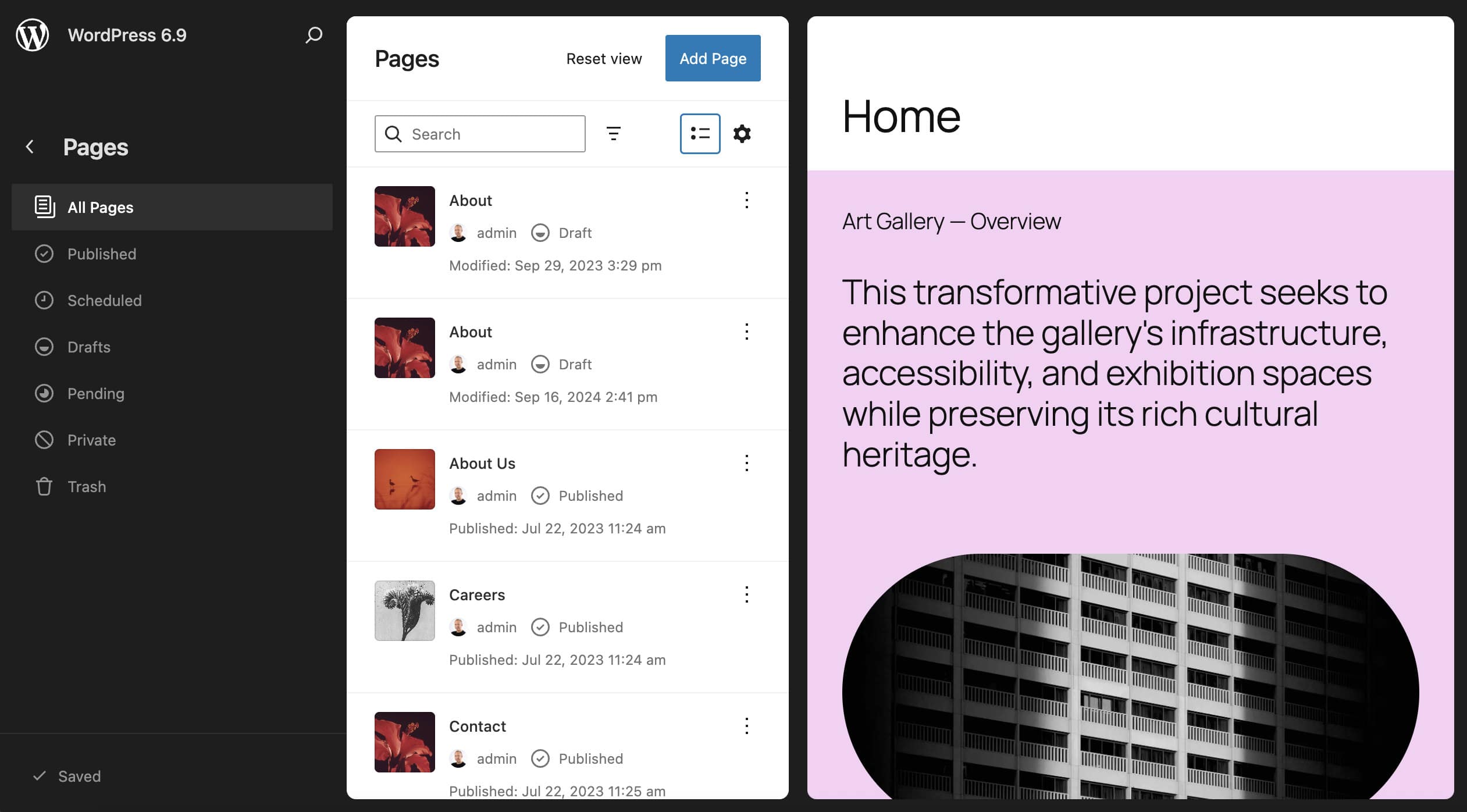
With WordPress 6.9, these two APIs receive several improvements. Below is a list of the main additions:
- The DataViews gains new fields, controls, and operators. Among the various additions, you’ll find new media, boolean, email, and array field type definitions, new
checkboxandtoggleGroupEdit controls, new filter operators, and much more. - The validation system has been completely overhauled. All fields now support “the
requiredandelementsrule, as well as defining custom validation via the custom function.” - In addition to the
datetimefield type, the DataViews now support thedatefield type. This allows you to display items based solely on the date. This addition also enables filtering by date using the newCalendarcomponent. - The new release also adds
DateCalendarandDateRangeCalendarcomponents. - The table layout has been improved further. It is now possible to select multiple items by using Control/⌘ + click.
- The new
groupByFieldproperty enables you to visually group data based on field values, making it easier to organize data. This feature is available for both grid and table layouts. - WordPress 6.9 also introduces performance improvements to DataViews. Before version 6.9, the
FeaturedImageViewcomponent used in DataViews loaded images at full size. This meant that sites with many large preview images had to load several megabytes of images. Starting with 6.9, however, the grid layout uses responsive images, which significantly improves backend performance for sites that use a large number of images.
Other noteworthy changes to DataViews include:
- Introduced locked filters that allow viewing the effects of filters without modifying them. This is useful for pre-configured views.
- A new Edit control has been implemented for the
datefield. - The DataViews empty state can now be customized, allowing you to customize the message or provide a React node for further customization.
For a complete list of additions and changes to the DataViews and DataForm APIs, please refer to the dev notes and PRs #70567 and #70578.
Enhancements to the Interactivity API
As the name suggests, the Interactivity API enables developers to create interactive blocks that react in real time to user interactions. In short, this is a tool for building rich user experiences and making sites attractive, dynamic, and engaging.
First introduced in WordPress 6.5, the Interactivity API receives significant updates in this release. Below are some of the most interesting additions.
Adding IDs to Interactivity API directives
You can now add IDs to Interactivity API directives. This feature is useful because it allows you to work around the limitation of not being able to use multiple attributes with the same name in the same HTML element.
To assign an ID to a directive, append a triple-dash (---) followed by the ID, as in the following example:
Script modules and stylesheets loading
This change enables more comprehensive and fluid client-side navigation. WordPress now replaces style sheets and loads script modules “after” client-side navigation. This has significant implications.
- The new algorithm reuses style sheets shared with previous pages, loads new ones not present in those pages, and disables unused ones. This minimizes network requests.
- Script modules are also managed more efficiently thanks to the new
importmapdefinitions. - Finally, prefetching preloads all the style sheets and script modules that have not yet been preloaded.
Router regions inside interactive elements
Another addition is support for router regions inside interactive elements. Previously, the router region — the area of the page that updates when the user clicks on a link — had to be a root interactive element. This meant that the content would not update if the router region was located within another interactive element. WordPress 6.9 changes things, enabling developers to place router regions within interactive elements.
New attachTo property for router regions
Router regions now accept a new attachTo property that can be defined inside the data-wp-router-region directive. Thanks to this new property, the routing region can now be rendered even when it is not present on the initial page. The value of attachTo needs to be a CSS selector pointing to the parent element where the router region will be injected. Here is an example from the dev notes:
I'm in a new region!
getServerState and getServerContext synchronization
The getServerState() and getServerContext() functions have been improved. Now, when these functions track a value that does not change during client-side navigation, the values are reset. Additionally, only properties on the current page are preserved, while those from previous pages are removed.
For a more in-depth overview of the improvements to the Interactivity API with code examples, check Interactivity API’s client navigation improvements in WordPress 6.9 and Changes to the Interactivity API in WordPress 6.9.
For a comprehensive overview of the Interactivity API, refer to our in-depth guide.
Additional updates for developers
WordPress 6.9 introduces a variety of updates for developers. Here is a quick list of dev notes:
Looking ahead: from WordPress 6.9 to 7.0
WordPress 6.9 introduces meaningful upgrades across the block editor, APIs, and collaborative workflows, updates that will continue evolving in 7.0. As the platform becomes more dynamic and more deeply connected to AI-driven tooling, having performance-forward hosting becomes increasingly important. If you’re preparing for 6.9 or planning for what’s coming next, explore Kinsta plans to power your WordPress projects with confidence.

Kinsta
Carlo is a passionate lover of webdesign and front-end development. He has been playing with WordPress for more than 20 years, also in collaboration with Italian and European universities and educational institutions. He has written hundreds of articles and guides about WordPress, published both on Italian and international websites, as well as on printed magazines. You can find him on LinkedIn.


